
JeffPub features
Make flyers, newsletters, brochures, business cards, and certificates that look the way you planned, on screen and on paper.
- Free and open source
- No account or subscription
- Works offline
- Windows, Mac, and Linux
Version 0.27.0, released
What JeffPub does
Layouts that hold together
Text flows from box to box across columns and pages. Guides, grids, and master pages keep every page lined up.
Start from a design
Built-in templates and more than 90 color schemes, plus your own templates under My Templates.
Pictures, shapes, and icons
Place photos, SVG drawings, and even a page of a PDF. Pick from 1,539 icons that stay sharp at any size.
Mail merge
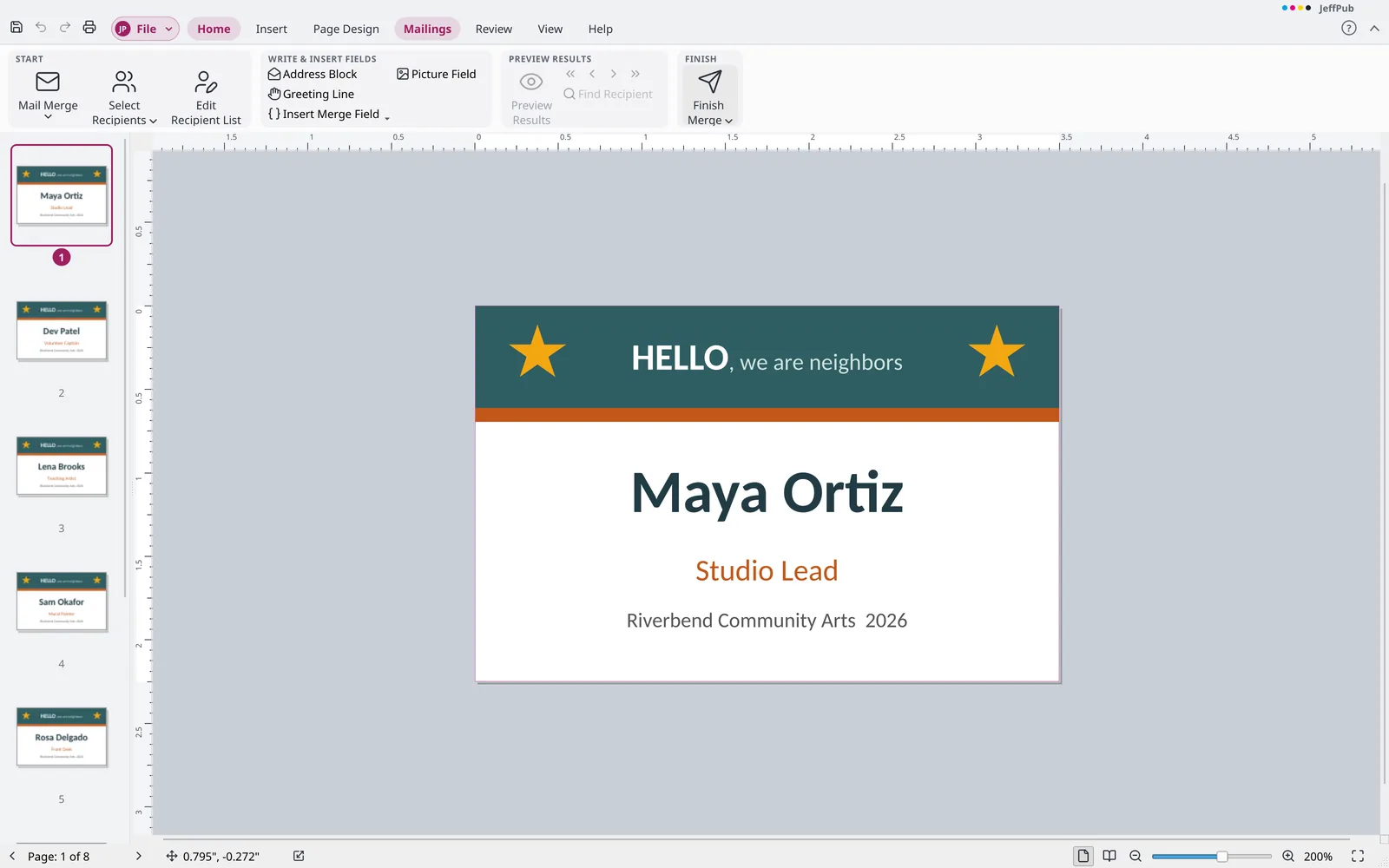
Put names and addresses from a spreadsheet or contact list on letters, labels, and cards, then print them or save them as one PDF.
Ready for the print shop
PDF/X export, CMYK and spot-color separations, and a check for low-resolution pictures and missing fonts before you send.
Publish beyond paper
Save a publication as an e-book (EPUB), a single web page, SVG drawings, or pictures.
In pictures
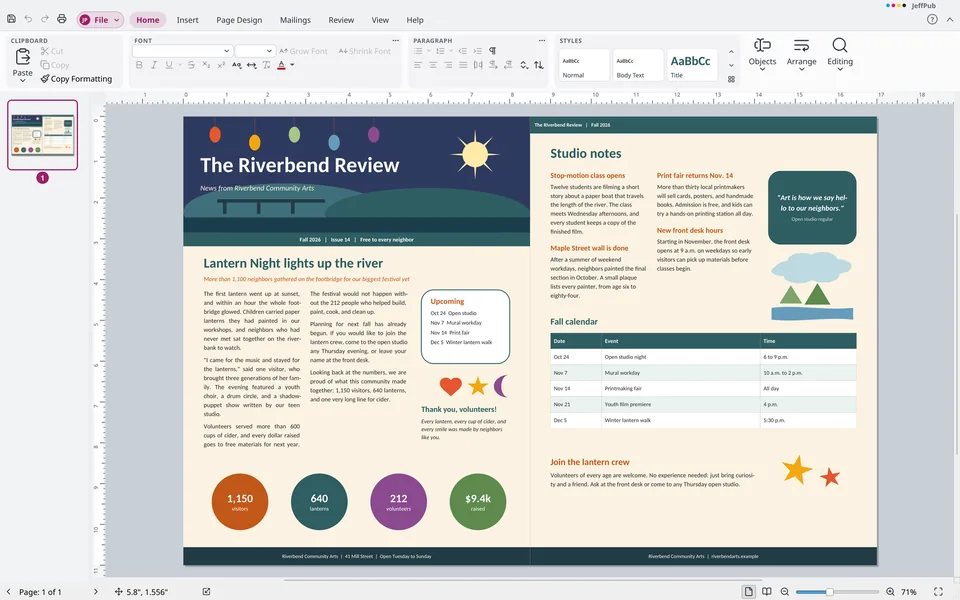
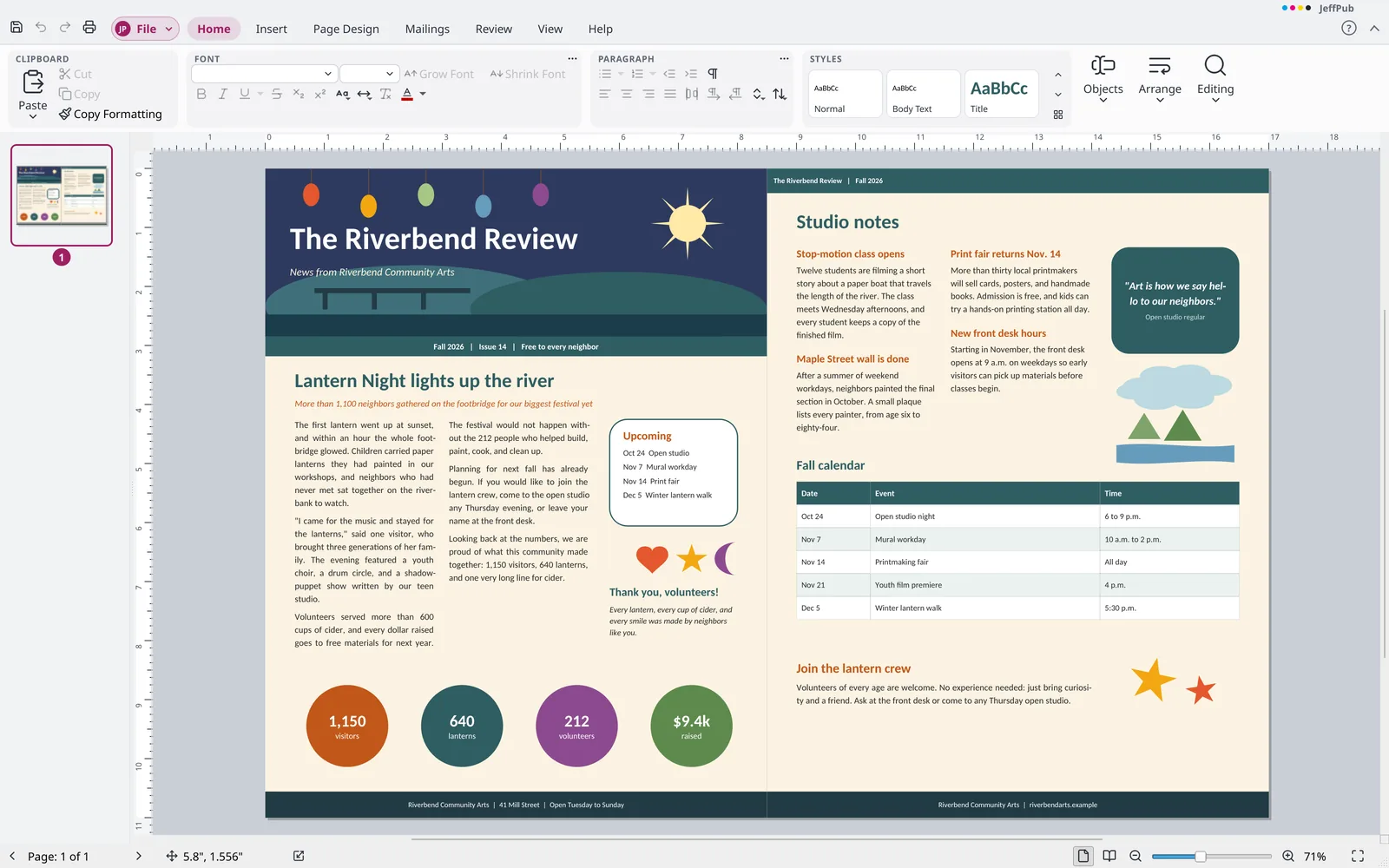
A newsletter with a masthead, columns, and shape art 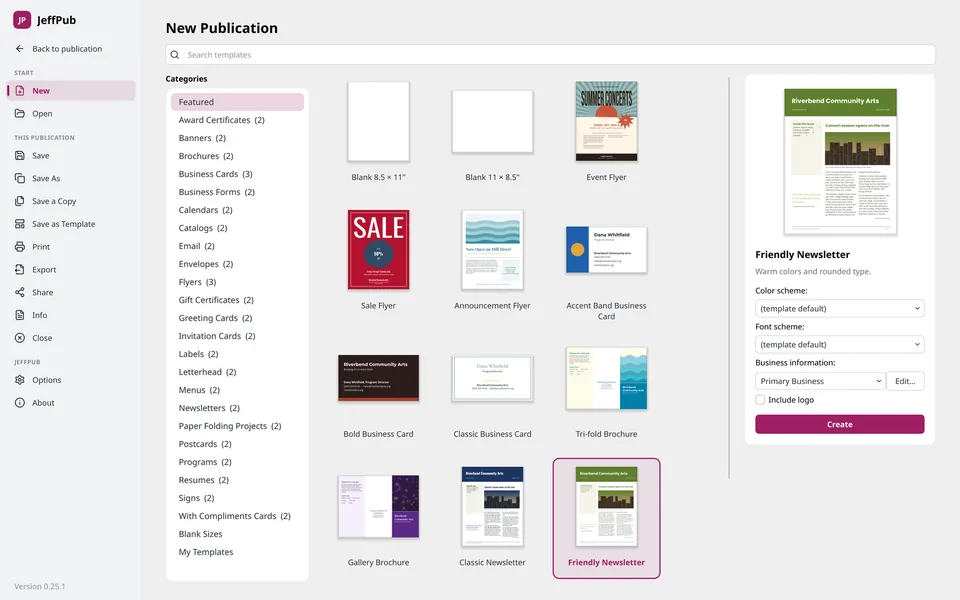
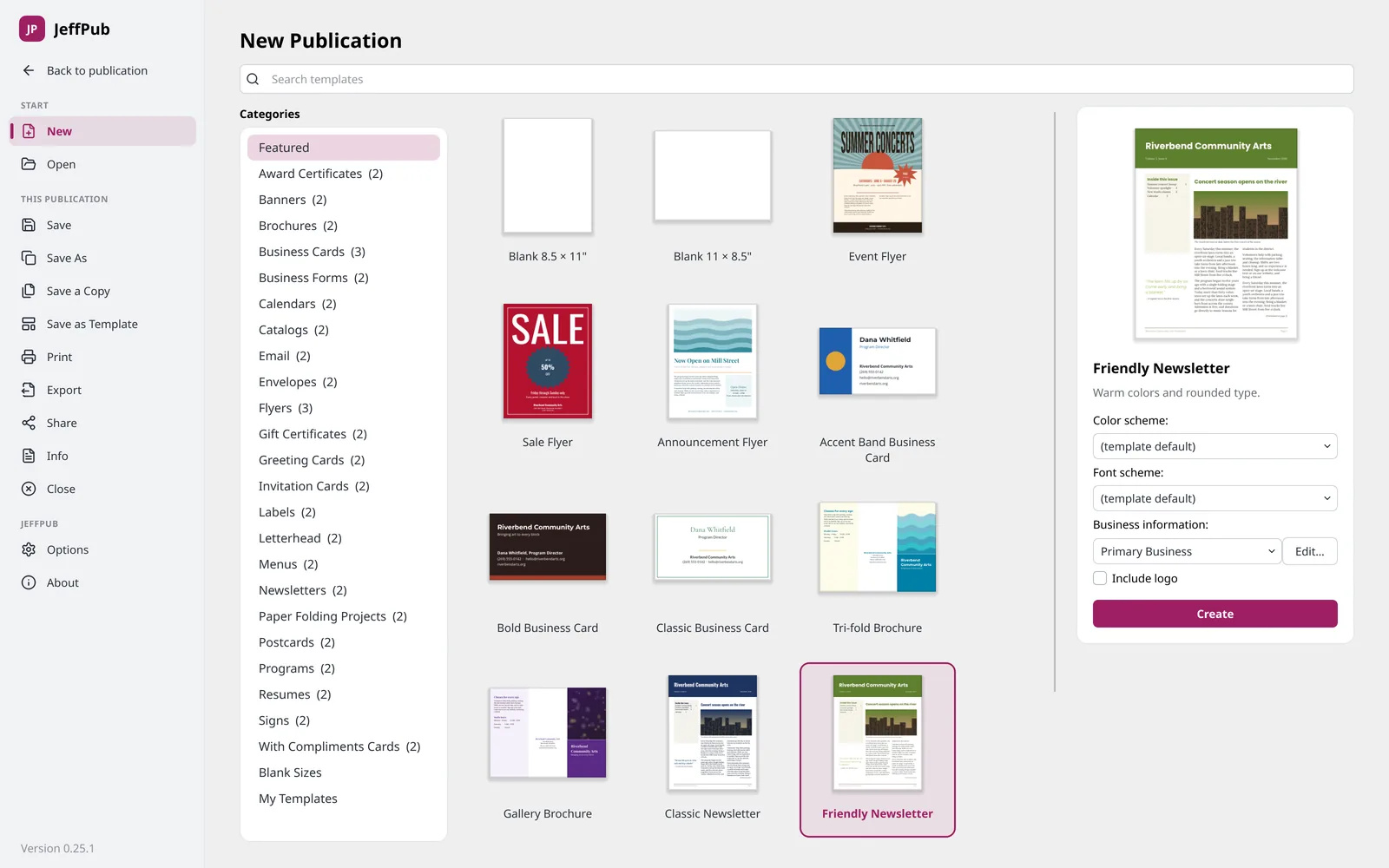
Start from built-in templates for flyers, cards, and more 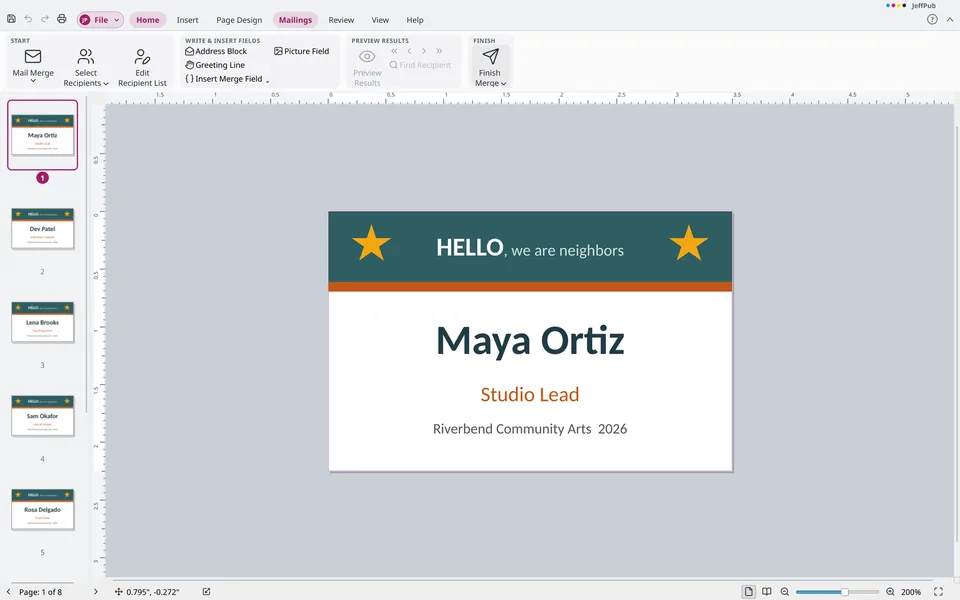
Merge names from a list onto name tags 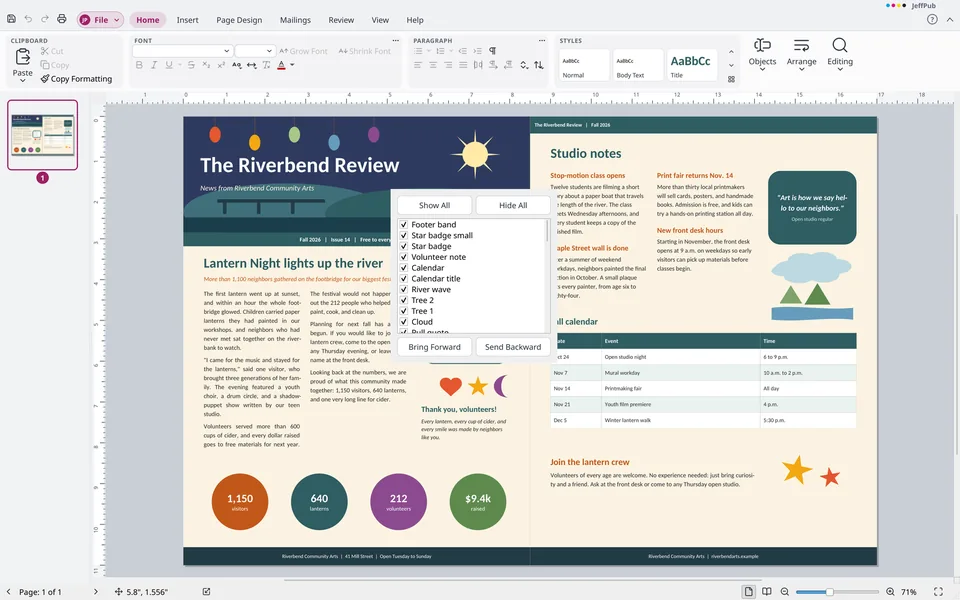
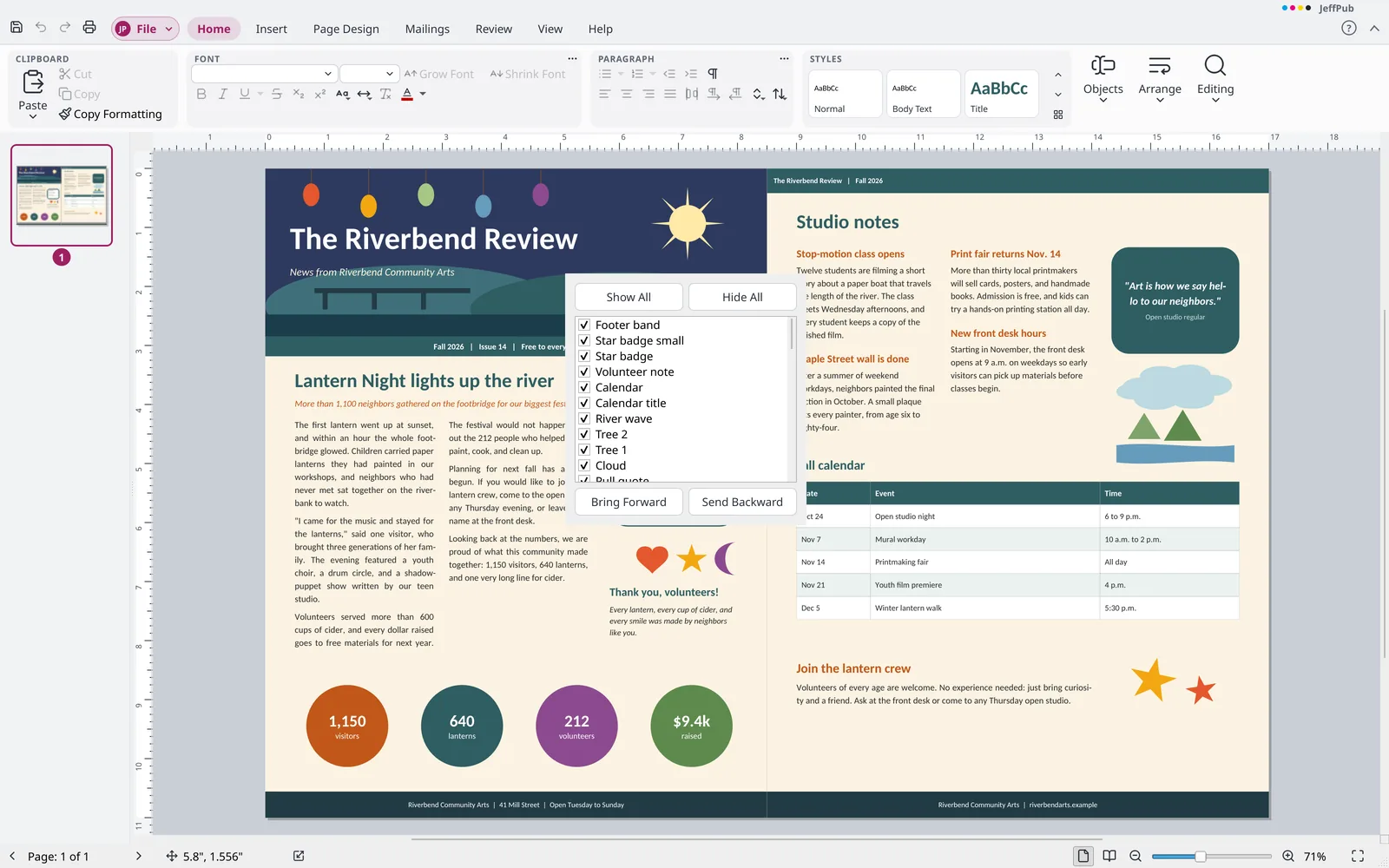
List, hide, and reorder every object on the page
What sets JeffPub apart
- Saves
.pubfiles, not just opens them Most apps that read.pubpublications can only open them. JeffPub edits them and saves them back as.pub, so you can keep working with anyone who still uses the format. - An open file format A
.jpubfile is a ZIP of readable JSON and your original pictures, with a published specification, so your work is never locked in. - E-books from your layout Turn a publication into an EPUB that reflows with chapters and contents, or one that keeps every page exactly as designed.
- Barcodes built in Book ISBNs with price add-ons, EAN, UPC, Code 128, and Code 39, drawn as sharp vector bars you can still edit.
- Tools for longer pieces Footnotes, endnotes, and an automatic table of contents, right in a publication.
Files JeffPub works with
- Opens
.pub(1998 and later) and.jpub- Saves
.puband.jpub- Exports
- PDF (including PDF/A and PDF/X), EPUB, a web page, SVG, PNG, JPEG, GIF, TIFF, and BMP
Every feature
The complete list, grouped the way JeffPub's menus and ribbon are. Open a group to see what is in it.
Beyond the usual desktop publisher (18)
- Runs on Windows, macOS, and Linux. The Mac app isn't signed yet, so macOS asks before opening it the first time.
- Free and open source (GPL-3.0), with no license fee, subscription, or account.
- Install without administrator rights, or run with no installation at all using the Windows
.zipor the Linux AppImage. - Save publications in an open, fully documented file format: a
.jpubfile is a ZIP of readable JSON and the source pictures. Open and save.pubfiles as well. - Place barcodes as editable vector bars: book ISBNs with or without a price add-on, EAN-13, UPC-A and EAN-8 with add-ons, Code 128, Code 39, and QR codes. ISBNs are hyphenated as the ISBN agency assigns them, for every country.
- Insert WebP and SVG pictures.
- Insert a PDF page as a picture, choosing the page from previews of all of them. It prints and exports to PDF and SVG as sharp vectors, with its text as letter outlines.
- Place a password-protected PDF as a picture: the app asks for the password, asks again if it is wrong, and stops if you cancel.
- Available for macOS (Apple silicon and Intel). It isn't signed yet, so macOS asks before opening it the first time.
- Export PDF/X for commercial printers, with a print check for low-resolution pictures and missing fonts before export. Black overprinting follows the publication's Commercial Print settings.
- Insert an automatic table of contents from the Heading 1-3 styles, with page numbers from the layout and dot leaders, updated with one click (Insert > References).
- Add numbered footnotes and endnotes (Insert > References). Footnotes sit at the bottom of the column under a short rule and split across columns when too tall; endnotes appear under "Notes" after the story. Note text is edited in a dialog.
- Insert > Icons offers 1,539 vector icons from the open-source Lucide set, searched by name or keyword. Each becomes an editable shape that scales with its line weight and stays sharp in print and PDF.
- Save pages as SVG drawings (Save as Picture), with letters as outlines. SVG pictures print and export to PDF as sharp vectors, and Convert to Shapes turns an SVG picture into editable shapes.
- Export EPUB for e-book readers (File > Export > Save as E-book), either as reflowing text with chapters, contents, pictures, tables, and notes, or page for page in fixed layout with searchable text.
- The
.jpubformat has a published specification. - Merge to PDF: a mail merge saves one PDF with every recipient's pages (Mailings > Finish).
- Suite-wide settings: the theme, display language, user name and initials, update choices, and statistics choice are kept once, so changing one changes it everywhere.
File (backstage) (43)
Info
- Protect a
.jpubpublication with a password. The app asks for the password when you open the file and asks again if it is wrong, and saved versions, backup copies, and copies made with Save a Copy stay protected. - Business Information: create, edit, and switch between named sets with name, tagline, contact person, title, address, phone, fax, email, and logo.
- Commercial Print Information: choose the color model (RGB, process CMYK, spot colors, or process plus spot) and manage embedded fonts.
- Run the Design Checker from Info.
- View and edit the publication title, author, subject, keywords, and comments, plus categories, company, manager, and custom properties, on the Info page. The properties are kept in the
.jpubfile, andCtrl+Zundoes an edit. - Mark a publication as final on the Info page: it is saved, then opens read-only with a note. A
.pubfile cannot hold the mark. - Inspect the publication to find and remove comments (with their authors' names), personal information in the properties, business information, mail merge data, and objects on the scratch area.
- Keep named local copies of a publication without a cloud service. Open a version as a copy, or go back to it, from the Info page.
New
- Browse a template gallery with live previews in categories such as Brochures, Business Cards, Calendars, Flyers, Newsletters, and Postcards.
- Customize a template before creating it: color scheme, font scheme, business information, and template options such as including the logo or mailing address.
- Start from a blank page size, choose more blank page sizes, or create a new page size.
- Save a publication as a template and reuse your own templates under My Templates.
Open / Save / Save As / Close
- Open
.jpubpublications and recent publications, with pinning. - Opens
.pubfiles from 1998 on, including linked text boxes, tables, pictures, and master pages. - Save as
.pub, keeping pages, master pages, linked text boxes, character and paragraph formatting, shapes, pictures, tables, fills, borders, shadows, named paragraph styles, and CMYK colors. Saving reports any objects it leaves out. - Booklets, folded cards, and envelopes are saved to
.pubwith their spreads, two-page masters, and layout type, and open with all their pages. - Place pictures, shapes, and text boxes inside text: Wrap Text > In Line with Text moves an object into the text, and choosing another wrap moves it back out. Each sits on its line's baseline, and a tall one makes its line taller. Works in
.puband.jpub. - Page number fields, date and time fields in 17 formats that update, and hyperlinks in
.pubtext are read and saved. - Anonymous usage statistics are optional, with a choice at setup and first start and a switch in File > Options. They are sent once a day and contain the version, operating system, language, and how often each command is used, never files or their contents. After an unexpected close, a crash report says where the app stopped, never what was in the publication.
- Save and Save As, with automatic recovery that offers unsaved work again after a crash, and backup on save.
- Close a publication, with a prompt to save changes.
- Save a Copy while you keep working in the current file. Open read-only, as a copy, or in a new window, and use Open and Repair for a damaged
.jpub.
- Print with a chosen printer, collated or uncollated copies, and page ranges (all, current, selected objects, or custom). Print the last page first and open printer properties.
- Print one page per sheet, multiple pages per sheet, multiple copies per sheet, booklets (side-fold and top-fold), or tiled banners and posters.
- Print with a choice of paper size, one-sided or two-sided output (flipped on the long or short edge, or by hand with a message to turn the stack over), and color, grayscale, or composite output.
- Preview a print with a ruler, page navigation, zoom to 150, 200, or 300 percent with scrolling, front and back view, and an option to show numbers.
- Print crop marks, bleed marks, registration marks, density bars, color bars, and job information, and allow bleeds.
- Print separations (CMYK and spot plates), with one plate per process ink and per spot color. Tints of a spot color print as lighter ink on its plate, and spot colors are knocked out of the process plates.
- Print mail merge and catalog merge jobs.
Share and Export
- Create a PDF in standard, minimum size, high quality, or commercial press quality, with page ranges, document properties, PDF/A, and PDF/X-1a. Open the PDF after saving it. A booklet can be saved as its printed sheets, two pages to a side in folding order, or as single pages.
- Save pages as pictures in PNG, JPEG, GIF, TIFF, or BMP format at a chosen resolution.
- Export a web page as a single HTML file. Each page is a picture, so its words cannot be selected.
- Pack and Go: save for a commercial printer or for another computer, bundling fonts and linked pictures.
- Save a publication for a photo printer.
- Email the current page as a picture, or the publication as an attachment. The app creates a ready-to-send
.eml, PDF, or HTML file instead of sending through a mail program. - Create a PDF with one bookmark for each page, named for the page or "Page N". The
Create bookmarksoption is on by default. - Create a tagged PDF for screen readers, with a section for each page, titles as headings, text boxes as paragraphs, pictures as figures with their alt text, and tables as rows and cells, in the order of the page's objects. The option is on by default, is left out of PDF/X, and is kept in PDF/A.
- Protect a PDF with a password to open it and, if wanted, a second password to limit printing, copying, and changing. The PDF uses AES-256 encryption, and the unprotected PDF is never written to disk. PDF/A and PDF/X are turned off when a password is used, as those standards forbid one.
Options
- Remove personal information from a file each time it is saved: the author, who saved last, the company, and the manager are taken out of the file properties. The same option is in
Options>Saveand onInfo. - Customize the keyboard in
Options > Customize > Keyboard: search a list of every command by ribbon tab, add or remove keys, and see which command already uses a key and take it over. Reset One and Reset All restore the defaults, and the system's own keys (copy, paste, undo, select all,Tab, and others) stay reserved. - Options cover General (user name and initials, light or dark interface, display language, usage statistics, update checks), Proofing (spelling as you type, AutoCorrect, smart quotes, AutoFormat as you type), Save (recovery interval, backup copies), and Advanced (word selection, drag-and-drop text, hyphenation, measurement units, nudge amount, recent publication count).
- Check for Updates now or each time the app starts, then choose Update Now, Later, or Skip This Version. A Get beta versions choice offers early builds on a Beta channel alongside Stable. Update choices are shared with the other JeffOffice apps.
- Show or hide ribbon tabs and groups, add your own tabs and groups with any command, and rename and reorder them, with Reset One and Reset All. Add any command to the quick toolbar (up to 100, with separators, removal, and reordering), and use the right-click menu to add or remove commands, open the customize pages, or collapse the ribbon.
Home tab (8)
- Clipboard: Paste with source formatting, Keep Text Only, Paste Special, Cut, Copy, and Copy Formatting (single use or locked).
- Set the font face (scheme fonts first) and size, grow or shrink the font, clear all formatting, and apply bold, italic, underline styles, strikethrough, subscript, superscript, case changes, character spacing, and font color (scheme colors, tints, more colors, eyedropper). The Font dialog is also available.
- Format paragraphs with bullets (gallery and custom bullet character), numbering (formats and starting number), indents, special characters (show ¶), alignment (left, center, right, justify, and distribute), line spacing, and paragraph spacing. The Paragraph dialog covers indents, spacing, line breaks, tabs, and baseline alignment.
- Apply styles from a gallery, create new styles, modify styles, import styles from a publication, and create styles by example.
- Draw text boxes and add tables, pictures, and shapes.
- Arrange objects: wrap text, bring forward or to front, send backward or to back, group, ungroup, regroup, align and distribute (relative to margin guides or objects), and rotate and flip.
- Find and replace text with options for match case, whole word, and search direction. Go to a page by its number with
Ctrl+G. Select all text in a text box, select all, select objects, or select objects by type. - Press
F5to go to a page by typing its number into a window.
Insert tab (9)
- Insert blank or duplicate pages, or use the Insert Page dialog (count, before or after, blank, duplicate, or one text box per page). Catalog Pages repeat a catalog area for each item of a product list, in rows and columns, with a preview and merging to a new publication, PDF, or printer.
- Insert a table using a grid picker or the Insert Table dialog.
- Insert pictures from a file, online pictures (Openverse and Wikimedia Commons search with license info), shapes, icons, and picture placeholders. Insert barcodes: book ISBN from ISBN-10 or ISBN-13, hyphenated by the ranges the International ISBN Agency assigns for every country, with a price add-on in US, Canadian, Australian, or New Zealand dollars or pounds, or no suggested price; EAN-13, UPC-A, and EAN-8 with 2- or 5-digit add-ons; Code 128; and Code 39. Set magnification and bar height; bars and digits are vector on a white quiet zone.
- Insert building blocks: page parts (headings, pull quotes, sidebars, stories, tables of contents), calendars (by month and year, with options), borders and accents, and advertisements. Save your own with Save as Building Block; Page Parts lists them under My Building Blocks.
- Type an equation in a line and place it on the page as an object: fractions, powers and subscripts, roots, sums, integrals, brackets, accents, matrices, and symbols, with a gallery of built-in equations (
Alt+=). Equations move, resize, rotate, and take a color like any object, and print as vector shapes. - Draw text boxes, add business information fields and Text Art, and insert text, RTF, HTML, and
.docxfiles into a text box. Insert symbols (recently used symbols are kept between sessions, in the Symbol drop-down and the dialog, plus the full character map) and the date and time (formats, update automatically). Insert an object: a PDF page, an SVG drawing, or a picture; documents from other programs can’t be embedded. - Insert hyperlinks (web, email, place in this document, new document) and bookmarks.
- Insert a chart in one of 12 types with sample numbers, placed in the middle of the page. Move, resize, rotate, and undo changes to the chart like other objects. Edit its data in a grid, change the chart type, and set the chart title, legend, axes and their titles, gridlines, chart styles, and data labels. A
.jpubfile keeps the chart as an editable chart, and PDF and print output draw it as vectors. - Add a header or footer (opens the master page) and insert page numbers with position, format, and a start number from 1 to 1000. The first page number and style are saved in
.pubfiles and read back. A publication has one numbering, so a later section of a file that numbers its pages on its own isn’t kept, and opening one says so.
Page Design tab (8)
- Change Template opens a gallery of its own, with the color scheme and font scheme starting at the publication’s own. Apply another design to this publication as one undo step, or make a new publication with your text and graphics and leave this one alone. Each story goes into the new design’s box with the same role, your pictures replace its placeholder pictures in reading order, and the page size and pages follow the design. Extra Content is a pane for stories and pictures with no place in the new design: place them on the page by button, double-click, or drag, or discard them. It is saved with the publication. Tables, shapes, lines, Text Art, and groups stay behind only when they are the old design’s own and unchanged; any other goes to Extra Content whole. No pages are added for leftovers, and items on master pages and page backgrounds stay with the old design.
- Set margin guide presets or custom margins, orientation, and page size (presets, your saved custom sizes, Create New Page Size, and editing or deleting saved sizes). The Page Setup dialog sets the layout type (one page per sheet, booklet, envelope, folded card, multiple pages per sheet, labels); for several pages per sheet it sets the sheet’s side and top margins and the gaps between pages, kept apart from the margin guides, with how many fit. A new page size scales nothing: every object moves by half the change so it keeps its distance from the page center, ruler guides keep their share of the page, objects left wholly off a smaller page go to the scratch area, and Undo restores it all.
- Print several pages per sheet (business cards, labels), placed by the publication’s own side and top margins and gaps.
- Use built-in guide layouts and the Grid and Baseline Guides dialog (columns, rows, spacing, center guide, baseline spacing and offset). Add horizontal and vertical ruler guides (each new one beside the last), use the Ruler Guides dialog to add, move, and remove guides by position or add a series at even spacing, and clear all ruler guides.
- Layout: Align To Guides and Align To Objects.
- Delete, move, and rename pages, and apply a master page to a page or choose none.
- Choose from a gallery of more than 90 color schemes, create a new color scheme, and create, choose, or update font schemes.
- Set the page background to a solid or gradient preset, or to a gradient, texture, pattern, picture, or tint, and apply an image as the background.
Mailings tab (8)
- Merge publications with a recipient list for printing or email.
- Follow a step-by-step mail merge wizard in a task pane.
- Type a new recipient list, use an existing list from CSV, tab-delimited, or
.xlsxfiles or vCard contacts, or select contacts saved as vCard.vcffiles from any address book. - Sort and filter the recipient list, find duplicates, validate addresses, and include or exclude records.
- Insert an address block, a greeting line, merge fields, and picture fields.
- Preview merge results, move between records, and find a recipient.
- Finish a merge by sending it to the printer, to a new publication, or to email as one
.emlfile per recipient, and export the recipient list. - Repeat product layouts from a data source with a catalog merge.
Review tab (11)
- Check spelling as you type, or open a dialog with suggestions where you can ignore a word or add it to the dictionary. Switch checking as you type on or off from the ribbon.
- Look up synonyms for a word with the thesaurus.
- Look up synonyms and related words offline, without going online.
- Open the selected text in LibreTranslate, an open-source translation service.
- Add a comment with
Ctrl+Alt+Mto the selected object or, with nothing selected, to a point on the page. A pane beside the page supports replies, editing, resolving and reopening, and deleting comments. Previous and Next go through every page, and Show Comments shows or hides the pane and the markers on the page. - Comments are never printed or put in a PDF.
- Saving as
.publeaves the comments out and says so in a note after the save; comments are kept only in.jpub. Opening a.pubfile never creates comments. - Set the proofing language for selected text; spelling and automatic hyphenation follow it. Available: English (US, UK, Canada, and Australia), Spanish (21 regions, with other Spanish regions checked as Mexico's), French, German, Italian, Dutch, and Portuguese (Brazil and Portugal).
- Count pages, words, characters, paragraphs, text boxes, and pictures.
- In the Check group, run the design checker and set hyphenation (automatic hyphenation, insert an optional hyphen, add optional hyphens), next to word count.
- Check Accessibility lists missing alt text, objects out of reading order, text with low contrast against its background, and tables with no header row. A Reading Order list moves objects, and
Use the first row as a headerfixes a table in one Undo step.
View tab (7)
- Switch between Normal view and Master Page view.
- Show a single page or a two-page spread.
- Show or hide boundaries, guides, fields, rulers, page navigation, the scratch area, baselines, and the graphics manager.
- Zoom with the zoom box, to 100%, to the whole page, to page width, or to selected objects, or with
Ctrland the mouse wheel. - Open a new window, arrange all windows, cascade them, and switch between windows.
- Collapse the ribbon with
Ctrl+F1, with its chevron, or by double-clicking a tab. - Fill the screen with the window using Full Screen (
F11, View > Show). The same command restores the window, and so doesEscwhen nothing is selected or being typed in.
Help tab (3)
- Built-in Help that works offline: a Help pane with 51 topics in plain language, a contents page, links between topics, Back and Forward, and a search that finds topics and commands and runs the commands. Press
F1to open the topic for what you are doing: the ribbon tab, task pane, File page, dialog, or selected object. - Open a GitHub page to report a problem or suggest an idea, with the version filled in.
- View a table of the keys for every command, and read the release notes for this version.
Contextual tabs (37)
Master Page tab (while editing master pages)
- Add, duplicate, rename, and delete master pages, make a two-page master, apply a master page, and close master page view.
- Edit headers and footers, show or hide them, and insert the page number, date, and time with
Alt+Shift+P,Alt+Shift+D, andAlt+Shift+T. The Mailings tab is hidden while a master page is open. - The Master Page tab appears first, right after File, and is the one showing when master page view opens.
Drawing Tools / Shape Format tab
- Insert shapes from a gallery, change a shape or edit its points, and draw a text box.
- Draw a curve, a freeform shape, or a scribble from the Lines shapes: click points for a smooth curve or a straight-sided freeform, or drag to draw by hand. Double-click or press
Enterto end, or click the first point to close a filled shape. Each becomes a shape whose points can be edited. - Draw elbow and curved connectors, plain or with one or two arrowheads. Line ends attach to the middle of a side of a shape, text box, picture, or table, and follow it when it moves, resizes, or turns. A yellow handle moves an elbow’s bend, and dragging a connector away on its own detaches it. Connectors are opened from and saved to
.pubfiles attached. - Style shapes from a gallery, fill them with colors, a picture, gradient, texture, or pattern, or no fill, and set the outline color, weight, dashes, arrows, or pattern.
- Add shape effects: shadow, reflection, glow, soft edges, bevel, and 3-D rotation.
- Set shadow options for a shape: color, transparency, blur, distance, and angle, with 3-D rotation and bevel beside them.
- Arrange shapes and set their height and width.
- Add text inside shapes.
- Drag the yellow diamond handles to adjust a shape.
Text Box Tools Format tab
- Set how text fits a text box: best fit, shrink text on overflow, grow the text box to fit, or no automatic resizing. Set vertical text direction and use automatic and manual hyphenation.
- Align text in nine positions, set the number and spacing of columns, and choose preset or custom margins for a text box.
- Link text boxes so text flows from one to the next, break links, move to the previous or next linked box, and see an overflow indicator when text does not fit.
- The Font group is available on this tab, with the same settings as on the Home tab.
- Apply shadow, outline, emboss, engrave, text fill (solid and gradient), text outline, and text glow in a color you pick.
- Add drop caps from a gallery or customize lines, size, font, and color, and set number styles (lining, old-style, proportional, tabular), ligatures, stylistic sets, stylistic alternates, swash, small caps, and true small caps.
- Arrange and size a text box from this tab.
Picture Tools Format tab
- Change or remove a picture, swap pictures between picture frames, and arrange thumbnails.
- Adjust brightness and contrast with presets, recolor a picture with presets or more variations, set a transparent color, compress pictures, and reset a picture.
- Apply a picture style from a gallery, add a border and effects, add a caption from a gallery, and give a picture any closed shape.
- Crop with handles or by dragging the picture inside its frame, crop to a shape, fit or fill the frame, clear the crop, and pan the picture.
- Arrange and size a text box from this tab.
- Click a picture placeholder to insert a picture.
- Insert several pictures at once and they are placed beside the page as thumbnails; arrange the thumbnails to tidy them, and swap two pictures.
- The Graphics Manager pane lists every picture with its page, format, size, original file, status, and resolution, and lets you go to a picture, save a copy, or replace it. Pictures can be embedded, linked to their files, or both, and the pane shows whether each is embedded, linked, missing, modified, or not updated, with options to update the link, change the link, or embed the picture.
Table Tools Design and Layout tabs
- Format a table with a gallery of table formats, fill, borders (style, weight, color, and which borders), and diagonals.
- Insert rows and columns above, below, left, and right; delete rows, columns, or the table; select a cell, row, column, table, or several cells by dragging or with
Shift+click, and apply fills, borders, diagonals, alignment, margins, text formatting, merging, and deletion to all of them in one undo step; show or hide gridlines. - Merge cells, split cells, and divide a cell with a diagonal; each half holds its own text, which wraps inside its triangle.
- Set nine-way cell alignment, cell margins, text direction, and hyphenation for table cells.
- Set the height and width of the whole table in your units, with columns or rows scaling in proportion, grow a table to fit its text, open Format Table (colors and lines, size with lock aspect ratio, layout, and cell properties), drag column widths and row heights, and distribute rows and columns evenly.
- Press
Tabto move between cells; pressingTabin the last cell adds a row.
Text Art Tools Format tab
- Edit the text of a text style in a dialog with text, font, size, bold, and italic.
- Adjust spacing, even height, vertical text, and text alignment for text styles.
- Choose from a gallery of 30 classic and modern text styles, set shape fill and outline, and change the shape of the text (arch, circle, button, wave, slant, inflate, deflate, fade, triangle, chevron, cascade, can, and others).
- Apply shadow effects (presets and shadow options) and 3-D effects (rotations and bevels).
Behind the scenes: object behavior and canvas (14)
- Work with frames for text boxes, pictures, shapes, lines, arrows, tables, text styles, groups, and embedded objects.
- Select objects by clicking, with
ShiftorCtrl+click, with a marquee, by cycling withTab, or through groups. - Move, resize (lock the aspect ratio with
Shift, resize from the center withCtrl), rotate (15° steps withShift), and flip objects, nudge with the arrow keys andAlt+arrow keys, and copy withCtrl-drag. - Snap objects to margin and grid guides, ruler guides, and other objects, with visual alignment guides.
- Layer, group, and lock objects, including locking position and size.
- Wrap text around objects with None, Square, Tight, Through, or Top and Bottom, edit wrap points, and set wrap distances.
- Open the Format Object dialog to set colors and lines, size (with rotation and scale), layout (position, wrap, and distances), picture options, text box options (margins, text fitting, columns, and vertical alignment), and alt text.
- The Measurement toolbar shows and sets x, y, width, height, rotation, tracking (percent), text scaling, kerning (points), and line spacing.
- Measurements keep up to three decimal places in every unit (8.125", 1.234 cm, 10.125 pt), shown without trailing zeros and kept without rounding.
- A scratch area is shared across all pages.
- Rulers show in, cm, mm, pt, and pica, with drag-out guides and a movable zero point: use
Shiftand the right mouse button on a ruler, or drag from the box where the rulers meet, and double-click a ruler or the box to reset it. The rulers and the status bar count from the zero point, and it is saved with the publication. - Undo and redo with full history.
- Lay out two-page spreads and facing pages.
- Work in a window with a Pages list (drag to move a page; right-click to add, copy, delete, rename, or move), a status bar (page buttons, pointer position, selected size, view buttons, and zoom), and task panes on the right (Find and Replace, Design Checker, Mail Merge, Research, Graphics Manager, Online Pictures, Catalog Merge, and Help).
Behind the scenes: the text engine (13)
- Format text with fonts, sizes, theme-aware color, highlight, underline styles, strikethrough, subscript and superscript, all caps, small caps, tracking (a percentage, with presets from Very Tight to Very Loose), kerning (in points), automatic pair kerning (for fonts 14 pt and above unless set otherwise), and scaling.
- Set paragraph alignment, indents (left, right, first line, hanging), spacing before and after, line spacing (single, multiple, exact, at least), keep with next, keep lines together, widow and orphan control, and start in next text box.
- Set tab stops with leaders (left, center, right, decimal). Default tab stops, 0.5 in unless the publication says otherwise, are set in the Tabs dialog from 1 to 1,584 pt as one undo step, and are read from and saved to
.pubfiles. - Create bulleted and numbered lists with multiple levels; Increase Indent nests list items (1., then a., then i., or a dot, a circle, then a square).
- Paragraph and character text styles with Based On and Style for Following Paragraph. A style takes what its base sets when it is applied.
- Link text frames across pages, set columns inside frames, wrap text around objects, and align text vertically. Text can also be sized to fit its frame.
- Add continued-on and continued-from notices to linked text.
- Insert fields for page number, page count, date and time, business information, and mail merge.
- Hyphenate automatically or manually, by language, and insert optional hyphens (Insert Optional Hyphen, and Add Optional Hyphens for a whole word). Nonbreaking spaces and hyphens in the text are respected when lines break.
- Find and replace text across all stories.
- Correct text automatically with a replacement list and capitalization rules, and format as you type.
- Write right-to-left and complex script text, with a right-to-left paragraph direction on the Home tab and in the Paragraph dialog.
- Align text to baseline guides: a paragraph option that sets lines on the page’s baseline guides.
Behind the scenes: color and graphics (4)
- Use color schemes with 8 slots (Main, Accents 1–5, Hyperlink, Followed Hyperlink), plus tints and shades of every scheme color.
- Define custom colors in RGB, HSL, CMYK, or spot color entry by name and value, and use recent colors, an eyedropper, and transparency on fills, lines, and text. Colors entered as CMYK keep their exact ink amounts.
- Apply fill effects: gradient (linear, radial, rectangular, path, with presets), texture, pattern, picture (stretch or tile), and tint.
- Insert pictures in PNG, JPEG, GIF, BMP, TIFF, WebP, SVG, and EMF/WMF formats. EMF and WMF look the same on every system, except that text in some symbol fonts shows only some of its symbols on a computer without those fonts, and EMF drawing that exists only as EMF+ records, gradient fills, and see-through bitmaps are not drawn.
Behind the scenes: platform and packaging (14)
- Runs on Linux (x86_64), Windows 10 and 11 (x86_64), and macOS (Apple silicon and Intel).
- Install on Windows with an installer, or run from a portable zip.
- Install on Linux from a
.debpackage (Debian, Ubuntu) or an AppImage. - A macOS app (Apple silicon and Intel) in a
.dmg. - Open
.jpubfiles through file associations;.pubfiles list the app under "Open with" without making it the default. - Switch between light and dark interface themes in File > Options at once, without a restart, or follow the system’s setting.
- Windows high contrast mode: the system’s colors are used throughout, applied as it is turned on or off.
- Use standard desktop publishing keyboard shortcuts (
Ctrl+B,Ctrl+Shift+>,F9,Ctrl+Shift+L,Ctrl+Mfor the master page,Ctrl+Shift+CandCtrl+Shift+Vto copy and paste formatting,Ctrl+Shift+N, and others). No two commands share keys. - KeyTips: press
Altand letters appear on the ribbon; type a tab’s letter, then a command’s, to use it without the mouse. - Use the ribbon by keyboard:
Taband the arrow keys move among its tabs and controls, with a visible focus ring;Escapereturns to the page;F6moves between the ribbon, the page thumbnails, and the page. - Screen readers: every control in the window (the ribbon’s tabs, buttons, galleries, and color buttons, the page list, the page, the task panes, and the status bar) has a name and a description. Objects on the page are read by kind and by text or alt text, with where they are and how big ("Text box: Spring sale", "Picture: a red barn", "Picture, no alt text"); the selected object is the focus, and the text being typed is read with its cursor and selection.
- The menus and Help are available in English, German, Spanish, French, Italian, Dutch, and Portuguese. The translations are machine-made and can be corrected by anyone.
- Bundled open fonts include stand-ins with the same letter widths as common fonts. A missing common font keeps each letter’s own width and, from 14 pt, its own pair kerning, so lines break where they would with the real font. Where such a font has no italic or bold face, the stand-in is slanted or emboldened by the app.
- A quick toolbar with Save, Undo, Redo, and Print, reachable with KeyTips 1 to 4.
Safety and limits (4)
- Macros are never run, and linked pictures are not loaded until the person allows it.
- A publication opened from a file follows a picture link only if the picture is in the publication's own folder or below it. Any other link, including network paths and devices, is never touched and shows its stored copy as Not updated until you run Update Link or Change Link on it.
- Opens damaged
.pubfiles as far as it can. - Opens a damaged file as far as it can and says what it left out.
File formats (15)
.pub files
- Opens
.pubfiles from 1998 on: pages, master pages, text and its formatting, tables, pictures, and objects in text. - Saves
.pubfiles as complete files with all their pages in the 2003-and-later.publayout. - Saving reports what it leaves out; those objects stay in the publication and are kept in
.jpub.
.jpub files
- Open and save
.jpubfiles, a ZIP of readable JSON and the full-quality pictures. Saving the same kind of file to the templates folder makes it a template. - Automatic recovery copies of unsaved work are offered again after a crash and cleaned up once the work is saved.
- Export to PDF in standard, minimum size, high quality, or commercial press settings, with page ranges, document properties, and embedded fonts. A booklet can be exported as printed sheets.
- Export PDF/A (ISO 19005, PDF/A-1b) for archives, and PDF/X-1a:2001 or PDF/X-4 for printers, with a print check first.
- Place a page of a PDF as a picture. It is printed and exported as vectors.
E-books, web pages, and pictures out
- Export EPUB as reflowable (chapters at Heading 1, contents from Heading 1-3) or page for page (fixed layout).
- Export a single-file web page (HTML), or export pages as SVG drawings.
- Export pages as pictures in PNG, JPEG, GIF, TIFF, or BMP at a chosen resolution.
Pictures in
- Use pictures in PNG, JPEG, GIF, BMP, TIFF, WebP, SVG, WMF, EMF, ICO, and PDF formats, up to 256 MB a file, embedded or linked.
Text, lists, and contacts
- Insert a
.txt,.rtf,.html,.htm,.docx, or.mdfile into a text box. - Load recipient lists for a mail merge from CSV, tab-delimited,
.xlsx(values only), or vCard.vcffiles. Save a recipient list as CSV, one.emlper recipient, or one PDF.
Printing and color
- Print to any printer, with separations for CMYK and spot plates. Use ICC color profiles (
.iccand.icm) for PDF/X.
Coming soon
Features that are not there yet, or only partly there, by group. No dates are promised.
File (backstage) (6)
- Check Compatibility: lists what an older or other format cannot hold before saving
- Show a publication’s folder and copy its path
- Fonts stored inside
.pubfiles, and page numbering of sections after the first - Links in a PDF: clickable hyperlinks from the publication
- Security settings for linked files, linked media, and macros (kept, never run)
- Quick toolbar placement below the ribbon
Insert tab (3)
- Equation tab with structures and symbols, ink equations, and equations in
.pubfiles - Chart colors, formatting of each chart part, trendlines, error bars, quick layouts, and an editable workbook for chart data
- Equation editor
Review tab (2)
- Read Aloud with the system’s voices: from the cursor, with the current word highlighted, and a choice of speed and voice
- Grammar and style checking that runs on your own computer
Help tab (1)
- Command search: a box on the ribbon that finds a command by what it does and runs it
Contextual tabs (1)
- Reflection and bevel on letters
Behind the scenes: the text engine (2)
- Text styles: update styled text when the base style changes
- Nonbreaking spaces and hyphens: insert by command or key
Behind the scenes: platform and packaging (1)
- macOS app signed and notarized so it opens without warnings
Safety and limits (1)
- Other links and remote content: held back until allowed
Try JeffPub
JeffOffice is free and open source, with no subscription and no account. Free for Windows, Mac, and Linux. JeffPub comes in the JeffOffice download.
Download JeffPubVersion 0.27.0, released
The other apps: JeffDeckJeffWriteJeffCrunch