
JeffDeck features
Build presentations with themes, animations, transitions, movies, and sounds, and give them with a presenter view on a second screen.
- Free and open source
- No account or subscription
- Works offline
- Windows, Mac, and Linux
Version 0.27.0, released
What JeffDeck does
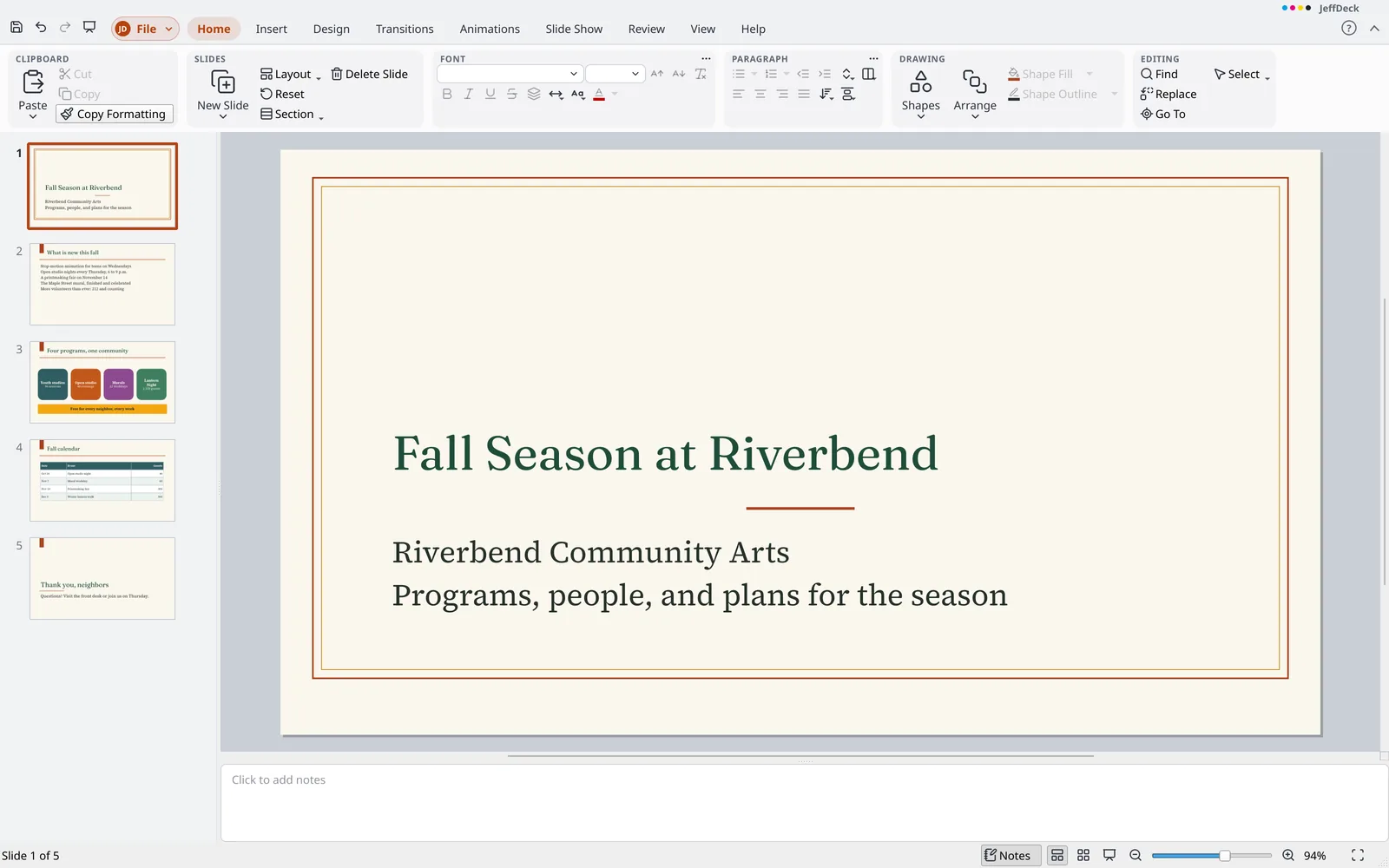
Themes that look finished
Nine themes with four variants each, plus slide masters and layouts to make your own.
Animations and transitions
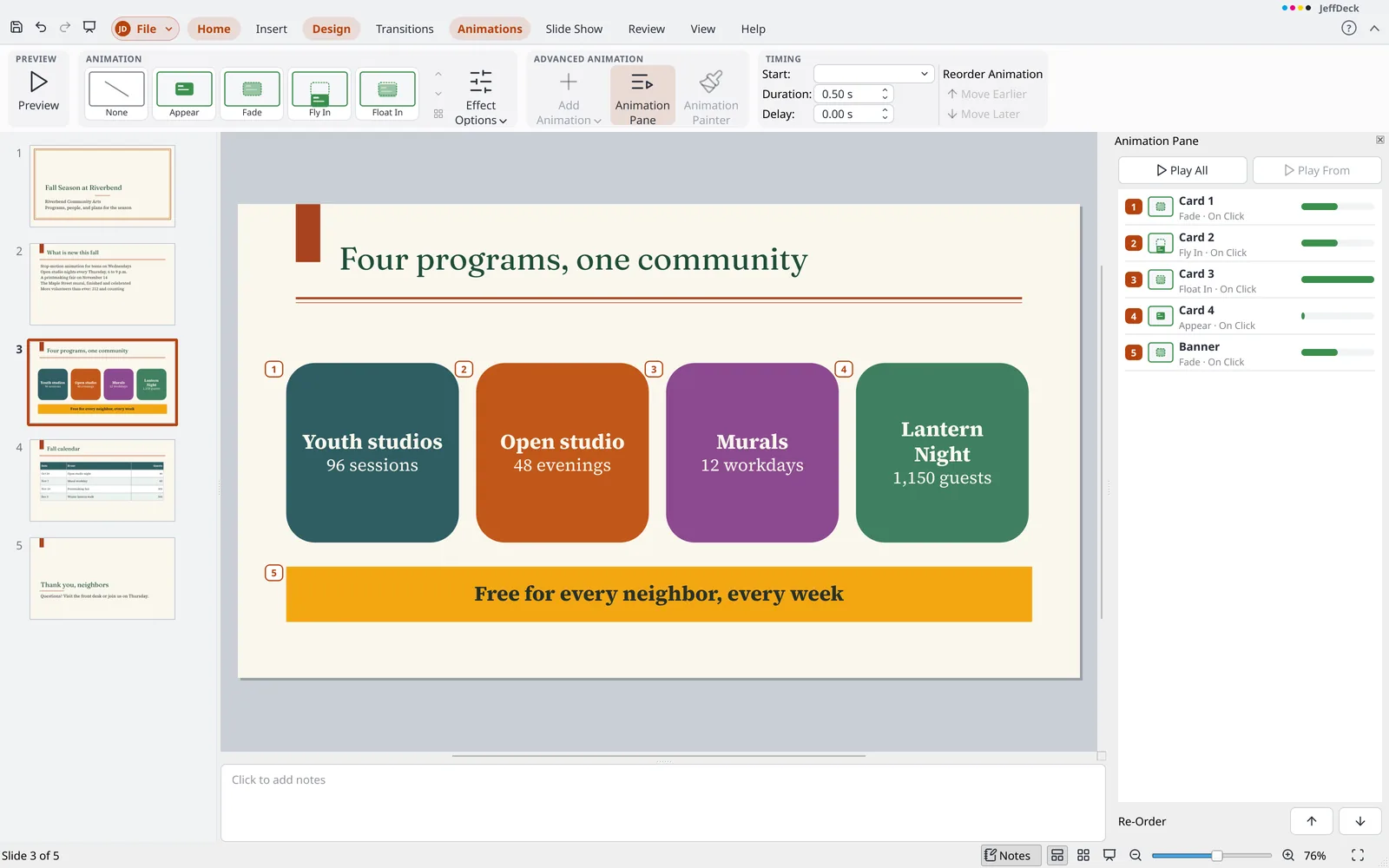
Bring objects in, draw attention to them, and take them out, timed in the Animation Pane. Move between slides with Morph, Push, Fade, and more.
Movies and sounds
Add video and audio that play in the slide show and travel inside the file.
Present with confidence
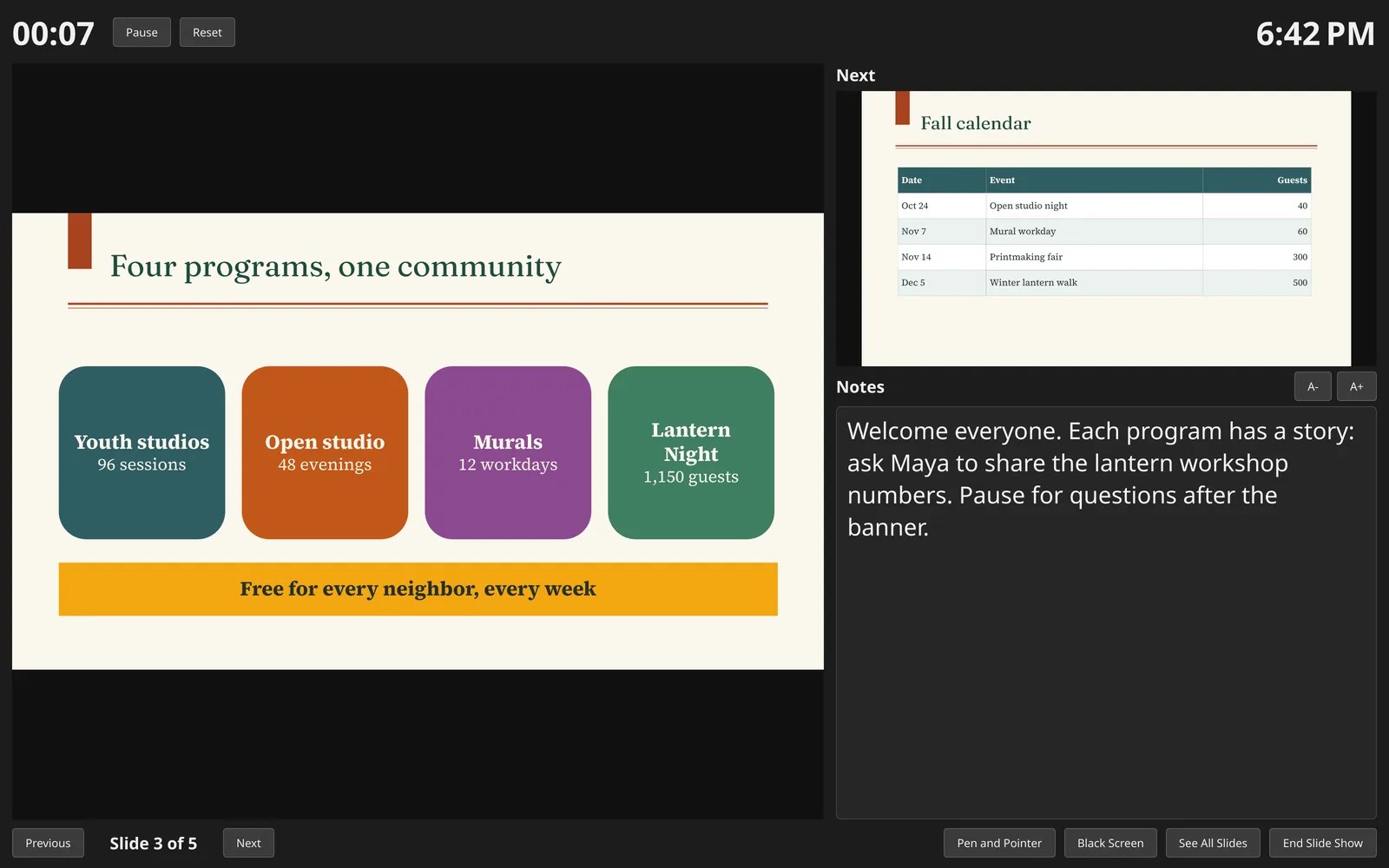
Presenter View shows your notes, the next slide, and a timer on a second screen. Draw on slides with a pen, highlighter, or laser pointer.
Pictures, icons, and tables
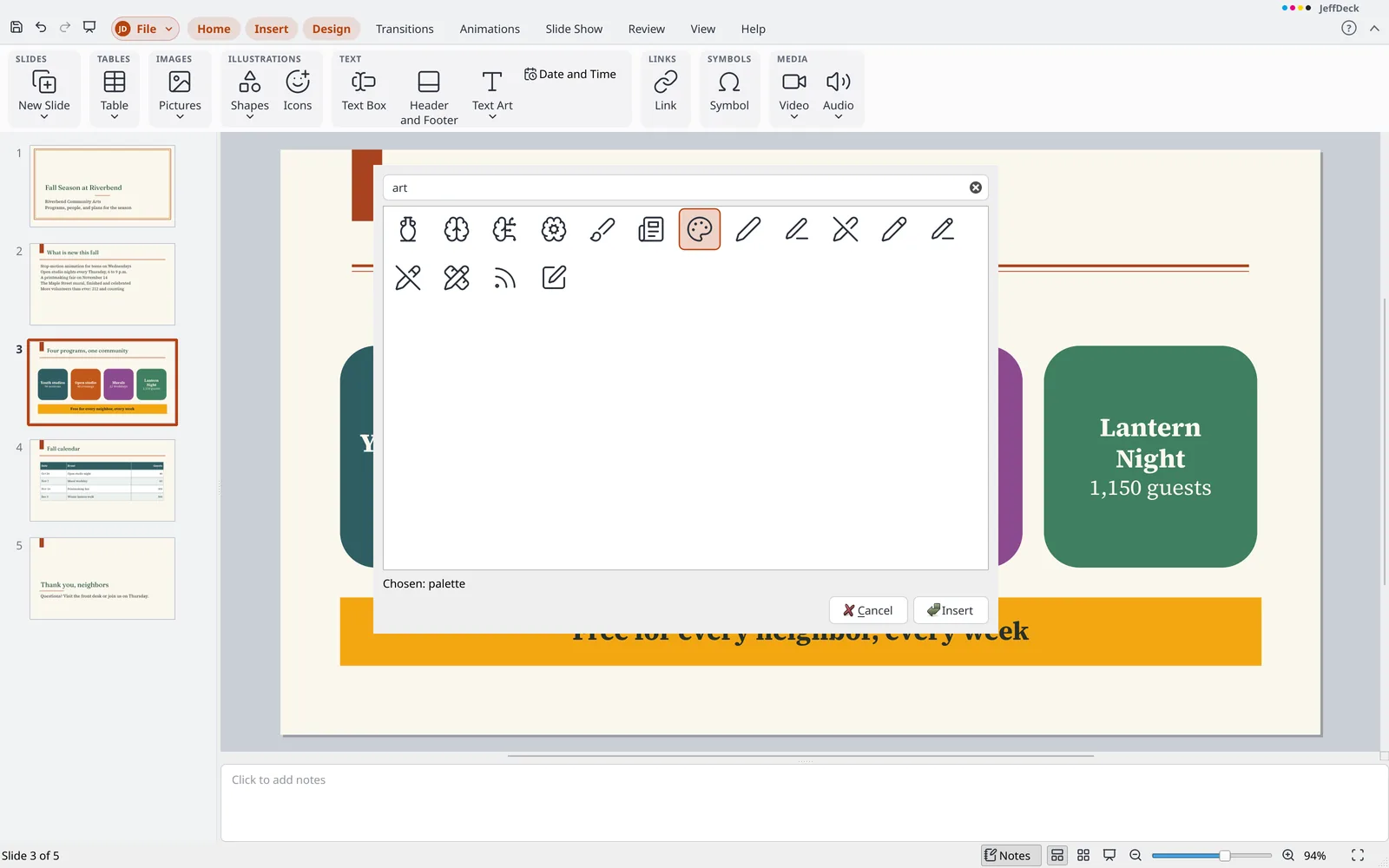
Add photos, more than 1,500 icons in your theme's colors, free online pictures, tables, and shapes.
Share it your way
Export slides, notes pages, or handouts to PDF, including archival PDF/A, or save a slide as a picture.
In pictures
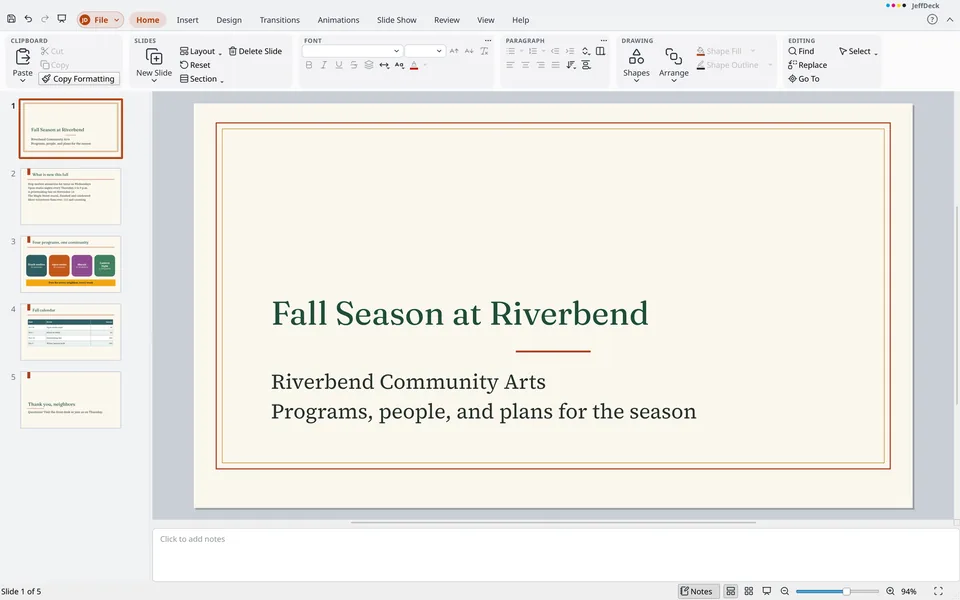
Start from a built-in theme 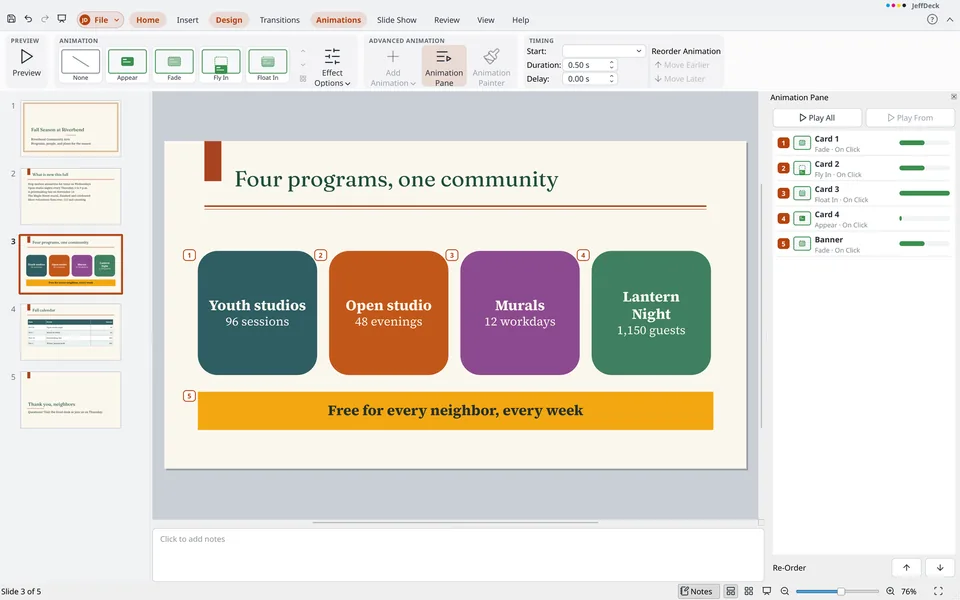
Order and time every effect in the Animation Pane 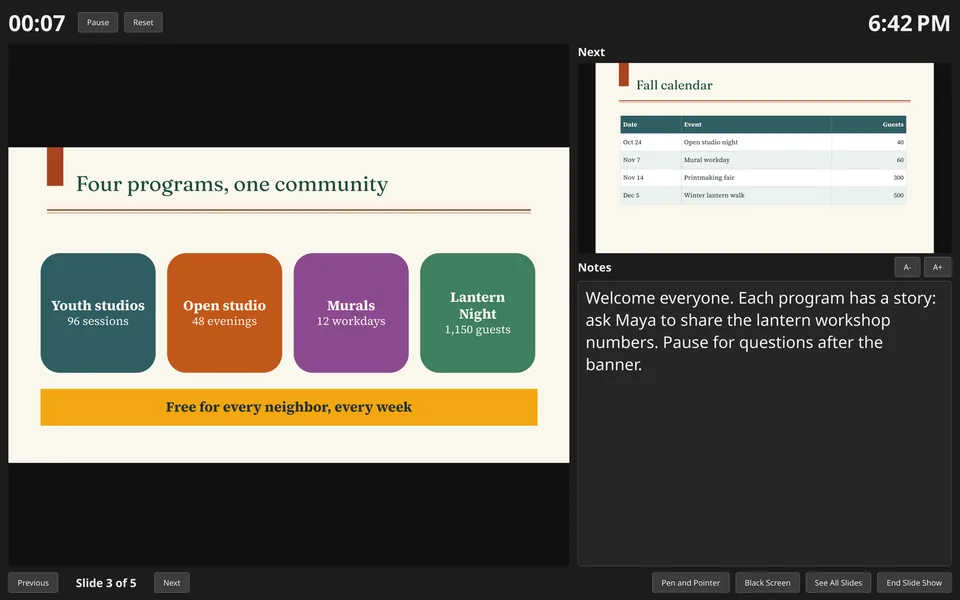
Presenter View shows your notes, the next slide, and a timer 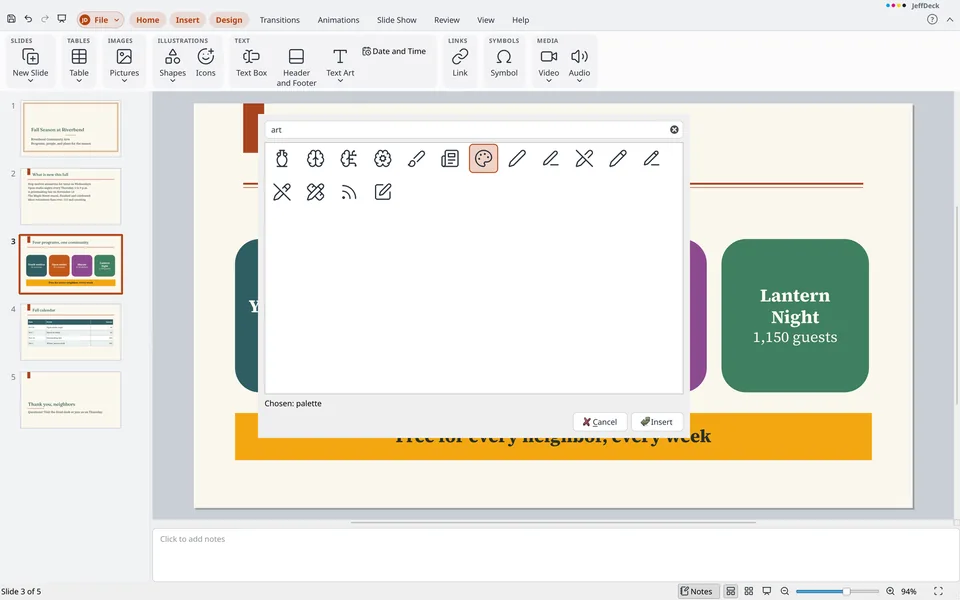
Search more than 1,500 icons and add them to a slide
What sets JeffDeck apart
- Your ink becomes shapes Pen and highlighter marks from a slide show stay on the slides as ordinary shapes. Move or edit them, remove them all with one Undo, and other apps show them too.
- Fonts travel with the file A saved
.pptxcarries the fonts its text uses, when their licenses allow, so it looks the same on a computer that doesn't have them. - Same text, same line breaks Bundled fonts match the letter widths of common fonts, so text wraps where it did when the presentation was made.
- Nothing lost Charts, diagrams, and equations JeffDeck can't edit yet are kept with their slides and saved back whole.
- Free pictures, with credit Search Openverse and Wikimedia Commons from Insert. JeffDeck keeps the title as alt text and adds a credit line if you want one. Nothing from your presentation is sent.
Files JeffDeck works with
- Opens
.pptx,.potx,.ppsx,.odp,.otp, and older.ppt,.pps, and.potfiles- Saves
.pptx,.potx,.ppsx,.odp, and.otp- Exports
- PDF and PDF/A (slides, notes pages, handouts, or the outline), PNG, and JPEG
Every feature
The complete list, grouped the way JeffDeck's menus and ribbon are. Open a group to see what is in it.
Beyond the usual presentation program (14)
- Runs on Windows, macOS, and Linux. The Mac app isn't signed yet, so macOS asks before opening it the first time.
- Free and open source (GPL-3.0): no license fee, no subscription, no account or sign-in, and nothing that has to be online.
- Installs without administrator rights, or runs with no installation (a Windows
.zipor a Linux AppImage). - Parts of a file that the app can't edit yet, such as charts, diagrams, equations, and some animation and transition effects, are kept with their slide and written back whole. A duplicated slide keeps them too.
- Bundles open fonts, with stand-ins that keep the letter widths of common fonts, so text wraps the same way on a computer without those fonts.
- A saved
.pptxcarries the bundled fonts its text uses, never a font everyone has and never one whose license forbids it. Fonts a file carries are used only while that presentation is open, under private names, so they never replace another presentation's font. - Nine themes (JeffOffice, Harbor, Ember, Almanac, Confetti, Granite, Orchard, Marquee, and Tideline), each with four variants.
- Insert > Pictures > Online Pictures searches Openverse and Wikimedia Commons, keeps the title as alt text, and adds a credit line when asked. Nothing from the presentation is sent.
- Insert > Icons offers more than 1,500 open vector icons, searched by name and drawn in the theme's text color. They are saved both as a picture and as an SVG.
- Pen and highlighter strokes from a slide show become ordinary freeform shapes on their slides. One
Ctrl+Zremoves them all, other programs show them, and they can be edited like any shape. - Help and the interface work offline in English, German, Spanish, French, Italian, Dutch, and two forms of Portuguese, plus English for the United Kingdom, Canada, and Australia and Spanish for Spain. Usage statistics and crash reports are sent only if you opt in, and commands are counted by id, never by name.
- Spelling works offline with the bundled dictionaries, with no cloud service, including as you type.
- PDF export keeps real text and embeds fonts.
- Put a QR code or barcode on a slide as a vector picture with
Insert > Illustrations > Barcode. It is one object that moves, sizes, and undoes, and a double click edits its data. It is saved in.pptxand.odpfiles and reopens as the same barcode.
File (backstage) (36)
Info
- View and edit the presentation title, author, subject, keywords, category, comments, company, and manager on the Info page, with the dates created, modified, and printed. The properties are saved in the file, and
Ctrl+Zundoes an edit. - Add, change, and remove custom properties in the Custom Properties box on the Info page. A custom property of a kind the app does not support is kept as the file had it.
- Protect a presentation on the Info page: mark it as final (it opens read-only with a note), or encrypt it with a password to open and save a password-protected
.pptxwith strong encryption. An.odpfile cannot hold the mark or a password, and a save to one says so. - Find and remove comments, notes, personal information, hidden slides, and content off the slide before sharing, from the Info page. Each removal is a step that can be undone.
- Check the presentation for accessibility problems from File > Info.
- After saving an
.odpfile, a message lists what was left out. - Keep named local copies of a presentation without a cloud service. Open a version as a copy, restore it, or delete it from the Info page. A version of a protected presentation is protected too.
New
- Start a blank presentation in 16:9 with the first theme and nine layouts.
- Save your own templates with File > Save as Template and find them under My Templates on the New page.
- A presentation opened from a template (
.potx,.otp) is saved as a new presentation, so the template stays as it was.
Open, Save, Save As, and Close
- Open files with
Ctrl+O, Browse, or the Pinned and Recent lists (pin, unpin, remove; a file that can't be found is gray). A file opens in the current window when it holds an untouched new presentation, and in a window of its own otherwise. - Save (
Ctrl+S) and Save As (F12) choose the kind by file ending (.pptx,.potx,.ppsx,.odp,.otp). A star in the title bar marks unsaved changes, Close asks first, and the old file is kept when the new one can't be written. - A file that is not entirely readable opens with the rest and lists what it left out. A file that can't be read at all says why.
- Automatic recovery runs every 10 minutes for each presentation with unsaved changes and is offered again after a crash. Recover Unsaved Work is on the Open page.
- A damaged
.pptxor.odpfile opens with what can be read. Open and Repair, under More Ways to Open, also finds the parts of a.pptxfile that is cut short or has lost its directory, keeps what broke part way, and opens the result as a copy with a note of what was left out. - Save a copy and keep working in the current file, or save as a template from the File screen. Save as Template puts a
.potxfile in My Templates. - Open a file read-only, as a copy, or in a new window, from More Ways to Open on the Open page or the right-click menu of the Recent list.
- Open an encrypted presentation by entering its password. A wrong password asks again, Cancel opens nothing, and a damaged file is reported as such.
- A backup copy is kept on every save. Turn it on in Options > General.
- The Print page shows a preview drawn the way the page prints, with page navigation and zoom to 150, 200, or 300 percent with scrolling. Your choices are remembered, and
Ctrl+Popens the page. - Choose what to print: Slides (one per page, in the slide's shape), Notes Pages, Outline, or Handouts with 1, 2, 3, 4, 6, or 9 slides per page. Handouts with 3 slides have lines beside each slide, and those with 4 or more can run across or down.
- Print all slides, the current slide, the selected slides, or slide numbers and ranges such as 1-3, 5. Print the last page first, include hidden slides only when asked, add a thin frame around each slide, or print in grayscale.
- Choose the printer or Save as PDF, set the number of copies, collate, and print on one side or both sides. Open printer properties and set the paper. A printer that can't make copies is sent the pages again, and a PDF file is made once. Your choices are remembered.
- Print on both sides by hand: the app prints the odd pages, shows a message to turn the stack over, then prints the even pages in reverse order. A blank sheet goes first when the last page has no back. Not available for PDF files.
Export and Share
- Export to PDF with the same Print what, Order, and Range choices. The PDF has real text with fonts inside, uses the presentation’s title as its title, and the page count is shown before saving.
- The current slide can be exported to PNG or JPEG.
- Export to PDF with a password to open it and, if wanted, a second password to limit printing, copying, and changing. The PDF uses AES-256 encryption, and the unprotected PDF is never written to disk.
Options
- Remove personal information from a file each time it is saved: the author, who saved last, the company, and the manager are taken out of the file properties, and the names and initials are taken out of the comments. The same option is in
Options>Saveand onInfo. - Set the user name and initials (used on comments), the interface theme (system, light, or dark), the display language, update checks and beta builds, and usage statistics (opt in). These choices apply to every JeffOffice app.
- Turn on spelling as you type, ignore words in capitals or with numbers, and use AutoCorrect, smart quotes, and automatic formatting as you type (dashes, fractions, ordinals, and automatic lists).
- Show the ruler, and snap objects to other objects.
- Embed the bundled fonts the slides use when saving. This is on by default.
- Show or hide ribbon tabs and groups, add your own tabs and groups with any command, and rename and reorder them, with Reset One and Reset All. Add any command to the quick toolbar (up to 100, with separators, removal, and reordering), and use the right-click menu to add or remove commands, open the customize pages, or collapse the ribbon.
- Customize the keyboard in
Options > Customize > Keyboard: search a list of every command by ribbon tab, add or remove keys, and see which command already uses a key and take it over. Reset One and Reset All restore the defaults, and the system's own keys stay reserved. - The app follows the system theme, and the ribbon has KeyTips for keyboard use.
About
- See the app and Qt versions, links to the source, downloads, and problem reports, and the license and notices. Check for updates manually or automatically, choose whether to send anonymous usage statistics, and set the name used as author.
Home tab (38)
Clipboard
- Paste, cut, and copy text and objects, within the app and to and from other programs (text, formatted text, and pictures), using the usual keys.
- The Paste button has a menu with Keep Text Only and Paste Special (
Ctrl+Alt+V), which lists source formatting, text only, and a picture. Formatted text from a web page keeps its formatting. - Copy formatting from text and objects, once or, by holding
Shifton the button, many times.
Slides
- Add a new slide after the current one with
Ctrl+M, using its layout. The arrow opens a gallery of nine built-in layouts: Title Slide, Title and Content, Section Header, Two Content, Comparison, Title Only, Blank, Content with Caption, and Picture with Caption. - Change a slide’s layout. The text stays, and each placeholder moves to the place the new layout gives its kind.
- Reset the placeholders to where the layout has them, keeping their text.
- Delete a slide, duplicate it with its notes, transition, and animations, or hide it. A hidden slide is skipped in the show, is not printed unless asked, and appears struck through in the pane.
- Add, rename, move up and down, and remove sections (the heading only, or with its slides), collapse and expand all, and remove all. Sections are shown in the slides pane and the Slide Sorter, and are saved in the file.
- Open a pane that shows another presentation’s slides. One click adds a copy after the current slide, with or without the source’s formatting.
Font
- Set the font and size in their boxes, increase or decrease the font size, and clear all formatting.
- Apply bold, italic, underline, strikethrough, and shadow. The shadow button adds the effect to a run of text, and a second click removes it.
- Set character spacing from Very Tight to Very Loose, or enter your own amount with More Spacing.
- Change the case of selected text to sentence case, lowercase, UPPERCASE, capitalize each first letter, or toggle case.
- Set the font color from the theme’s colors or more colors, or use an eyedropper to pick a color from the screen.
- Open the Font window with
Ctrl+Tor the corner button to set superscript, subscript, small caps, all caps, and the other character choices in one place. - Text effects (shadow, reflection, glow, and transform) are set from the Text Effects menu on the Shape Format tab, with text fill and outline in their own menus.
Paragraph
- Use bullets (disc, circle, square, diamond, arrow, check mark, star, and dash) and numbering (1. 2. 3., a. b. c., A. B. C., i. ii. iii., I. II. III., 1) 2) 3), and (1) (2) (3)), each with its own Bullets and Numbering window.
- Decrease and increase the list level, taking the bullet, indent, and size the layout gives the new level.
- Set line spacing (1, 1.15, 1.5, 2, 2.5, and 3) and use the Paragraph window for indents, spacing before and after, and tab stops.
- Align text left, center, right, or justified, with
Ctrl+L,Ctrl+E,Ctrl+R, andCtrl+J. - Set one, two, or three columns in a text box.
- Set text direction to horizontal or rotated 90 degrees.
- Align text to the top, middle, or bottom of its box.
- Text shrinks to fit its placeholder, a shape can grow to fit its text, and the Format Shape pane sets how text fits, margins, wrap, and columns for text boxes.
Drawing
- Draw from the Shapes gallery: lines, arrows, elbow and curved connectors, curves, freehand drawing, and shapes sorted by kind. The gallery is also on the Insert tab.
- Connectors stay attached: an end snaps to a connection site on a shape and follows it.
- Arrange objects with Bring to Front, Bring Forward, Send Backward, Send to Back, Group (
Ctrl+Shift+G), Ungroup, Rotate Right 90, Rotate Left 90, Flip Horizontal, and Flip Vertical. - The Selection Pane (Arrange > Selection Pane) lists the objects on the slide, the front one first. Pick an object from a row, type a name in a row to name it, and hide or show it with its box. Show All and Hide All set every box. Move objects in the order with the buttons or a drag, each as one Undo step. Names and hidden marks are kept in
.pptxand.odpfiles. - Shape Fill offers theme colors, more colors, the eyedropper, and No Fill. The Format Shape pane adds gradient (with stops), picture, texture, and pattern fills.
- Shape Outline offers a color and No Outline. The Format Shape pane adds width, compound type, dash, cap, join, and arrowheads.
- The Shape Format tab has a gallery of 24 styles drawn from the theme, kept in
.pptxand.odpfiles. - Shape Effects (shadow, reflection, glow, and soft edges) are on the Shape Format tab and in the Format Shape pane.
Editing
- Find (
Ctrl+F) in slide text, tables, shapes, text styles, and notes, with whole word and match case. The Find and Replace pane searches every slide in order from the current one and shows each match on its slide. - Jump to a slide, section, comment, or object with
Go To(Ctrl+G). Choose what to go to, enter a name or number, and use Next, Previous, orGo To; a comment opens in the Comments pane, and an object is selected on its slide by its name on the Selection pane. - Replace (
Ctrl+H) one match at a time, or use Replace All as one undo step that says how many it changed. - Select all (
Ctrl+A) in an object, on a slide, and in the Slide Sorter. - Select Objects and Select All are in Home > Editing > Select. The Selection Pane in Home > Drawing > Arrange shows the objects on the slide by name.
- Undo and redo: every change is one step that restores the whole presentation.
Insert tab (17)
Slides
- Add a new slide from the layout gallery, and reuse slides from another presentation.
Tables
- Insert a table by sliding across a grid to pick rows and columns, or by typing the numbers in Insert Table.
Tabmoves to the next cell,Shift+Tabgoes back, andTabin the last cell adds a row.
Images
- Insert one or more pictures from this device, placed in the middle of the slide and kept inside the presentation. Drop picture files on a slide to place each where it lands; PNG, JPEG, GIF, BMP, TIFF, WebP, SVG, WMF, EMF, ICO, and PDF files are read.
- Insert a password-protected PDF as a picture: the app asks for the password, asks again if it is wrong, and stops if you cancel.
- Online pictures
Illustrations
- Insert shapes and icons on a slide.
- Insert a chart in one of 12 types with sample numbers, placed in the middle of the slide. Move, resize, rotate, and undo changes to the chart like other objects, and edit its data in a grid. A
.pptxfile keeps the chart as an editable chart, and a.odpfile keeps it as a picture. Charts read from a.pptxfile are editable within 255 series and 400,000 points.
Links
- Turn selected text or an object into a link to a web page, to a place in the presentation, or to an email address. In a slide show, web and email links open.
Comments
- Add a new comment to a slide from the Insert tab.
Text
- Drag a box on the slide and type in it. Move, resize, and turn the text box.
- Add the date and time, slide number, and footer text to slides. Choose not to show them on the title slide, and apply them to selected slides or to all slides; new slides get them too.
- Insert text styles from a gallery of styles, change the words in a box, and see and save the shadow.
- Insert the date or the time as a field into the text being edited.
- An embedded object from another program in a file is kept as a frame and shows its saved picture.
Symbols
- An equation in a file is shown as the picture the file keeps and is kept whole.
- Insert a symbol, a character that is not on the keyboard.
Media
- Insert video and audio from this device. The file is kept inside the presentation; a movie shows its first picture and a sound shows a speaker. The app says why before reading a file it cannot play.
Design tab (5)
Themes and Variants
- Choose from nine themes shown as pictures of their title slides. One click applies a theme to every slide; each slide moves to the layout of its own kind, text you styled yourself keeps its look, and a color that would be hard to read is adjusted just enough to read.
- Right-click a theme to apply it to all slides or to selected slides, which get a slide master of their own that the same choice reuses later. Browse for themes to take the theme of a
.pptx,.potx,.ppsx,.ppt,.pps, or.potfile. - Pick one of four other looks of a theme, with color schemes, heading and body font pairs, and twelve background styles: four colors, each flat and with two gradients. Text turns light or dark to follow the background, and links stay readable.
Customize
- Set the slide size to Standard (4:3, 10 by 7.5 inches) or Widescreen (16:9, 13.333 by 7.5 inches), with Ensure Fit scaling text, line weights, and layouts.
- Set a solid background color for this slide or all slides, applied also to slides and layouts that had their own. In Slide Master view it formats the master or layout being edited.
Transitions tab (8)
- Preview plays the transition into the current slide;
Escstops it. - Choose a transition from a gallery: None, Morph, Fade, Push, Wipe, Split, Reveal, Cover, Uncover, Zoom, and Cut (a cut goes through black). Slides with a transition are marked with a star in the slide pane.
- Set effect options: the direction (from right, left, bottom, or top) for Push, Wipe, Reveal, Cover, and Uncover; Out or In for Split and Zoom; and Objects, Words, or Characters for Morph.
- Morph pairs the objects of two slides by name (starting with
!!), same text, same picture, or same kind of shape, nearest first. It moves each pair’s place, size, turn, fill, and line, fades objects with no pair, and moves the words or characters two texts share. Very long text, a turned or flipped box, and slides of more than 1,000 objects play as Objects or a fade; a group and a table move whole and dissolve rather than change shape. Older readers see a fade. - Name an object in the Selection Pane; a name that starts with
!!pairs two objects for Morph, just as a name from a file does. - Set the transition timing: Duration (0.01 to 59 seconds), On Mouse Click, After a number of seconds, or both together, which moves on at whichever comes first. Apply the timing to all slides.
- A transition the app has no form for plays as a fade and is saved as it was.
- A transition and its timing are one undo step; applying to all slides is one step too.
Animations tab (9)
- Preview plays the slide’s animations over the slide;
Escstops it. - Choose an animation from a gallery: None; Entrance effects (Appear, Fade, Fly In, Float In, Split, Wipe, Grow & Turn, and Zoom); Emphasis effects (Pulse, Teeter, Spin, and Grow/Shrink); Exit effects (Disappear, Fade, Fly Out, Float Out, Split, Wipe, Shrink & Turn, and Zoom); and 64 motion paths in six groups (Lines, Arcs, Turns, Shapes, Loops, and Curves).
- Set effect options: the direction (From Left, Clockwise, and the rest), the amount (Grow/Shrink from Tiny to Huge, and Both, Horizontal, or Vertical; Spin from a quarter to two spins), and the sequence (As One Object or By Paragraph, with an indented paragraph going with the one above it).
- Add Animation gives a shape a second effect, started on a click.
- The Animation Pane lists each effect with its click number or bracket, picture, shape name, start, and a timeline bar. Pick one or several rows, which also picks the shape on the slide; drag to reorder; use Play All and Play From; right-click for On Click, With Previous, After Previous, Effect Options, Timing, and Remove. Numbers show on the slide’s shapes.
- Animation Painter copies a shape’s effects onto the next shape you click.
- Set animation timing: Start (On Click, With Previous, or After Previous), Duration, and Delay, and use Move Earlier and Move Later.
- Additional effect options: smooth start and end, Repeat, Rewind when done playing, Text Animation (All at once or By paragraph), and Hide after the effect.
- Animation and transition effects are saved in the standard presentation format, so other presentation programs list each by its own name.
Slide Show tab (5)
- Start the show From Beginning (
F5, or a button on the quick toolbar) or From Current Slide (Shift+F5, or a button on the status bar). - Play one of your custom slide shows from a list, and use the Custom Shows window to create (adding, reordering, and removing slides), edit, copy, and delete them. A slide may be in a show twice. Custom shows are saved in the file.
- Set up the slide show: presented by a speaker (full screen), browsed by an individual (window), or browsed at a kiosk (full screen, always loops, moves on only by timings). Loop until
Esc, show without animation, choose pen and laser colors, play all slides, a range, or a custom show, and advance manually or by timings. Settings are saved in the file. - Hide a slide, rehearse timings with a bar showing Next, Pause, this slide’s time, Repeat, and the total (it offers to keep the times at the end), and use the recorded timings.
- Use Presenter View, and open it with
Alt+F5to rehearse on one screen with the show in a small window.
Review tab (9)
- Check spelling with
F7: a dialog finds each misspelled word and offers suggestions. Spelling is also checked as you type, ignoring words in capitals and words with numbers, and AutoCorrect works, using the bundled dictionaries. - Right-click a word marked as misspelled for suggestions, Ignore All, and Add to Dictionary.
- Look up synonyms for a word with the thesaurus (
Shift+F7). - Count the words on the slides, and in the selection while typing.
- Set the proofing language for the selected text or all the text in the selected box, and mark text as not to be spell-checked. Dictionaries are included for English, German, Spanish, French, Italian, Dutch, and Portuguese.
- Open the selected text, or all the text of the selected box, in an open translation service (LibreTranslate) with a server address you can change, up to 5,000 letters. Nothing is sent before you click
OK. - Add comments (
Ctrl+Alt+M) in a pane beside the slide, with a marker on the slide that you can drag, replies, Resolve and Reopen, and edit and delete buttons. The app asks for your name and initials once. - Delete the open comment, all comments on the slide, or all comments in the presentation. Previous and Next move through the comments, and Show Comments hides or shows the pane and markers. A presentation with comments opens with them shown, and
Ctrl+Zundoes any of these actions. - Comments and their replies are saved in the
.pptxfile, and both older and newer comment forms are read.
View tab (7)
- Switch between Normal, Outline View, and Slide Sorter with the View tab or the status bar buttons; each switch keeps the current slide.
- Slide Master view, on View > Master Views.
- Show or hide the ruler, gridlines, and guides with check boxes, and show or hide the notes box under the slide.
- Show guides, and objects snap to other objects.
- Zoom from 400% to 10% with a menu, Fit to Window, the status bar slider and buttons, or
Ctrlwith the mouse wheel; in Slide Sorter the same controls size the pictures. - Fill the screen with the window using Full Screen (
F11, View > Window). The same command restores the window, and so doesEscwhen nothing is selected or being typed in. - New Window opens the saved file in a second window. Switch Windows lists the open windows. A change made in one window shows in the other after it is saved and the file is opened again.
Help tab (2)
- Open Help with
F1or the question-mark button: topics for each tab, pane, and dialog open on the page for what you are doing, work offline, and are translated. - The Help tab has Help, Keyboard Shortcuts, What's New, and Feedback. About has links to the source, downloads, and problem reports.
The slide show and Presenter View (11)
- Run a full-screen slide show that looks as the slide prints. After the last slide a black screen says the show is over, hidden slides are skipped, and the window returns to the last slide shown.
- Move on with a click or
Right,Down,Space,Enter,Page Down, orN; go back withLeft,Up,Backspace,Page Up, orP; useHomeandEnd; type a slide number thenEnter; pressBor the period for black andWor the comma for white;Escends the show. - Use the right-click menu during the show: Next, Previous, Go to Slide, Pointer Options, Screen (black or white), and End Show.
- Animations play click by click. A click while a step plays finishes it, steps that start by themselves begin when the slide appears, and the show shows slides whole when set to play without animation.
- Transitions, including Morph, play when moving forward onto a slide;
Escduring one stops it. - Draw on slides during the show with Pen (
Ctrl+P), Highlighter (Ctrl+I), Laser Pointer (Ctrl+L), and Eraser (Ctrl+E), with a color for each tool. At the end, Keep puts each stroke on its slide as a shape and Discard leaves the slides as they were. - Movies and sounds play as the file specifies, and a control bar appears when you point at a movie; a click plays or pauses it.
- Click a link in the show to open a web page or an email address.
- Use Presenter View on a second screen, with the current slide, the next slide, notes with adjustable size, a timer, the time of day, the slide number, Previous and Next, Pen and Pointer, Black Screen, See All Slides, and End Slide Show.
- Ink drawn in Presenter View appears on the audience’s screen, and so does the laser dot.
- A show of a presentation being edited stays on its slide, follows the edits, and ends if the document is replaced.
Contextual tabs (34)
Shape Format tab (shapes, text boxes, lines, connectors)
- Format shapes, text boxes, lines, and groups from the Shape Format tab and a Format Shape pane (
Ctrl+1): solid, gradient, picture, texture, and pattern fills; line color, width, dash, and arrowheads; shadow, reflection, glow, and soft edges; and size, position, rotation, and text margins, wrap, and columns. - Inserts shapes from a gallery on the Home and Insert tabs.
- Apply a shape style from a gallery of 24 styles drawn from the theme, and adjust Shape Fill, Shape Outline, and Shape Effects separately.
- Style the text in a shape with Text Fill, Text Outline, and Text Effects (shadow, reflection, and glow), from a gallery of text styles.
- Add a title, a description, and a decorative mark to any object as alt text, saved in
.pptxand.odpfiles. - Set exact Height and Width, rotation, scale, lock aspect ratio, and position from the top left corner; drag, arrow keys, and the rotation handle also work.
Picture Format tab (pictures, icons, screenshots)
- The Picture Format tab appears when a picture is selected, and a Format Picture pane (
Ctrl+1) sets brightness, contrast, recolor, transparency, and where the picture sits in its frame. - Crop a picture with handles, crop to a shape, choose an aspect ratio, and use Fill and Fit; crops are saved in
.pptxand.odpfiles. - Arrange is on the Home tab, and alt text and size are in the Size & Properties page of the pane.
- Resize a picture at a corner to keep its proportions, hold
Shiftto stretch it freely, turn it by its handle, and drop one picture on another to swap them (Ctrlto copy).
Table Design and Table Layout (tables)
- Tables from a file show and save as made.
- Turn on Header Row, Total Row, Banded Rows, First Column, Last Column, and Banded Columns, and pick a table style from a gallery of Light, Medium, and Dark styles drawn in theme colors.
- Shade cells, apply borders, and draw borders with a pen style, weight, and color.
- Select a table, column, row, or cell, delete, and insert above, below, left, and right.
- Merge and split table cells; merged cells are saved in
.pptxand.odpfiles. - Set row height and column width by number or by dragging borders, and distribute rows and columns evenly.
- Align cell text left, center, right, top, middle, and bottom, set cell margins, and turn text a quarter turn clockwise.
Chart Design and Chart Format (charts)
- Charts in a file are drawn from the values saved with them and saved whole; types read are column, bar, line, pie, doughnut, area, and scatter, in
.pptxand.odpfiles. A duplicated slide keeps its chart, and a pasted copy is only a picture. - Edit Data opens a data grid for a chart that holds its own numbers.
- Set the axes and their titles, the chart title, data labels, gridlines, and the legend.
- Change the chart type among 12 kinds and apply one of eight chart styles.
Diagram Design and Format
- A diagram in a file is drawn from the drawing it saved and treated as one object: select, move, resize, copy, and delete it as a whole. It prints as vectors and is saved whole with all its parts.
Video, Audio, and Playback (movies and sounds)
- Use the Playback tab to preview movies and sounds with Play and Pause, and to trim them with a start and an end time while the rest of the file stays inside. Set Volume (Low, Medium, High, or Mute) and Start (In Click Sequence, Automatically, or When Clicked On). Choose Play Full Screen, Hide While Not Playing, Loop until Stopped, and Rewind after Playing. Each change is one undo step.
- A file’s setting to play across slides is played and saved.
- Add captions to a video from a WebVTT (
.vtt) file for each language, and remove them again, on the Playback tab. Captions appear over the bottom of the video in the slide show and in the editor, follow playback, and scale with the video. A file that is damaged, too large (over 4 MB, 20,000 cues, or 2,000 characters in a cue), or not WebVTT is refused with a message. - The Size & Properties page of the pane reaches alt text and size for movies and sounds.
Slide Master, Handout Master, and Notes Master views
- Open and edit the master and each layout like slides in Slide Master view, with a pane listing each master and its layouts. Changes to a master or layout reach the layouts and slides that follow it, and one undo step reverses them.
.pptxkeeps every master and layout;.odpkeeps the master pages and the layouts that slides use. - Use Edit Master to insert a slide master, insert a layout, delete, rename, and preserve. A file can have more than one master. Delete explains why when slides use the master or layout, and keeps the last master and each master’s last layout.
- Use Master Layout and Insert Placeholder to set which placeholders a layout has and where: title, text, content, picture, chart, table, media, online image, date, footer, and slide number. Title and Footers check boxes are available.
- Edit the text of a master’s placeholders with the Home tab tools; how a level looks reaches the layouts and slides that had it.
- Draw shapes and pictures on a master or a layout, such as a logo, a band, or a line. Hide Background Graphics is on the Slide Master tab for a layout and in Format Background for a slide, and it is saved.
- In master view, use the Themes, Colors, Fonts, Background Styles, and Slide Size groups; they change the whole presentation.
- Close Master View returns to the normal slide view.
- Speaker notes hold plain text.
Behind the scenes: the rendering engine (14)
- The editing window, the slide show, slide pictures, and print and PDF output all use the same drawing, with vector shapes, text, and pictures carried through to the PDF.
- Preset shapes with adjust values, freeform paths, and connectors with elbow and curved routes.
- Fills: solid, gradient (linear, radial, rectangular, and path) with stops, picture, texture, and pattern, all with transparency. A shape can fill with the slide’s background, and an empty placeholder shows its layout’s picture fill.
- Lines with width, dashes, caps, joins, and arrowheads.
- Shadows are blurred the same way on screen, in the show, and in a PDF, where a blurred effect becomes a 300 dpi picture.
- Use pictures in PNG, JPEG, GIF, BMP, TIFF, WebP, SVG, WMF, EMF, ICO, and PDF formats. Large pictures are held to size limits, and identical pictures are found by their contents and stored once.
- Picture color changes are drawn in the order a file lists them: brightness and contrast, gray, black and white from a threshold, a color made clear or changed, one color for all, a duotone, a turned hue, and a tint. They apply to pictures, picture fills, and backgrounds.
- Cropped pictures, flips, and turns are drawn and saved. In an
.odp, a flipped picture is written as a half turn and a mirror. - Charts are drawn as vectors from their saved values: column, bar, line, pie, doughnut, area, and scatter. A limit on the points a picture can hold says so when it is passed.
- Diagrams in a file are drawn from the drawing the file keeps and are written back as they were.
- Equations are shown as the picture the file keeps beside them, and embedded objects are shown as their saved picture.
- Tables draw borders, fills, and text from the file, and rows grow to fit their text.
- Letter effects (outer and inner shadows, a glow, and a reflection) are drawn under the letters. They are read from the run and from the list styles, masters, and layouts it inherits from, and saved as listed.
- A picture of each slide appears in the slides pane, the sorter, and the animation pane, and is redrawn as the slide changes.
Behind the scenes: the text engine on slides (6)
- Text is set as on a slide: a single line is 1.2 times the text size whatever the font, and a wider line’s extra space goes above it. The first paragraph in a box has no space before it, an empty paragraph shows no bullet, and text does not wrap around objects. Text that does not fit runs out of its box instead of being hidden.
- Text shrunk to fit is drawn in whole points, with indents, tab stops, letter spacing, exact line spacing, and space in points left as written. Space given as a share of the line follows the size the text is drawn at. It looks the same on screen, in the show, in a PDF, and in an
.odp. - Lists use the layout’s bullets and levels. A new slide’s text place takes its layout’s first paragraph, and Increase and Decrease List Level take the layout’s paragraph for the new level. An empty paragraph shows no bullet, and bullet colors follow the theme colors.
- Set and draw tab stops, columns, vertical rotation, justification, character spacing, kerning, small and all caps, superscript and subscript, and underline.
- Hyperlinks in text are drawn in the theme’s link colors and kept readable on any background, including the bands and panels some layouts draw behind text. The words of a link stay inside the link when saved to an
.odp. - Spelling marks appear as you type in text being edited.
Behind the scenes: themes and masters (7)
- A theme is a slide master, its layouts, and a theme part. It is saved as theme, slide master, and layout parts and read back as it was, in
.pptxand.odp. - Applying a theme copies in its master and layouts, moves each slide to the layout of its own kind, and sets text that followed the old layout in the new layout’s look. Picture placeholders keep their pictures, cropped to fill a picture place and fitted in a content place. A theme made for another slide shape is stretched, with circles and squares kept round and square.
- Colors are plain colors on the objects, as files hold them, and saving finds the theme’s colors in them again. A change of colors swaps each old color for the new scheme’s. Text and shapes on a dark background use the four dark and light colors, so they trade places when the background turns light or dark. Dark masters are saved with the dark color map.
- Text on a picture, in a table cell, or in a shape with its own color does not turn light or dark with the slide’s background. A color that would read below 4.5 to 1 contrast moves toward light or dark just far enough.
- Edit masters and layouts in the Slide Master view.
- Place the date, slide number, and footer text from the Header and Footer window, and apply them to all slides and to new ones.
- Changing the slide size scales text, line weights, layouts, and placeholders to the new shape, while other objects keep their own shape and stay centered.
Behind the scenes: the animation and transition engines (6)
- A slide’s animation timing is read, kept, and written back, listing each effect by name. Click, with, and after starts, delays, durations, repeats, smooth start and end, rewind, and hide after are all kept.
- Effects play as a fade, wipe, split, move, turn, size change, pulse, motion path, or build by paragraph; other effects play as a fade. A damaged timing structure is read without harm and held to limits.
- Edits keep animation data intact: media and the numbers they name are kept, effects on charts, tables, and frames are kept, effects of deleted shapes are dropped, and deep or unknown effects stay as they were.
- Interactive sequences (triggers) are read and kept.
- The transition engine draws the ten effects as frames between two whole slides, including Morph, with the click and timing rules of the show.
- Morph pairs objects, then moves, scales, turns, fades, and recolors them; the text of a pair moves by word or by character.
Behind the scenes: media playback (3)
- Play movies and sounds in place while editing and in the show. Movies:
.mp4,.m4v,.mov,.3gp,.mkv,.webm,.avi,.wmv,.asf,.mpg, and.mpeg; sounds:.mp3,.wav,.m4a,.aac,.flac,.ogg,.opus,.aif,.aiff, and.wma. - A media file is not decoded until you play it: opening, saving, and printing use only the poster image. If a file can't be played, the app says why and keeps working.
- The play list of a slide (what plays, when, and how) is read from the timing data and written back unchanged, whatever the edits.
Safety and limits (3)
- A damaged or hostile file does not crash the app: it opens what it can and lists what it left out.
- Macros are kept and never run, and a link opens only when you click it in the show.
- Opens damaged files as far as it can.
File formats (17)
.pptx, .potx, and .ppsx (Open XML)
- Open
.pptxfiles with slide sizes, masters, layouts, slides, notes, themes, text and lists, tables, pictures, shapes, charts, diagram drawings, equations, comments, sections, transitions, animations, movies, sounds, and embedded fonts. Both Transitional and Strict forms open. - Saves
.pptxfiles as complete packages with their elements in the standard's own parts. - Open and save
.potxand.ppsxtemplate and show files; a file opened from a template is saved under a new name. - Saving a
.pptxkeeps what the app can't edit: charts, diagrams, equations, some animation and transition effects, and compatibility markup. Links in diagrams keep working. - Fonts in saved files: the bundled fonts the text uses are embedded with all characters, on by default. Stand-in fonts are written under the common name, and a font a file carries is written back while the slides still use it.
- Open encrypted
.pptx,.potx, and.ppsxfiles and save them with a password, using AES-256 encryption.
Older binary .ppt, .pps, and .pot
- Open binary presentation files from older programs (
.ppt,.pps,.pot): masters, layouts, slides, notes, text and formats, fields, links, ruler, transitions, shapes, and pictures, with limits on huge text, number of shapes, and entries read. - A damaged old-format file does not crash the app, and a file that can’t be read says why.
- Saving an old
.ppt,.pps, or.potfile asks for a new name and saves a.pptx(a.ppsxfor a.pps), never writing over the old file. - Transitions of old binary files are read.
OpenDocument .odp and .otp
- Open
.odpand.otpfiles (ODF 1.1 to 1.3): sizes, masters, layouts, text and lists, objects, pictures, tables, charts, and notes, with limits for hostile files. - Save
.odpand.otpfiles with master pages, slides and their objects, text, pictures, movies and sounds kept in the file, tables, notes, comments, transitions, animations, shrink-to-fit text, footers, custom shows, and show settings. A file opened as.odpis saved as.odp. - Saving to
.odpstores charts, diagrams, and equations as pictures.
PDF, pictures, video, and web
- Export slides, notes pages, handouts, and the outline to PDF, with real text and fonts inside.
- The current slide can be exported to PNG or JPEG.
Pictures, media, and parts
- Use pictures in PNG, JPEG, GIF, BMP, TIFF, WebP, SVG, WMF, EMF, ICO, and PDF formats, read and written; icons are saved as a PNG and the SVG.
- Movies and sounds are kept inside
.pptxand.odpfiles with the settings that play them; linked ones keep their address and poster.
Coming soon
Features that are not there yet, or only partly there, by group. No dates are promised.
Beyond the usual presentation program (2)
- Set Language command
- PDF export: bookmarks for each slide title, tags for screen readers, PDF/A, and password protection
File (backstage) (22)
- Always open read-only
- Custom XML: find and remove
- Compatibility check before saving, and for
.pptfiles - Version comparison
- Show a presentation's folder and copy its path
- Built-in themes as places to start on the New page
- More built-in open-licensed templates: lesson, report, pitch, photo album, and training deck
- Default for new presentations: set the theme, fonts, and slide size
- Open and Repair for badly damaged
.pptfiles - Macro-enabled files (
.pptm,.ppsm,.potm): open and save, with the macro project kept untouched and never run - Save As for
.ppt,.pps, and.pot, with a warning of what they can’t hold - Warning before saving to a file type that can’t hold everything in the presentation, with the choice to save a
.pptxas well - Pure black and white, scale to fit paper, high quality, and printing comments and ink
- Header and footer of notes pages and handouts: edit from the Print page
- Slide pictures: all slides at once, other sizes, and GIF, TIFF, BMP, and SVG
- Create a Video: MP4 of the show with transitions, animations, rehearsed timings, and narration, in a chosen size
- AutoCorrect Options window: replacement list, exceptions, capitalization rules, and math symbols
- Save options: default format, automatic recovery interval, and default folder
- Advanced options: undo steps, default slide show choices, print choices, cut and paste choices, and picture quality
- Quick toolbar placement below the ribbon
- Trust settings: what happens with linked files, linked media, and macros (kept, never run)
- Accessibility options: high contrast, sound and animation feedback, and keyboard focus
Home tab (6)
- Paste with the destination theme
- Cut, copy, and paste whole slides in the slides pane and Slide Sorter, keeping source formatting or using the destination theme
- Text direction: rotated 270 degrees and stacked
- Align objects: left, center, right, top, middle, bottom, and distribute
- Regroup and More Rotation Options
- Replace Fonts
Insert tab (7)
- Embedded workbook in the chart for editing in other programs
- Links to files and new documents, and Action choices: go to a slide, custom show, file, or web address, and run a program or play a sound
- Header and footer for notes and handouts: header, date, page number, and footer
- Text styles: change the style or warp once placed on the slide, and apply to any selected text
- Slide number field: insert into a text box
- Embedded objects: open and edit
- Equation: type or write math and edit it
Design tab (6)
- Variants: theme effects, new theme colors and fonts, and reset
- Save current theme and open
.thmxtheme files - Slide size: Maximize and choose other sizes
- Custom slide size: width, height, orientation including portrait, first slide number, and orientation of notes and handouts
- Background formats: gradient, picture, texture, and pattern, and Reset Background
- Format Background pane
Transitions tab (1)
- More subtle transitions: Dissolve, Blinds, Checkerboard, Comb, Random Bars, Circle, Diamond, Plus, Wedge, Wheel, Newsflash, Strips, and the Shape and Uncover variants
Animations tab (2)
- More entrance, emphasis, and exit effects: Bounce, Swivel, Wheel, Random Bars, Shape, Checkerboard, Blinds, Box, Diamond, Plus, Peek In, Dissolve In, Flash Once, Stretch, Expand, Spiral In, Transparency, Darken, Lighten, Bold Flash, Flicker, Wave, Grow with Color, and Blast
- Triggers: start an effect when a named shape is clicked or a movie bookmark is reached
Slide Show tab (1)
- Show Presentation On: choose which screen shows the slides and which holds Presenter View, and swap them
Review tab (3)
- Read Aloud with the system’s voices: from the cursor, with the current word highlighted, and a choice of speed and voice
- Grammar and style checking that runs on your own computer
- Compare: merge another version of the presentation and accept or reject each change, with a Reviewing Pane
View tab (6)
- Notes Page view: work on the notes in the shape of a printed page
- Reading View: the show in a window with a bar, for reading a presentation
- Handout Master and Notes Master views
- Grid and guide settings: spacing, snap to grid, drag guides, add and remove guides
- Color, Grayscale, and Pure Black and White views, with the choice of how each object prints in them
- Arrange All, Cascade, and Move Split
Help tab (2)
- Command search: a ribbon box that finds a command and runs it
- Link to a community page
The slide show and Presenter View (4)
- More show menu items: See All Slides, Last Viewed, Show Presenter View, Zoom into the slide, Arrow Options, Speaker Notes, and Subtitle Settings
- Links to a slide, a custom show, another presentation, or a file, and action buttons
- Animation triggers on a shape click, and sounds with effects
- Edit the notes in Presenter View
Contextual tabs (21)
- Position from the center
- Sharpen, saturation, temperature, and set transparent color
- Change Picture (keeping size, place, and formatting) and Reset Picture
- Picture Styles (frames, shadow, reflection, and rounded corners), Picture Border, and Picture Effects
- Alt Text, Arrange, and Size groups on the Picture Format tab
- Table rows that grow with typing
- Draw Table and Eraser
- View Gridlines
- Table Size, Arrange, and Table Effects (shadow, reflection, cell bevel)
- Cells copied from JeffCrunch or a document paste as a table with fonts, fills, borders, and number formats
- Chart data grid in place, Select Data, and Switch Row/Column
- Data table, error bars, trendlines, and quick layouts for charts
- Change Colors for charts
- Chart Format: Current Selection, Format Selection, Reset to Match Style, and the shape and text styles of the elements
- Play Across Slides: set with a command
- Alt text, arrange, and size groups on the Playback tab
- Separate text styles per level in a new master
- Effects in master view
- Notes Master view: the notes page’s slide image, notes body, header, date, footer, and page number, its text styles, and its background
- Handout Master view: slides per page, orientation, header, date, footer, and page number, and its background
- Formatted speaker notes: bold, italic, lists, links, and pictures
Shortcut menus (right-click) (2)
- Object menu: paste options, save as picture, size and position, format, and alt text
- Look Up in the text menu
Behind the scenes: the text engine on slides (1)
- Fields: date, time, and slide number that follow the slide
Behind the scenes: themes and masters (1)
- Theme effects, custom color and font schemes, and theme files
Behind the scenes: the animation and transition engines (1)
- Interactive sequences (triggers): play and create
Behind the scenes: media playback (2)
- Playback of some older web video formats, AV1, some surround-sound formats, AMR, and MIDI
- Playback of linked movies and sounds when the file can be found
Safety and limits (1)
- Linked files and linked media: trust settings in Options
File formats (8)
- Round trip of custom XML, tags, drawing and control parts, the VBA project, and printer settings
.pptm,.ppsm, and.potm: open and save, keeping the macro project untouched- Animations, sounds, movies, charts, and embedded objects of old binary files
- Fonts embedded in an old file
- Reading back animations, comments, custom shows, and show settings from
.odpfiles - Sections, reflections, bevels, inner shadows, text glows, click-triggered effects, and color effects in
.odp - Links in a PDF
- Video export (MP4) with the show’s timings and narration
Try JeffDeck
JeffOffice is free and open source, with no subscription and no account. Free for Windows, Mac, and Linux. JeffDeck comes in the JeffOffice download.
Download JeffDeckVersion 0.27.0, released
The other apps: JeffPubJeffWriteJeffCrunch