
JeffCrunch features
Work with numbers, lists, and budgets: formulas, charts, tables, and data tools, in workbooks other spreadsheet apps open too.
- Free and open source
- No account or subscription
- Works offline
- Windows, Mac, and Linux
Version 0.27.0, released
What JeffCrunch does
More than 450 functions
From SUM and XLOOKUP to statistics, finance, and engineering, with help for each argument as you type.
Charts and sparklines
Column, bar, line, pie, doughnut, area, and scatter charts, plus tiny charts inside cells.
Tables and pivot tables
Turn a range into a table with a totals row, and summarize data with a pivot table.
Sort, filter, and clean up
Filters, multi-level sorts, Remove Duplicates, Text to Columns, and data validation.
What-if and checking
Goal Seek, data tables, and scenarios, plus arrows that show which cells a formula reads.
Print and share
Fit sheets to pages, print several pages on one sheet of paper, and export PDF, including password-protected and archival PDF.
In pictures
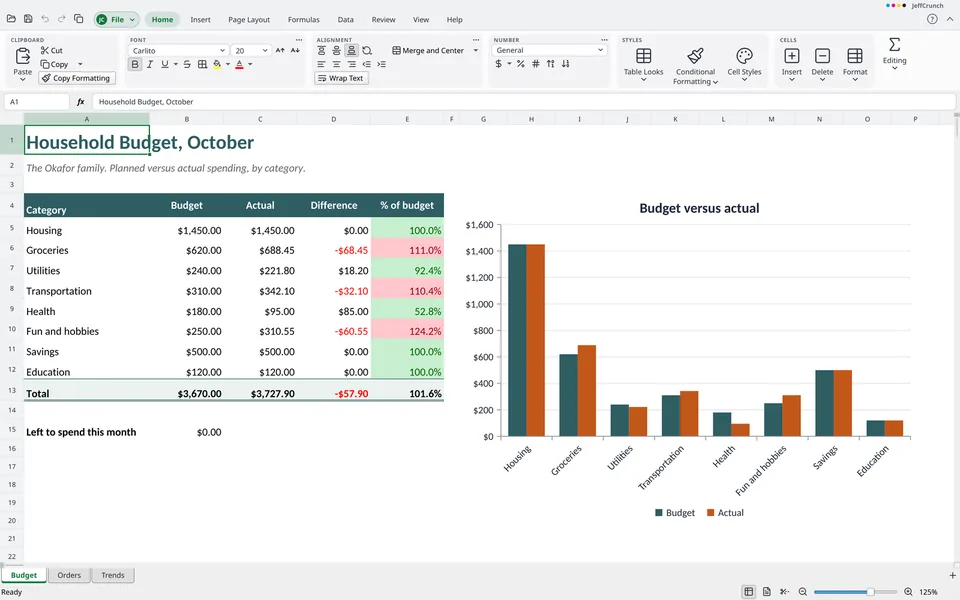
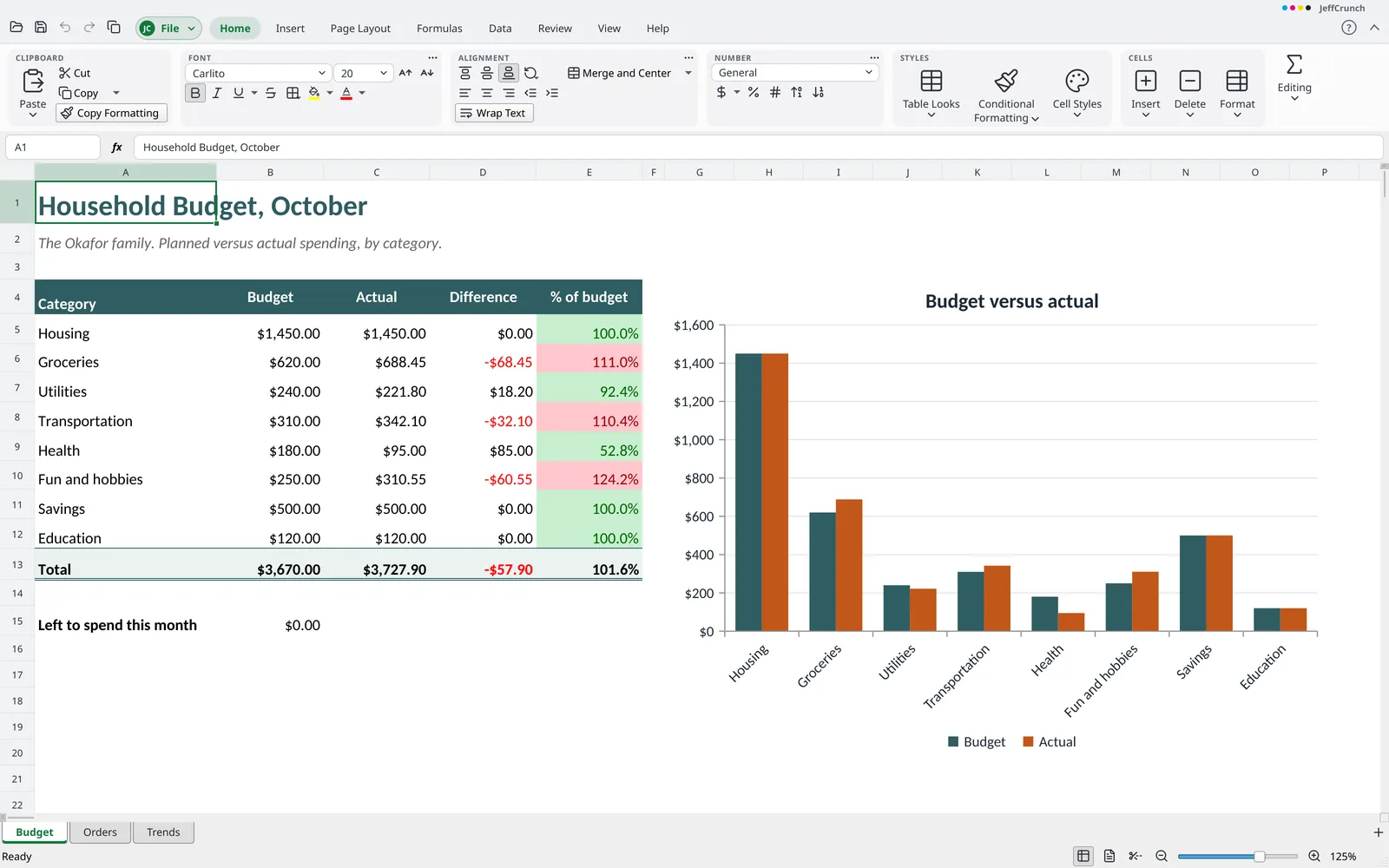
Formulas, number formats, and charts in one sheet 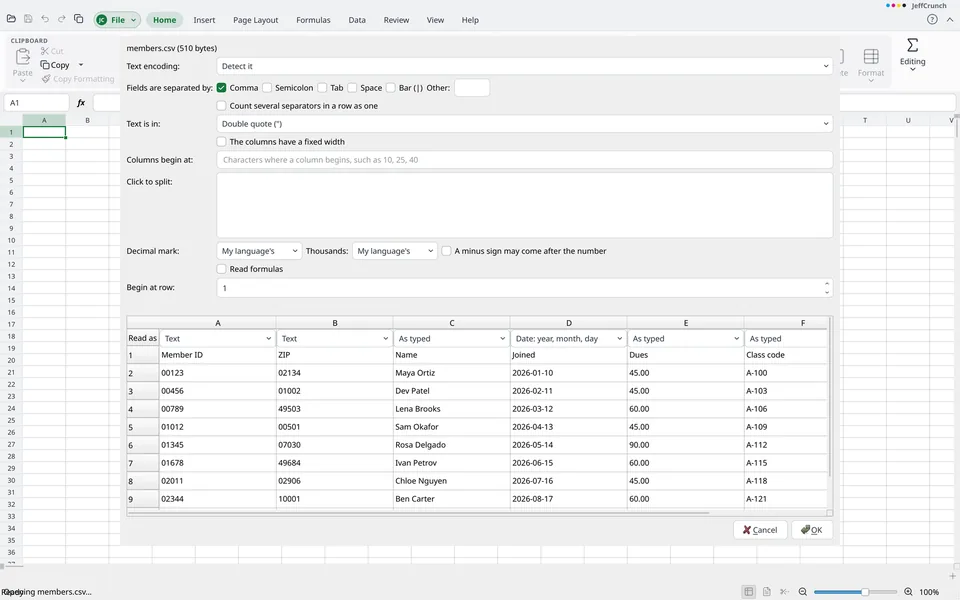
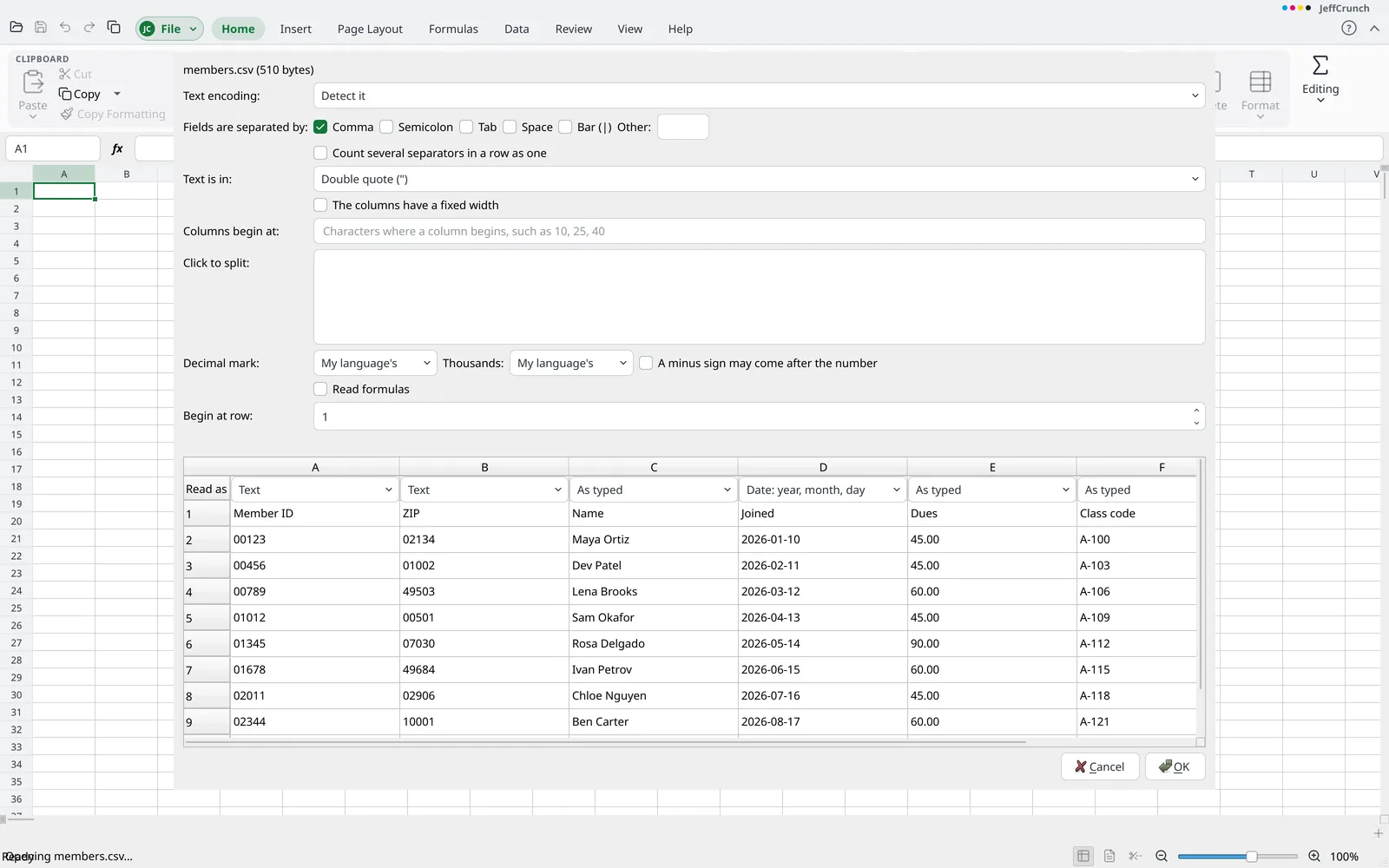
Preview CSV columns and keep codes like 00123 as text 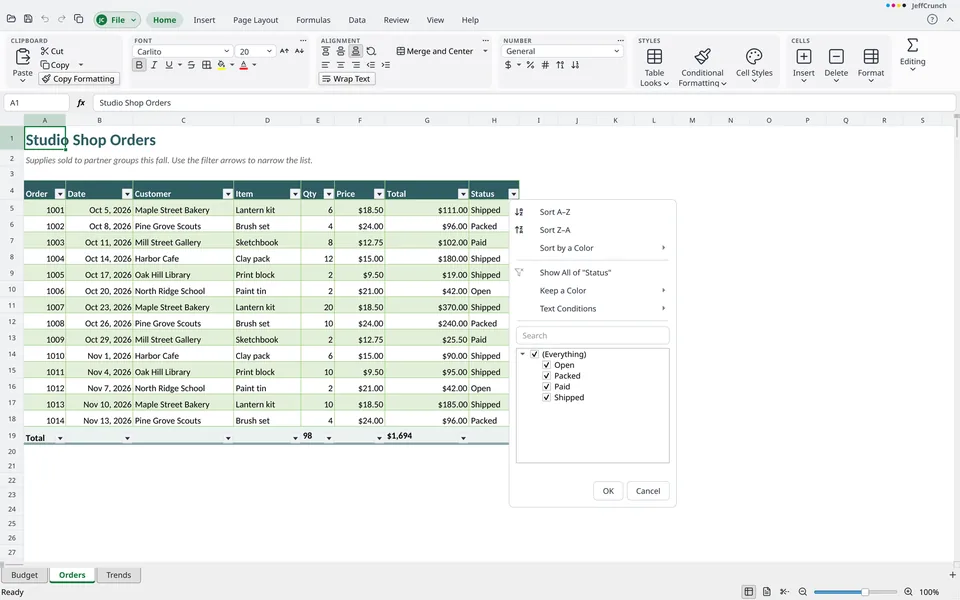
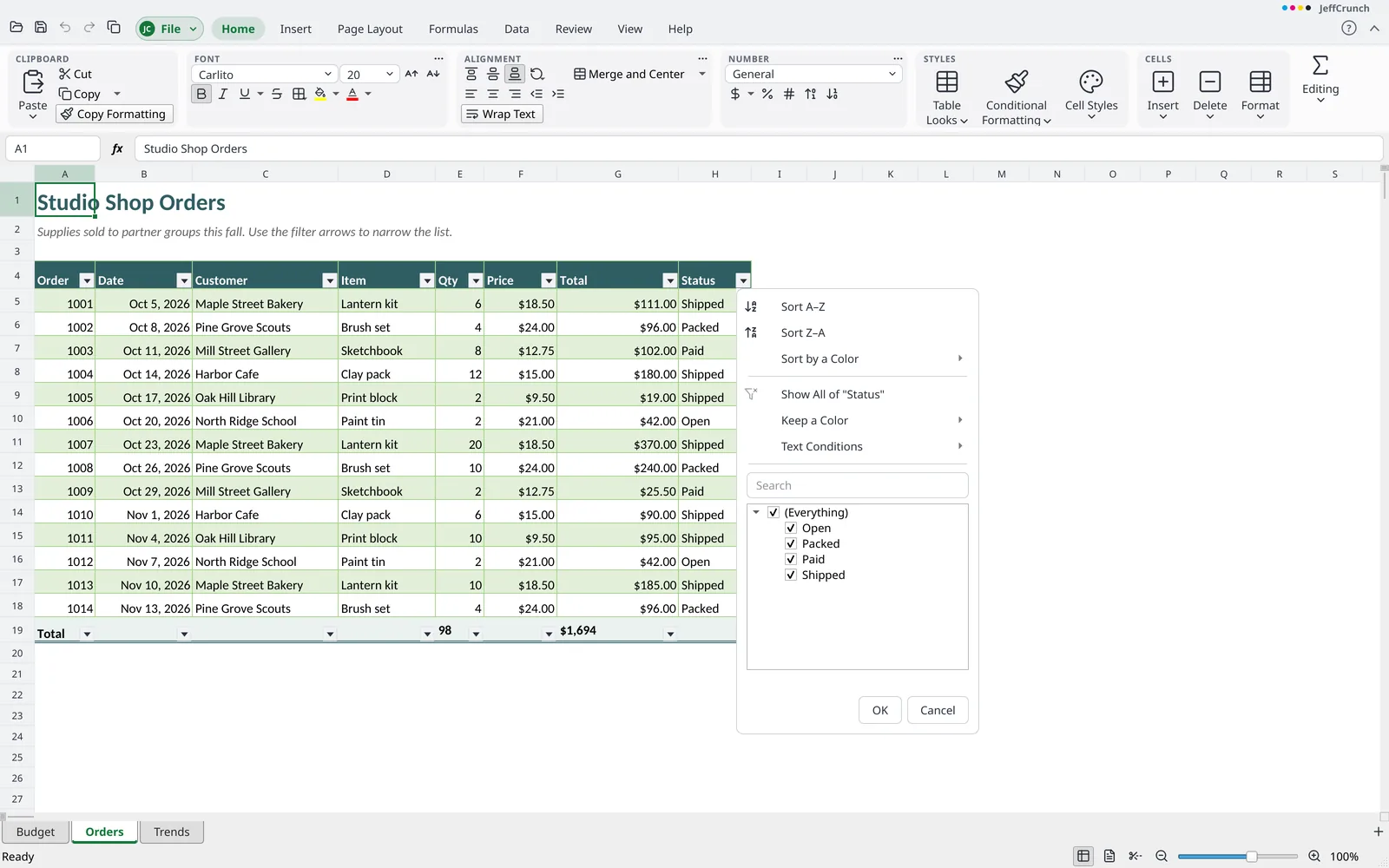
Filter and sort tables with a totals row 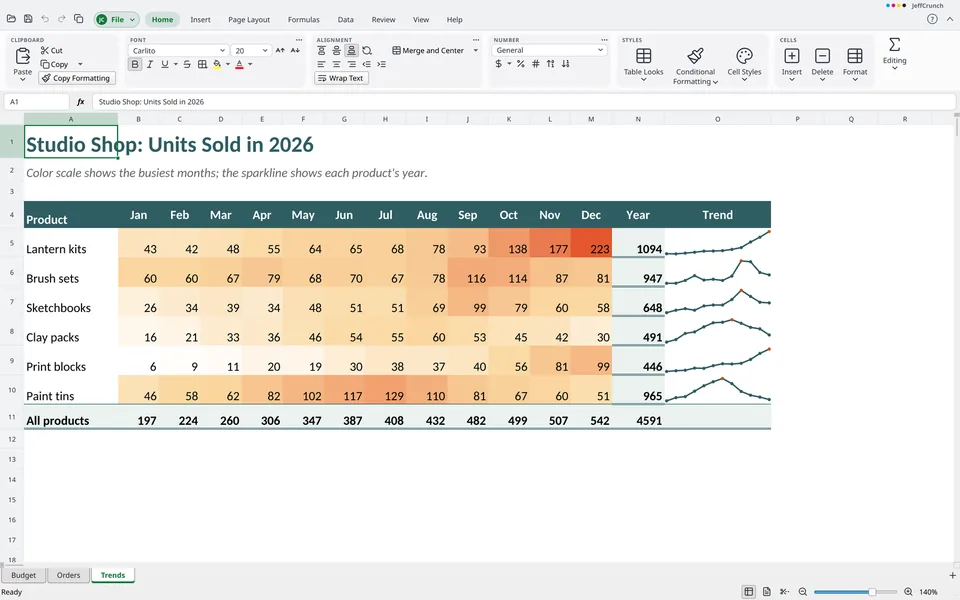
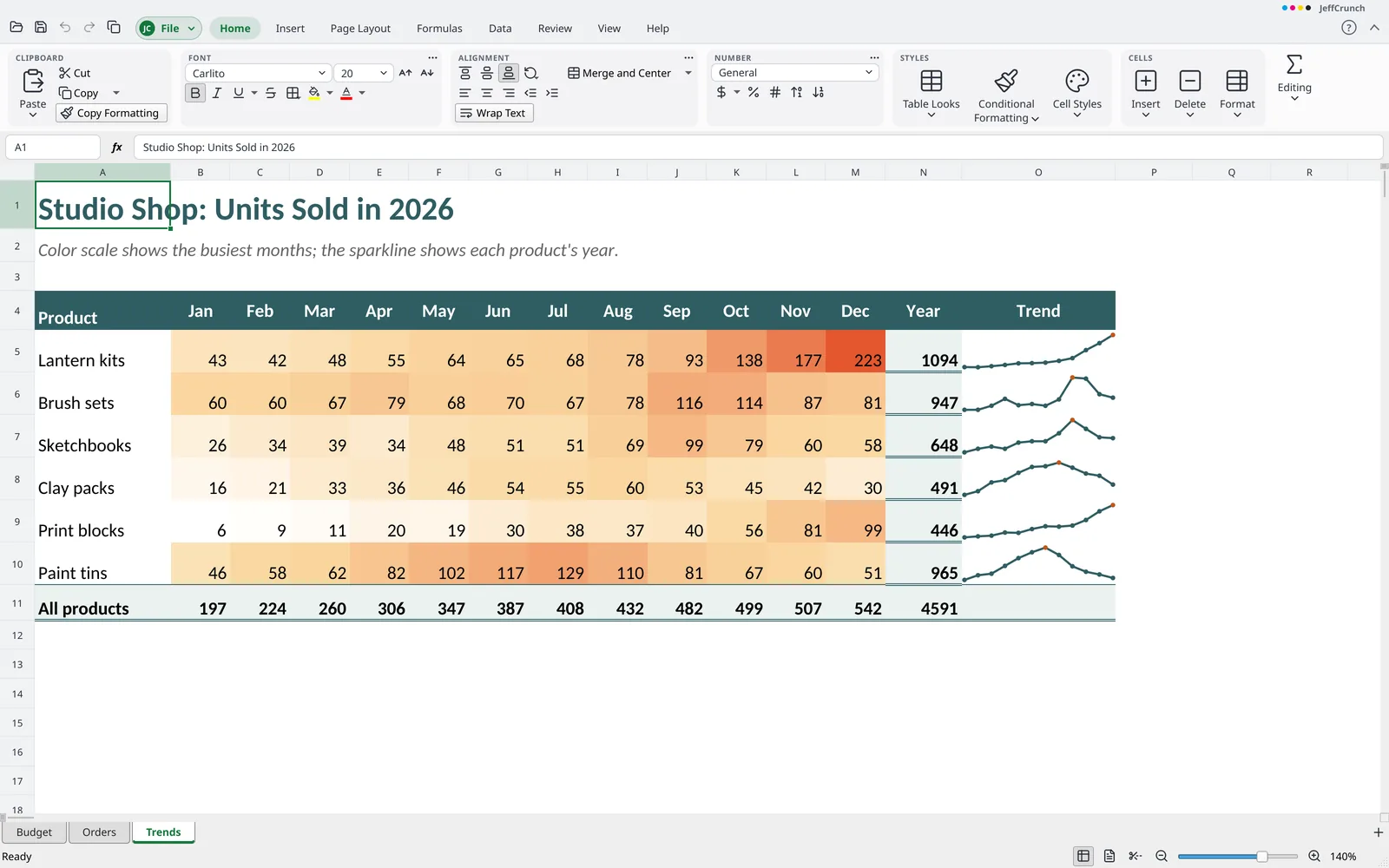
Sparklines and color scales show trends at a glance
What sets JeffCrunch apart
- Your data stays your data The import preview shows each column's type first. Values like
00123, long ID numbers, andMARCH1are never turned into numbers or dates, and a.csvyou didn't edit is saved exactly as it was. - A tested calculation engine JeffCrunch's formulas are checked by recalculating public workbooks and comparing every result with the answer the file stored.
- Nothing lost, nothing run Pivot caches, slicers, the data model, queries, and macros are kept and saved back as they were. Macros are never run.
- Old charts, real charts Charts in older
.xlsfiles open as charts you can work with, and are saved as real charts in.xlsx. - Big sheets open Large
.xlsxfiles are read in pieces, so sheets with millions of cells open without running out of memory.
Files JeffCrunch works with
- Opens
.xlsx,.xlsm,.xltx,.xltm, older.xls,.ods,.ots,.csv,.tsv,.txt, and web pages- Saves
.xlsx,.xlsm,.xltx, and copies as.xls,.ods,.ots,.csv,.tsv, and.txt- Exports
- PDF and PDF/A
Every feature
The complete list, grouped the way JeffCrunch's menus and ribbon are. Open a group to see what is in it.
Beyond the usual spreadsheet (12)
- Runs on Windows, macOS, and Linux. The Mac app isn't signed yet, so macOS asks before opening it the first time.
- Free and open source (GPL-3.0), with no license fee, subscription, account, or sign-in, and nothing that has to be online.
- Install without administrator rights, or run with no installation (Windows
.zip, Linux AppImage). - Open
.odsand.otsfiles, with what is skipped reported. Save an.odscopy;.xlsxis the default. - What the app can't edit yet is kept with the workbook and written back as it was, including pivot caches, slicers, timelines, the data model, query definitions, custom XML, the macro project, ActiveX controls, and 3-D models.
- A formula whose function the app doesn't have yet keeps the result the file stored and is written back as it was.
- The calculation engine is checked by recalculating public workbooks and comparing each formula with the answer the workbook stored.
- Bundled open fonts include stand-ins with the same letter widths as common fonts, so column widths and wrapped text fall in the same places.
- The import preview for text and CSV files shows each column's type before anything changes. Values like
00123, 16-digit numbers,1-2, andMARCH1are not altered or turned into dates, and an unedited.csvis written back as it was read. - Insert open vector icons from a picker searched by name, each placed on the sheet as a picture.
- Insert > Pictures > Online Pictures searches Openverse and Wikimedia Commons and places the picture on the sheet with its title as alt text. If asked, a credit line goes in a text box under it. One step of Undo removes it.
- Insert a barcode on a sheet as a picture that moves, sizes, and undoes like any picture: EAN, UPC, Code 128, Code 39, and QR, drawn as vector bars. Select it and choose Barcode again to edit its data. Make a barcode for each filled selected cell from the cell’s text, in a column to the right, up to 500 at once. Barcodes are saved in
.xlsxfiles.
File (backstage) (43)
Info
- Edit workbook properties: title, author, subject, keywords, categories, comments, company, and manager, with the dates created, modified, and printed.
- Add, change, and remove custom properties, each with a name, a type, and a value.
- Protect with Password encrypts
.xlsxfiles when they are saved. - Inspect Workbook counts notes, personal information, hidden sheets, external links, and custom XML. It removes notes, personal information, headers, and footers, and shows hidden sheets, rows, and columns. Remove All on external links turns linked cells into the values they show.
- Check Compatibility lists what a workbook has that an
.xlsfile cannot hold, including charts, pictures, notes, pivot tables, tables, conditional formats, validation, filters, protection, form controls, macros, and links. It counts formulas saved as their values and says what was cut for the limits on rows, columns, sheets, texts, formats, fonts, and colors.File > Info > Check Compatibilityshows the same list without saving anything. - Check accessibility lists charts and pictures with no alt text, tables with no header row, merged cells, sheets with default names, hard-to-read text, blank rows or columns between data, and objects stacked out of order, and goes to each.
- Version History on the Info page keeps a version of a workbook saved as
.xlsx, lists the versions, goes back to one (first keeping the current workbook as a version), and opens one as a copy beside the workbook. - Recover unsaved workbooks from the Open screen, and get an offer to recover them at the next start after a crash.
- Show a workbook's folder and copy its path.
New
- The New page lists twelve built-in templates by kind (Finance, Business, Planning, and Education), each with a small preview of its top. A workbook made from a template has no file of its own until it is saved.
- Built-in templates include a checkbook register, grade book, inventory list, mileage log, project plan, and sales report.
- Save a workbook as a template (
.xltx,.ots) and reuse it from My Templates. A template can hold formulas, styles, and sheets. - File > Options > New Workbooks sets the font, its size, and the number of sheets a new workbook starts with.
Open, Save, Save As, and Close
- Opens
.xlsx,.xlsm,.xls,.ods,.fods,.csv,.tsv, and.txtfiles, and templates. - Saves
.xlsxby default,.xlsand.odscopies,.csv,.tsv, and.txt. - A file that can't be read gives a clear message and never crashes the app or affects the other open workbooks.
- A workbook with unsaved changes keeps a background copy as an
.xlsxfile at the interval set in the Save options. The copy is removed when the workbook is saved or closed, and nothing is written for an unchanged or password-protected workbook. Copies left by a crash are offered at the next start and open as unsaved work. - Keep a backup copy on every save.
- A warning appears before saving to a format that can't hold something in the workbook, naming what would change and offering to save an
.xlsxas well. - Open and Repair recovers what can be read from a damaged
.xlsxfile, keeps a sheet that broke part way as far as it goes, leaves out what can't be read, and opens the workbook as a copy with a note of what was dropped. For a damaged.xlsfile with a cut-short container or broken sector tables, it reads the workbook as far as it goes and says so in a note. - Open a workbook read-only, as a copy, or in a new window.
- Open an encrypted
.xlsx,.xls, or.odsworkbook by entering its password. A wrong password asks again. - Save
.xlsand.odscopies of the workbook. - Open
.xlsmand.xltmfiles with the macro project kept untouched and never run, and save them back the same way.
- Print to a system printer or a PDF file with copies, collate, this sheet, the whole workbook, or the selection, page ranges, orientation, paper, margins, and scaling. Print the last page first and in grayscale. Print on one side or both sides, including by hand, and the choice is kept. Several selected sheets print at once.
- Print preview with page navigation, fit page, and zoom, and a note when a sheet is shrunk very small, needs more pages than can be made, or is empty.
- Print what the page setup says: the print area, titles repeated on every page, page breaks, scaling to a number of pages wide and tall, headers and footers, gridlines, and headings.
- Print several pages on one sheet (1, 2, 4, 6, 9, or 16), to a printer or a PDF, with copies and collating. Scale the printout to a paper size and see the sheet of paper in the preview with a count of sheets.
- Print all pages, only the odd pages, or only the even pages within the page range. After the odd pages are sent to a printer, a message says to turn the stack over and print the even pages.
Share and Export
- Export to PDF the active sheets, the whole workbook, or the selection.
- Export the active sheet as a text file (
.csv,.tsv, or.txt). Choose the separator (comma, semicolon, tab, space, vertical bar, or another character), the encoding, the line endings, and whether cells are written as shown or as stored. - Save a text file in more code pages: Japanese, both Chinese, Korean, Hebrew, Arabic, Baltic, Vietnamese, and Thai. If a page is not supported, the file is saved in UTF-8 with a mark, and the app says so.
- Export the whole workbook as PDF/A-1b, with the fonts, the identification, and the color output intent written into the file.
- Encrypt a sheet or workbook PDF export with a password to open it and, if wanted, a second password to limit printing, copying, and changing. The PDF uses AES-256 encryption, and the unprotected PDF is never written to disk. The PDF/A command is unavailable with a password, as that standard forbids one.
- File > Export > Make an Email creates a ready-to-send
.emlmessage with the workbook attached as a file or as a PDF. A workbook with a password stays locked, and the password is never in the message.
Options
- Set the calculation mode (automatic, automatic except data tables, or manual), iterative calculation, and formula autocomplete in the Formulas tab.
- Set proofing options: AutoCorrect (replacement list, capitalization rules, smart quotes), spelling, ignoring words in capitals or with numbers, and custom dictionaries. They apply to the underline in the cell editor, to spelling check, to AutoCorrect, and to web addresses.
- Set the automatic recovery interval in the Save options.
- In Options > Editing, choose where
Entermoves the selection, turn AutoComplete for text typed in a column on or off, turn the fill handle and dragging cells on or off, set automatic decimal places (positive or negative), and edit directly in the cell or only in the formula bar. - Show a zero in cells with a zero value, kept with the sheet in
.xlsx. Set the gridline color, the zoom a new workbook starts at, and the standard column width of the sheet in view in Options > Display. Other display options are ribbon commands. - Show or hide ribbon tabs and groups, add your own tabs and groups with any command, and rename and reorder them, with Reset One and Reset All. Add any command to the quick toolbar (up to 100, with separators, removal, and reordering), and use the right-click menu to add or remove commands, open the customize pages, or collapse the ribbon.
- Customize the keyboard in
Options > Customize > Keyboard: search a list of every command by ribbon tab, add or remove keys, and see which command already uses a key and take it over. Reset One and Reset All restore the defaults, and the system's own keys stay reserved. - Remove personal information from a file each time it is saved: the author, who saved last, the company, and the manager are taken out of the file properties, and the names are taken out of the notes and the comment threads. The same option is in
Options>Saveand onInfo.
Home tab (44)
Clipboard
- Cut, copy, and paste cells within a workbook and between workbooks. Values, formulas with their relative references moved, formats, and merged cells are pasted, and a cut moves the cells and what refers to them. Tab-separated text and HTML tables go in and out.
- Paste Special offers all, formulas, values, formats, all except borders, formulas and number formats, values and number formats, column widths, and comments and notes. It also has the four operations, skip blanks, and transpose. Pasted widths or notes and the paste are one step of Undo.
- The arrow under Paste lists Paste Special choices as commands: No Borders, Formulas and Number Formatting, Values and Number Formatting, Keep Source Column Widths, and Comments and Notes. It also has Paste Link, which makes each cell a formula pointing at the copied cell, Paste as Hyperlink, and Paste Text Import for text from another program.
- Paste text through the Text Import dialog, splitting it into columns by the separators, quote, first row, and column kinds chosen, or by fixed-width cuts, in one step of Undo. Set Default Paste to make Paste and
Ctrl+Vuse the last choice of the Paste arrow. - Copy cell formatting once, or lock it with a double-click to apply it several times.
- Copy as Picture and Copy as Bitmap put an image of the selected cells on the clipboard, drawn as on screen with the gridlines and without the selection tint. Copy as Printed Picture draws the cells as the paper would, with the gridlines the page setup prints.
- Copied cells are put on the clipboard as a table that carries the font where it differs from the sheet’s usual one, underline and strikethrough, alignment, fills, text colors, and borders.
Font
- Choose the font and size in their boxes, and use Increase and Decrease Font Size.
- Apply bold, italic, underline (single and double), and strikethrough on the Home tab. Apply accounting underlines, subscript, and superscript in Format Cells. All are drawn in the cell.
- Set font color and cell fill color from theme colors with tints, standard colors, More Colors, or No Color. Each change is one step of Undo.
- Add borders from the Borders menu (bottom, top, left, right, none, all, outside, thick outside, double bottom, and more) with line style and color, and set diagonal borders in Format Cells. Draw Border, Draw Border Grid, and Erase Border let you drag over cells to draw the outside lines, all the lines, or erase them, one step per drag, until
Esc. - Use the Font, Border, and Fill tabs of Format Cells, with two-color pattern fills and a preview. The Fill tab also makes a two-color gradient in five directions (left to right, top to bottom, two diagonals, and from the center out), with a sample. A gradient in a file keeps all its colors, angle, or path. A copy saved as
.xlsor.odsshows it as one color and says so. - Format part of a cell’s text with bold, italic, underline, strikethrough, color, font, size, and superscript or subscript. Select words while editing (
F2, or in the formula bar) and use the font commands: only those words change, the formatting moves with the words as text is typed or deleted, and the whole entry is one step of Undo. Rich text is kept in the file and shown in the cell, wrapped or not.
Alignment
- Set horizontal alignment (general, left, center, right, justify, repeat to fill, center over the selected cells, and spread evenly) and vertical alignment (top, center, bottom, justify, and distributed), on the Home tab and in Format Cells.
- Wrap text in a cell. A row with no set height grows for wrapped text, a larger font, or an entry of several lines (
Alt+Enterturns Wrap Text on), and follows the width of its column. - Merge & Center, Merge Across, Merge Cells, and Unmerge Cells. A merged area keeps the top-left cell’s value and asks before emptying the others. Sort moves merged areas of one size with their rows and refuses other sizes, a fill never goes into or out of a merged area and says so, a filter hides rows by what their cells hold, and print draws a merged area as one cell.
- Increase and decrease indent in steps of the character width, and shrink text to fit the cell.
- Set text orientation: angle counterclockwise or clockwise, vertical text, rotate up, and rotate down, from -90 to +90 degrees. Use the menu or enter degrees in Format Cells; the cell is drawn at that angle.
- Set text direction in Format Cells, and open sheets that read right to left, drawn mirrored. Page Layout > Sheet Right-to-Left turns a sheet around.
- Set every alignment choice in the Alignment tab of the Format Cells dialog.
Number
- Pick a number format from the box: General, Number, Currency, Accounting, Short Date, Long Date, Time, Percentage, Fraction, Scientific, Text, and More Number Formats.
- Apply Currency, Percent Style, Comma Style, Increase Decimal, and Decrease Decimal. The arrow next to the Currency button lists Accounting Number Format for the US dollar, British pound, euro (after the number), yen, yuan, and Swiss franc.
- Use the Number tab of Format Cells: twelve categories with their options and a live sample in the person’s language, including decimal places, thousands separator, negative number styles, and Custom formats.
- Numbers are shown with the marks of the system’s language, and Format Cells lists ready-made dates, times, and currencies. The file keeps the neutral form.
Styles
- Conditional formatting in a file is read, follows edits, is saved as it was, and is drawn for every rule kind: cell value, text, dates, top and bottom, above and below average, duplicates and unique, formula, data bars, color scales, and icon sets (all 20). Rules on tables and pivot tables are included. Icon sets with icons of their own are kept in the file but not drawn.
- In Conditional Formatting, use Greater Than, Less Than, Between, Equal To, Text That Contains, and Duplicate Values, each with a ready-made look, as one step of Undo. Clear Rules from the selected cells or from the sheet.
- Make Top 10 Items, Bottom 10 Items, Top 10 %, Bottom 10 %, Above Average, and Below Average rules from the menu, and save them. Data bars, color scales, and icon sets in a workbook are drawn.
- The 2010 extension form of a data bar is read, drawn, and written into a copy of the sheet. A rule that reads another sheet is drawn when the file stores it in the ordinary form.
- Turn cells into a table with a look from the gallery of 60 table looks (light, medium, and dark, each in black and the theme’s six colors), with header row, stripes, first and last column, and totals row drawn on the sheet. Looks defined by the workbook are drawn too.
- Apply a cell style from the gallery, with built-in styles made when used. New Cell Style adds a style of your own to the gallery.
- New Cell Style saves the look of the current cell under a name, offers it in the gallery, applies it to the selected cells, and saves it with the workbook. Delete Cell Style removes a style from the gallery and returns its cells to Normal, in one step of Undo.
Cells
- Insert and delete cells, rows, columns, and sheets. Cells can shift right, down, left, or up as one undo step, and every reference follows, in the file too. A formula pointing at a deleted cell or sheet shows
#REF!. - Use the Format menu for Row Height, Fit Row Height, Column Width, Fit Column Width, Default Width, and Default Row Height. Drag a border or double-click it to fit, and a number typed or pasted widens a column that still has its first width.
- Hide and unhide rows, columns, and sheets, including several sheets at once.
Ctrl+0andCtrl+9hide columns and rows. Very hidden sheets are kept as saved. - Rename a sheet, with every formula that names it following. Move or copy a sheet within the workbook, or drag its tab, and set Tab Color. A copy keeps the sheet’s protection, filter, links, page setup, page breaks, row and column groups, and data bar looks, and says it leaves out pictures, charts, notes, pivot tables, sparklines, and names that belong to the sheet alone. A workbook holds up to 1,000 sheets.
- Lock cells with the Locked option in the Protection tab and protect the sheet. A protected sheet enforces what it allows for editing, formatting, sizes, inserting and deleting rows and columns, links, notes, sort, and filters. The password is stored as a salted hash, and the older 16-bit form is read and checked.
- Insert and delete rows and columns in a table to make it larger or smaller. New rows get the calculated columns’ formulas, and new columns are named in the row of names. Above, below, left, and right of the selection are in the right-click menu, and they insert whole rows and columns of the sheet.
- Drag the border of the selection to move the cells, with what points at them following, or hold
Ctrlto copy them. It is one step, with a dashed outline of where the cells land.
Editing
- Use the Sum menu for Sum, Average, Count Numbers, Max, and Min, and press
Alt+=(Cmd+Shift+Ton a Mac) to insert the sum of the cells above or to the left. More Functions opens the function list. - Fill cells down (
Ctrl+D), right (Ctrl+R), up, and left, across worksheets, as a series, and with Justify. Drag the fill handle and choose to copy cells, fill series, fill formatting only, fill without formatting, or fill days, weekdays, months, or years. - Define custom lists in the options, one list per line with commas between the words, up to 50 lists. The fill handle and Fill Series use them like weekdays and months, ignoring capitalization.
- Clear all, contents, formats, comments and notes, or hyperlinks from cells with the Clear menu.
- The Sort & Filter menu offers Sort A to Z, Sort Z to A, Custom Sort, Filter, Clear, and Reapply.
- Find, Find All, Replace, and Replace All in the sheet or the workbook, by rows or columns, in formulas, values, or notes, with match case, match entire cell, and wildcards. Go To a reference, a name, or another sheet's cells, and Go To Special for blanks, constants and formulas by kind of result, errors, current region, current array, last cell, visible cells, row and column differences, conditional formats, and data validation.
Insert tab (22)
Tables
- Pivot tables show as saved, with the numbers in the cells, and are kept whole with their data and written back unchanged when not edited. A pivot table tab and a field list pane work on a table. Pivot charts, slicers, timelines, and filter panes are shown and kept as saved.
- Insert a pivot table from selected cells or a table, onto a new sheet or at a cell. The Pivot Table Fields pane opens, the table is saved in an
.xlsxfile, and it is one step of Undo. - Insert > Recommended Pivot Tables lists up to six layouts for the table or cells you are in, each with a sentence saying what it shows. The one you choose is made on its own sheet, with date columns grouped by years and months, in one step of Undo.
- Turn a range into a table (
Ctrl+TorCtrl+L) with a unique name, calculated columns, structured references in formulas, a totals row with a function for each column, and growth when you type below or beside it. Each is one step of Undo.
Illustrations
- Insert a picture on the sheet from a PNG, JPEG, GIF, BMP, TIFF, or SVG file, or a WMF or EMF file drawn as a PNG, scaled to at most 480 wide, as one step of Undo.
- Drawing objects on a sheet (lines, rectangles, text boxes, arrows, and other shapes) are shown, kept, and written back, in front of or behind the cells.
- Shapes and text boxes in a file are shown, kept, and written back.
- View diagrams on a sheet as they were saved. Pick and move a diagram over the cells, and save it back unchanged.
Charts
- Charts are shown as saved, drawn from the numbers in the cells they point at. Kinds that cannot be drawn yet are kept and drawn from their stored values.
- Insert a chart from the selected cells: clustered, stacked, and 100% column and bar; line, plain, with markers, or stacked; pie; doughnut; area, plain or stacked; scatter with points, joined points, or smooth lines; and combo. The series run down columns or along rows by the shape of the data, or can be switched.
- Make and change doughnut charts and combo charts of columns and a line against a second axis.
- Recommended Charts lists up to six chart kinds that suit the selected cells, each drawn from the cells. Pick one to insert it.
- Insert > Pivot Chart makes a column chart of a pivot table’s values, without the grand totals, as one step of Undo. The chart reads the table’s cells, so its numbers follow a refresh.
Sparklines
- Insert sparklines, tiny charts inside cells, as line, column, or win/loss from a row or column of values. Mark high, low, first, last, and negative points, show an axis line, and set bounds. Sparklines follow inserted and deleted rows and columns, can use a date axis, and are one step of Undo each.
Filters
- Slicers are listed in a pane. Click a button to filter the tables the slicer names, with Ctrl-click to add or remove an item, as one step of Undo. The choice is saved, and Report Connections names the tables.
- Timelines are read and kept as saved, with the items chosen, the span, and the caption.
Links
- Insert a link (
Ctrl+K) to a web page or file address, a place in this workbook (a sheet and cells, or a name), or an email address, with a screen tip.Ctrl+click follows it, and a file or other kind of address asks first. Edit and remove links. - The link dialog lists recently opened files, and a place in the workbook can be chosen by sheet, cells, or name.
Comments
- Add comments with replies, and older-style notes.
Text
- Insert a text box or text styles on a sheet. Edit a text box's words, alignment, size, bold, and color. Edit text styles' words, font, size, bold, and italic, and change their look and warp shape, each as one Undo step. Both are saved in
.xlsxand.odsfiles and read back. - Header & Footer shows the pages and opens the first page’s header for typing. The Header & Footer tab then adds the page number, the date, and more.
Symbols
- Insert an equation over the cells as an object, typed in a line, from the built-in equations gallery. Equations are drawn in two dimensions with stacked fractions, scripts, roots, sums and integrals with limits, growing brackets, accents, and matrices. They move and resize like any object, open the editor again on a double-click, and each change undoes in one step. An
.xlsxfile keeps the equation as math, and equations written by other programs show as math when the file opens. PDF and printing use vector outlines.
Page Layout tab (12)
Themes
- A workbook’s theme (colors, fonts, and effects) is read and kept, and every color or font a cell takes from the theme resolves to it.
Page Setup
- Set margins (Normal, Wide, Narrow, and custom, with header and footer margins), orientation, and paper size from a list of common sizes, and center the sheet horizontally and vertically on the page.
- Set, add to, and clear the print area. Several areas on one sheet print on separate pages. Print areas are kept when saving and move with inserted and deleted rows and columns.
- Insert, remove, and reset all page breaks, horizontal and vertical. Breaks are saved, move with edits, and automatic breaks show as dashed lines on the sheet.
- Repeat rows at the top and columns at the left of every printed page. Print titles are kept when saving and move with edits.
- The Page Setup dialog has four tabs: Page (orientation, scale or fit, paper size, first page number), Margins, Header/Footer, and Sheet (print area, titles, gridlines, black and white, draft quality, row and column headings, comments, error display, and page order).
- The Page tab has Print quality (150, 300, 600, and 1200 dots per inch, and a value the file has), read and saved in
.xlsxand.xlsfiles.
Scale to Fit
- Fit the sheet to a number of pages wide and tall, or automatic, or set a percent from 10 to 400; a warning appears when the type becomes too small to read.
- Scaling stays with the sheet and is kept as saved, so the same pages come out on the same paper.
Sheet Options
- View and print gridlines and headings, each separately.
- A sheet that reads right to left is drawn mirrored.
Arrange
- Bring objects to the front or send them to the back.
Formulas tab (15)
Function Library
- Insert Function opens from the fx button on the formula bar: search by what a function does, browse by category, see help for each argument, and see the live result of the arguments typed so far in the Function Arguments dialog (
Shift+F3). - The Sum menu inserts common summary formulas.
- Function names complete as you type, with argument names shown; arguments are separated by commas or semicolons as the language requires; references are colored in the formula and the sheet; drag a colored border to change a reference;
F4cycles between relative and absolute (A1,$A$1,A$1,$A1). - Formulas can refer to other sheets and workbooks, 3-D ranges, whole rows and columns, and names.
Defined Names
- Define names for cells, ranges, constants, or formulas, scoped to the workbook or one sheet. Create, change, and delete names, each as one step of Undo, with the rules checked as you type and Go To following them. A name typed in the Name Box that stands for nothing yet is created for the selected cells. Built-in names for print areas, print titles, and filters are kept as saved.
- The Names dialog (
Ctrl+F3) lists each name with its value, what it stands for, where it works, and its comment. You can filter, add, change, and delete names, and sort by any column. Renaming a name updates every formula, validation, conditional format, and other name that uses it, and the file. A name that points to an error is flagged. - Create names from the top, left, bottom, or right labels in one step, and insert a name from a menu on the Formulas tab. Apply Names replaces references to exactly those cells with the chosen workbook names, with or without dollar signs, in the selected cells or the sheet, as one step of Undo.
Formula Auditing
- Show the cells a formula reads and the cells that read a given cell, with arrows that extend one step more with each click, and clear the arrows. Trace an error back to the cell that causes it, and step through the cells on a sheet that show an error with Next Error and Previous Error.
- Show Formulas (
Ctrlplus the grave accent key) shows formulas instead of results on the sheet, with widened columns. - Error Checking steps through formulas that give an error, numbers stored as text, formulas unlike the formulas on both sides, dates stored as text with a two-digit year, and formulas in unlocked cells. It goes to each cell, says what is wrong, and marks it with a green triangle. Ignore Error is saved in the file and is one step of Undo.
- Formulas > Evaluate Formula goes through a formula part by part, each cell, then each function from the innermost, then the rest, with the next part underlined.
- Formulas > Watch Window lists cells with sheet, cell, value, and formula. It stays in view across sheets and updates as the sheet is worked out.
- Circular references are named once when a circle begins, outlined on the sheet, noted in the status bar, and listed under Circular References, where a double-click goes to the cell.
Calculation
- Choose Automatic, Automatic Except Data Tables, or Manual calculation, saved in the file, as one step of Undo. A Manual workbook opens with the results its file holds, and the status bar says when a recalculation is due. Iterative calculation is bounded and saved. Calculate Before Save is in the Calculation Mode menu.
- Calculate now (
F9), calculate the sheet (Shift+F9), and recalculate everything (Ctrl+Alt+F9andCtrl+Shift+Alt+F9).
Data tab (18)
Get & Transform Data and Connections
- Open a text file from the Data tab with From Text/CSV, or through Open a Text File, and load it into a sheet.
- Data connections, query tables, and their definitions in a workbook are kept and written back as they were, and the cells show their last results.
- Edit Links lists the external workbooks a workbook points to. You can check status, open a source, break a link, update values from a source file on this computer, and change a link’s source. A link shows the values the file stored until you update it.
Sort & Filter
- Sort A to Z and Z to A on the block around the cell, with the header found automatically. Custom Sort has up to 8 levels on values, cell color, or font color, ascending, descending, or by a list (days, months, or one you type), with header, match case, and left to right. A sort is one step of Undo, formulas are written for their new rows, and rows hidden by a filter stay in place.
- Filter rows with drop-down buttons in the header row: pick values with a search box, use text, number, and date filters, filter by color, or set a custom filter of two conditions joined by And or Or.
- Clear and Reapply a filter. The filter state is kept as saved, and rows hidden by a filter stay hidden when the file reopens.
- Data > Advanced filters a list by conditions written as ranges on the sheet. Hide rows in place (Clear shows them again) or copy the results to another place, with unique rows only as an option. A condition is a value, or
=,<>,<,<=,>,>=before a value. - A table’s buttons filter and sort its rows only, and the filter is kept in the table.
Data Tools
- Text to Columns splits one column at tab, semicolon, comma, space, or your own marks (runs of marks as one, quoted text kept whole) or at fixed places. Each piece is read as typed or kept as text, placed from a cell you name, with a preview of the first rows, as one step of Undo.
- Remove Duplicates: choose the columns that must match. The header row is kept, capitals do not matter, formulas count as their values, and rows below move up with their formats and formulas. The dialog says how many rows were removed and how many remain, as one step of Undo.
- Data validation rules are read, kept, and followed through edits. Typed and pasted values are checked with the rule’s own style, title, and message, a list is offered from a button on the cell, and the input message shows beside the cell. Rules that read other sheets are kept through saving and through inserted rows and columns.
- Data > Data Validation sets rules for the selected cells: Any value, Whole number, Decimal, List (typed or from a range), Date, Time, Text length, and Custom, with comparisons, Ignore blank, an in-cell drop-down, an input message, and an error alert of Stop, Warning, or Information. It is one step of Undo. Circle Invalid Data and Clear Validation Circles draw and remove a red oval around each cell with data its rule does not allow.
- Data > Consolidate combines ranges from one or several sheets by position or by the names in the top row and left column. It uses Sum, Count, Average, Max, Min, Product, Count Numbers, StdDev, StdDevp, Var, or Varp, as numbers or as formulas that link to the source cells, in one step of Undo.
Forecast (What-If)
- Data > Goal Seek tries numbers in the cell to change until the formula is within 0.001 of the value you want, in one step of Undo. If none is found, nothing changes.
- Data tables: one- and two-input tables run a formula for many values of one or two cells. Every formula that depends on the input is recalculated for each value, with the sheet in Automatic mode or by
F9otherwise. - Scenario Manager adds, edits, deletes, and shows scenarios of up to 32 changing cells each, with a comment. Summary puts them side by side on a new sheet with the result cells worked out under each. Scenarios in a file are kept.
Outline
- Row and column outlines are kept and work, with plus and minus buttons, level buttons, and collapsed groups staying collapsed. Group and Ungroup rows and columns, and turn outline symbols on or off.
- Subtotal inserts a subtotal at each change in a column, using Sum, Count, Average, Max, Min, Product, Count Numbers, StdDev, StdDevp, Var, or Varp on the checked columns. It replaces earlier subtotals, adds a grand total, groups each run in the outline, can insert page breaks between groups, and has Remove All.
Review tab (10)
Proofing and Accessibility
- Check spelling (
F7) in the sheet or the selected cells, skipping formulas, numbers, and dates. Ignore, Ignore All, Change, Change All, and Add are available, and a red underline with right-click suggestions appears in the cell editor. - Look up synonyms for the first word of a cell's text in the English word list with
Shift+F7, and replace the text in the cell with the choice. - Review > Workbook Statistics, also on the Info page, shows the numbers of sheets, cells with data, formulas, charts, and pivot tables.
- Check Accessibility finds missing alt text, merged cells, blank cells used for layout, default sheet names, tables with no header row, low color contrast, and problems with the reading order of objects.
Language
- Open the text of the selected cells, one line for each row, or the words selected in the entry being typed, in an open translation service with a server address you can change. The text is limited to 5,000 letters, and nothing is sent before you click
OK. - Set the proofing language for the selected cells, or mark them as not to be spell-checked. The Spelling command and the cell editor follow the setting. It is saved in
.odsand.xlsxfiles.
Comments and Notes
- Notes: New, Edit, Delete, Previous, Next, Show or Hide, and Show Every Note. A red mark shows on the cell, the note appears on hover, and the author is kept. Notes move with rows, columns, and sorting. Threaded comments are shown read-only and kept.
- Threaded comments show with author, time, replies, and resolved mark in the cell popup and the Comments pane. Create comments, reply, resolve or reopen a thread, delete, move to the previous or next comment, and convert between notes and comments.
Changes and Protect
- Protect Sheet with an optional password, choosing what stays allowed: selecting cells, formatting, inserting or deleting rows and columns, sorting, filters, pivot tables, and editing objects and scenarios. Unprotect Sheet removes the protection.
- Allow Edit Ranges lists, adds, changes, and deletes ranges that can be edited on a protected sheet. A range without a password can be edited freely, and one with a password asks for it the first time a cell is changed. Ranges follow inserted and deleted rows, columns, and cells.
View tab (6)
Workbook Views
- Normal view, Page Break Preview with draggable page lines, and Page Layout with pages, rulers, and header and footer typed in place. Dashed lines show where pages begin in Normal view, and they can be turned off.
- Custom Views lists, adds, deletes, and shows named views. A view keeps the sheet in front, hidden rows and columns, zoom, frozen panes, the chosen cell, gridlines, headings, formula bar, and window size. Views are kept in the file.
Show, Zoom, and Window
- Freeze Panes keeps the rows above and columns left of the selection in view, with Freeze Top Row, Freeze First Column, and Unfreeze. Frozen panes are saved and shown when a file is opened.
- Split cuts the view into two or four panes that each scroll on their own. Drag a bar to move it and double-click to remove it, or drag from the small box on a scroll bar. Splits are saved in
.xlsxand.odsfiles. - New Window opens the saved workbook in a second, read-only window. Arrange All, Cascade, View Side by Side with Synchronous Scrolling, Reset Window Position, and Switch Windows are available.
- Collapse the Ribbon with
Ctrl+F1and use Full Screen withCtrl+Shift+F1. Right-click the status bar numbers to choose Average, Count, Numerical Count, Minimum, Maximum, and Sum of the selection.
Help tab (1)
- The Help tab has Help, Keyboard Shortcuts (opens the shortcuts page), What's New, and Feedback. About with Check for Updates is on the File screen.
Contextual tabs (44)
Table Design tab (while a table is selected)
- Tables in a file open with their name, range, header row, totals row, banded rows and columns, first and last column marks, filter buttons, and style, drawn as the style says. Calculated columns and structured references work.
- Set a table’s name, change its size, and turn on or off the header row, totals row (with a function for each column), first column, last column, banded rows, banded columns, and filter buttons.
- A Table Styles gallery, Clear to remove the look, and New Table Style, which asks for a name and the fill, text color, and bold of the header row, row stripes, totals row, and first column. The new style is added to a Custom group and saved in the file.
- Summarize a table with a pivot table, remove duplicate rows by choosing the columns to compare, and convert a table back to a plain range of cells. Formulas that point at the cells follow the change.
- A table grows when you type under it or beside it. A formula typed in an empty column fills the whole column as a calculated column, and formulas can refer to a table’s column by name, such as
=SUM(Sales[Amount]).
Pivot Table and Design tabs (while a pivot table is selected)
- The Pivot Table Fields pane lists the source fields and shows four boxes: Filters, Columns, Rows, and Values. Check fields in or out, move them between boxes, reorder them, or remove them. A search box filters the field list, and Defer Layout Update holds changes until Update.
- In a pivot table, Value Field Settings lets you choose how to total a field (sum, count, count numbers, average, max, min, product, standard deviation, variance, and their population forms) and give it a custom name. You can also set a number format and use Show Values As for percent of grand, column, and row total, index, difference from, percent of, percent difference from, running total, rank, and percent of parent row and column total.
- Field Settings: a custom name, automatic or no subtotals, compact, outline, or tabular form, repeat item labels, a blank line after each item, sorting by labels or by a value, filters on labels, on values, and on top or bottom items, and a check for each item.
- Group Field groups dates by one or several parts and numbers by a start, an end, and a step. Groups in a file are read and kept, Refresh rebuilds them from new data, and Ungroup removes them.
- Expand or collapse an entire pivot table field, drill down or up on the item named in the selected cell, and double-click a value to see the rows behind it on a new sheet.
- Calculated Field adds, changes, and deletes a field defined by a formula over other fields. Calculated Item does the same for an item in a row or column field, such as
=East+West. Solve Order sets the order of items, and List Formulas lists each formula on a sheet. - Refresh one or all pivot tables from the source while keeping the layout and column widths, change the data source, refresh when the file opens, and clear a pivot table. You can also select its labels, values, or the whole table, and move it to a cell on the same sheet.
- pivot table Options: the name, texts shown for errors and empty cells, grand totals for rows and columns, field headers, and refresh when the file opens. Merge cells with labels, fit column widths, and keep formatting are saved with the file.
- Design tab: Subtotals, Grand Totals, Report Layout, Repeat Item Labels, Blank Rows, row and column headers, banded rows and columns, a gallery of ten styles, and Clear Style.
- Show Report Filter Pages on the Pivot Table tab creates a sheet for each filter item. Each sheet holds a copy of the table with its filter set to that item, and hidden items stay hidden. It can be undone in one step.
GETPIVOTDATAreads a number out of a pivot table by field names. Clicking a pivot table cell while typing a formula writes it for you, and an option on the Pivot Table tab turns that off.- A Slicers pane lists the slicers and timelines of a file. Clicking a button filters the tables it names as one step of Undo, and
Ctrl-click adds or removes an item. The choice is saved, and Report Connections names the tables.
Pivot chart tabs (while a pivot chart is selected)
- A pivot chart draws buttons with the names of its table’s fields. Field Buttons shows or hides each kind, with Show All and Hide All. The choice is kept in the file, and a new pivot chart shows the buttons.
- A selected pivot chart has the Chart tab, with chart kind, data, titles, labels, and Save as Picture. Changes are kept with the table’s chart and stay after a refresh.
Chart and Chart Format tabs (while a chart is selected)
- Add, show, and change the chart title, axis titles, legend, data labels, axes, and major and minor gridlines of the first axes from the + button beside a chart or from Chart Parts. A brush button offers colors and looks.
- Chart Data lists the series, each with a name, values, and X values from cells, plus the horizontal axis labels. Swap Rows and Columns, edit, add, and remove series, and choose how hidden and empty cells are shown: gaps, zero, or a connecting line, with or without hidden rows and columns.
- Set the chart kind for the whole chart or for each series separately, for a combo chart, and use a second axis for a series. A chart sheet in a file is kept as a chart sheet.
- Move a chart onto its own chart sheet or into any worksheet from the Chart tab with
Move Chart. A chart can also be moved from a chart sheet back onto a worksheet, and each move can be undone in one step. - Choose from four layouts, which arrange the title, legend, labels, and axes, eight color sets for the series, and four looks in the Looks gallery.
- Format Horizontal Axis and Format Vertical Axis set bounds, major and minor units, reverse order, where the other axis crosses, number format, tick marks, label position, and label turn. Also set a log scale (base 2 to 1000), display units, and show the units’ name on the axis.
- Data labels can contain the value, category name, series name, percentage, and legend key, with a separator, a number format, and a position. Value From Cells uses a range of cells as the labels, one for each point.
- Add trendlines to a chart and set their kind, equation, and R-squared from the Trendline menu. Show drop lines, high-low lines, up/down bars, and error bars (fixed value, percentage, standard deviation, standard error, and custom amounts from cells) on supported chart types.
- Save as Picture, on the Chart tab and in the chart’s menu, writes a
.pngor.jpgfile twice the chart’s size. Save as Template and Apply Template write and read a.crtxfile, giving a chart the look of the template while keeping its data. - Title Text… sets the chart title and each axis title, and a title can link to a cell (
=Sheet1!A1). The title follows the cell, and the file keeps the link. - Choose whether a chart, picture, or shape moves and sizes with its cells, moves but doesn’t size, or does neither, and whether it prints. The choices are saved in the file.
Sparkline tab (while a sparkline is selected)
- Edit the location and source range of one sparkline or a group, choose Line, Column, or Win/Loss, and show the high, low, negative, first, and last points and markers. Set choices for empty and hidden cells, and group, ungroup, or clear sparklines.
- Pick one of twelve sparkline styles, set the color of the line or bars and of each kind of point, choose from nine line weights, and use the Axis menu.
- Set up a sparkline axis: space points by dates in cells you name, show the axis, plot data right to left, and choose the minimum and maximum (automatic, the same for all, or custom). Set how hidden and empty cells are handled, and group, ungroup, or clear sparklines.
Slicer and Timeline tabs
- List slicers in a pane, click a button to filter the tables it names (Ctrl-click adds or removes an item), undo the filter in one step, and see which tables a slicer filters in Report Connections.
Picture Format tab (while a picture is selected)
- Compress Pictures, in the Adjust group of the Picture Format tab, reduces pictures to 300, 220, or 96 pixels per inch for the size they are shown at, for the pictures on the sheet or the selected one, and can remove cropped areas. The saved workbook keeps only the smaller files, and the change is one step of Undo.
- The Picture Format tab has Picture Border (color, none, weight, dashes) and Rotate (turns and flips).
- The Picture Format tab has Crop to 1:1, 4:3, 3:4, 16:9, or 9:16, cut from the middle of what shows, and Show the Whole Picture. Name and Alt Text can be set for any chart, picture, or shape in Properties.
- Choose whether a picture moves and sizes with cells, moves but doesn’t size, or does neither, and whether it prints. The choices are saved in the file.
Shape Format, Text Box, and text effects tabs
- Set the shape fill, shape outline (color, none, weight, dashes), and rotation, and give the selected shape one of seven ready-made styles. Each change is one step of Undo.
- Edit Text sets the words of a shape or text box, horizontal and vertical alignment, size, bold, color, and wrap or one line.
Header & Footer tab (while editing a header or footer)
- Edit a header and footer with a left, center, and right part in the page layout view or the Page Setup dialog. Codes are supported for page (
&P), pages (&N), date (&D), time (&T), file (&F), path (&Z), sheet name (&A), picture (&G), bold (&B), italic (&I), underline (&U), font, size, color, and an ampersand (&&). - Insert the page number, number of pages, date, time, folder, file name, sheet name, or a picture into a header or footer. Pick from eight ready-made forms for each of the header and footer, and jump to the header or footer.
- Use a different first page, different odd and even pages, scale the header and footer with the document, and align them with the page margins.
Equation, Diagram, 3-D Model, and Ink tabs
- Diagrams in a file are kept as saved.
Functions (41)
- Use 60 math and trigonometry functions, including SUM, ROUND, SUBTOTAL, SUMIF, SUMIFS, SUMPRODUCT, MMULT, MINVERSE, RANDBETWEEN, and ROMAN.
- Use 21 more math and trigonometry functions, including AGGREGATE, BASE, CEILING.MATH, FLOOR.MATH, MUNIT, SEQUENCE, and RANDARRAY, which give their block in an array formula.
- Use 45 statistical functions, including AVERAGE, MEDIAN, CORREL, LINEST, FORECAST, TREND, GROWTH, COUNTIFS, and AVERAGEIFS.
- Read and write 38 older statistical function names, including STDEV, NORMDIST, RANK, VAR, QUARTILE, and PERCENTILE.
- Use 62 newer statistical functions, including the
.DIST,.INV,.TEST,.S, and.Pforms, FORECAST.LINEAR, MAXIFS, and MINIFS. - Use the logical functions IF, AND, OR, NOT, TRUE, FALSE, and IFERROR.
- Use IFNA, IFS, LET, SWITCH, and XOR. LET gives names to values, or to a block of cells, inside one formula.
- Use 16 lookup and reference functions, including VLOOKUP, HLOOKUP, MATCH, INDEX, OFFSET, INDIRECT, CHOOSE, and TRANSPOSE.
- Use FILTER, SORT, SORTBY, UNIQUE, XLOOKUP, XMATCH, FORMULATEXT, and GETPIVOTDATA. The array functions give their block in an array formula.
- Use 23 text functions, including CONCATENATE, TEXT, LEFT, MID, RIGHT, FIND, SEARCH, SUBSTITUTE, TRIM, and PROPER.
- Use CONCAT, NUMBERVALUE, TEXTJOIN, UNICHAR, and UNICODE, plus the byte-counting and full-width forms for East Asian text, such as LENB, LEFTB, ASC, and DBCS.
- Use 21 date and time functions, including NOW, TODAY, DATE, EDATE, EOMONTH, WORKDAY, NETWORKDAYS, DATEDIF, and WEEKNUM.
- Use DAYS, ISOWEEKNUM, NETWORKDAYS.INTL, and WORKDAY.INTL.
- Use 53 financial functions for loans and investments, depreciation, and bonds and Treasury bills, including NPV, PMT, IRR, XIRR, PV, FV, RATE, and PRICE.
- Use the financial functions PDURATION and RRI.
- Use 17 information functions, including CELL, INFO, ISNUMBER, ISTEXT, ISBLANK, ISERROR, ISNA, NA, and TYPE.
- Use ISFORMULA, SHEET, and SHEETS.
- Use all 12 database functions, such as DSUM, DAVERAGE, DCOUNT, DMAX, DMIN, and DGET, on a list with a header row and a criteria range.
- Use 54 engineering functions: base conversions, bit functions, complex-number functions, Bessel functions, ERF, CONVERT, DELTA, and GESTEP.
- Use
ENCODEURLto encode text for a web address, andFILTERXMLto read a value out of XML text with an XPath expression.FILTERXMLsupports paths, attributes, predicates, operators, and common functions, and returns many values as a column. - Old macro-sheet calls in
.xlsfiles are kept as written and show the stored result.
The most used, one by one
SUMadds numbers in cells, ranges, 3-D ranges, and a list of arguments. It skips text and blanks in a range, but counts a number typed as an argument and text typed as a number.IFnests up to 64 levels deep and never runs the branch it does not take.AND,OR, andNOTwork with it.- Use
AVERAGE,MAX,MIN,COUNT, andCOUNTA. VLOOKUPsupports exact match, approximate match on sorted data, and wildcards in an exact match.HLOOKUP,LOOKUP,INDEX, andMATCHwork alongside it.NOWandTODAYrecalculate whenever the workbook calculates.ROUND,ROUNDUP,ROUNDDOWN,INT,TRUNC,CEILING,FLOOR, andMROUNDround half away from zero, soROUND(2.675, 2)gives 2.68 andINT(-0.5)gives -1.SUBTOTAL(functions 1 to 11 and 101 to 111, skipping rows hidden by a filter),SUMIF,COUNTIF, andSUMPRODUCTwork, with criteria text such as">5","<>","a*","?b", and"~*".- Use
SUMIFS,COUNTIFS,AVERAGEIF,AVERAGEIFS, andIFERROR. - Use
SQRT,ABS,LN,EXP,MOD,POWER,LOG,PI, and the trigonometry functions, with errors such as#NUM!for the square root of a negative and#DIV/0!for a division by zero. - Use
MONTH,YEAR,DAY,DATE,WEEKDAY,EOMONTH,EDATE,WORKDAY, andDATEDIF. Dates are serial numbers (whole days, with the time as the fraction), with the 1900 leap-year quirk kept and the 1904 option. - Use
CONCATENATEand the&operator,LEFT,MID,RIGHT,LEN,FIND,SEARCH,TRIM,UPPER,LOWER,PROPER,SUBSTITUTE,REPT, andVALUE. - Use
TEXTto turn a number into text with a format code. - Use
ISNUMBER,ISERROR,ISNA,ISBLANK,NA, andIFERROR, with the error values#N/A,#VALUE!,#REF!,#DIV/0!,#NUM!,#NAME?,#NULL!, and#SPILL!. - Use
OFFSETandINDIRECT, which build a reference from numbers or text and recalculate on every change, along withCHOOSE,ROW,COLUMN,ADDRESS, andTRANSPOSE. CELLworks.- Use
HYPERLINKto build a clickable link with a formula. - The loan and investment functions
NPV,IRR,XIRR,XNPV, andPMTwork. STDEV,MEDIAN,CORREL,SLOPE, andINTERCEPTwork.TRANSPOSEworks.- Use dynamic-array functions such as
FILTER,SORT,SORTBY,UNIQUE,SEQUENCE,RANDARRAY,XLOOKUP,XMATCH, andLET. A formula whose result is a list fills the cells below and beside it, and.xlsxfiles that hold such formulas are read and saved.
Behind the scenes: the calculation engine (20)
Dependency tracking and recalculation
- A dependency graph tracks what each formula reads (cells, ranges, names, table columns, other sheets, and other workbooks), so a change recalculates only the formulas that depend on it. A big range is tracked as a range, not as a million cells.
- Formulas keep the results the file stored. They are recalculated only when the file asks, when a changing function such as
NOWis in it, or when you press F9. - Volatile functions (
NOW,TODAY,RAND,RANDBETWEEN,OFFSET,INDIRECT,CELL, andINFO) are recalculated at every change, along with anything that depends on them. - Calculation modes (automatic, automatic except data tables, manual) are kept as saved, and the status bar says "Calculate" when results are out of date in manual mode. Data tables are worked out in automatic mode and wait for
F9in the other two. - Switch on iterative calculation so a circular reference repeats up to the chosen number of times until the change is under the chosen limit. The setting is saved.
- One calculation engine handles cell formulas, conditional-format rules, data-validation rules, defined names, and chart series.
- Every formula keeps its last result and its type (number, text, true or false, or error). A function the app doesn’t have, a link to a closed workbook, or a query still shows the value the file held, and a saved file carries each formula’s current result.
Numbers, dates, and text
- Numbers are 64-bit floating point, with 15 significant digits kept and shown. A sum or difference that is almost zero next to its starting numbers is shown as exactly zero, and a whole number typed with more than 15 digits keeps the first 15 digits followed by zeros.
- Work with both date systems: the 1900 system, which counts February 29, 1900 (serial number 60), and the 1904 system used by Mac files. A serial number shows as a date in the file’s own system and converts when copied between workbooks that use different systems.
- The error values
#NULL!,#DIV/0!,#VALUE!,#REF!,#NAME?,#NUM!,#N/A, and#SPILL!are read, written as stored, shown, and passed through arithmetic and functions.#GETTING_DATA,#CALC!,#FIELD!,#BLOCKED!, and#CONNECT!are kept when a file holds them. - Use the operators
+ - * / ^ &, percent, negation, comparison, and the reference operators colon (range), space (shared cells), and comma (union). Text compares without regard to case, and negation binds tighter than the power, so=-2^2is 4. - Text that looks like a number becomes a number in arithmetic (
"3"+"4"is 7), true and false become 1 and 0, and an empty cell is 0 in arithmetic and empty text in joining. Typed text is parsed by the locale, such as1,5in German. - The decimal mark, thousands mark, list separator, date order, and currency follow the system or the workbook’s choice. Formulas are stored with English function names and periods for decimals, so a workbook moves between countries without change.
- A cell holds up to 32,767 characters of text, and the formula bar shows all of them. Formulas can be up to 8,192 characters long, nested 64 levels deep, with up to 255 arguments; a typed formula past these limits is refused with a message that says so.
References, arrays, and links
- Use A1 and R1C1 references (relative, absolute, and mixed), whole-row and whole-column references, 3-D references across sheets (
Sheet1:Sheet9!B2), names, and sheet names with spaces and quotes. - Structured references to tables, such as
Table1[Sales],Table1[[#Totals],[Sales]],[@Price], andTable1[[Q1]:[Q4]], are evaluated and kept as written. - Array formulas are read, calculated, kept, and cut or moved as a whole.
- External references, such as
[Prices.xlsx]Sheet1!$A$1or a defined name in another workbook, show the values the file stored without opening the other workbook, and Edit Links updates cells that only reference a cell of the source. - Shared formulas in a file are read as one formula for each cell and written back as they were.
- Formulas, defined names (including those of one sheet), rules, hyperlinks, and chart series follow a renamed or moved sheet, and anything that read a deleted sheet shows
#REF!.
Behind the scenes: grid and editing (10)
The grid
- The grid is drawn at 10% to 400% zoom with borders in all 13 styles, diagonal borders, wrapped and rotated text, text overflow into empty neighbors, and
####when a number doesn’t fit. - Select by click, drag,
Shift, whole rows and columns,Ctrl+A,Ctrl+arrows,Shift+Space, andCtrl+Space. Type an address in the Name Box to go there. - Type in the cell or the formula bar.
Enter,Tab, and the arrow keys accept and move, and the direction ofEnteris a choice.Esccancels,'forces text,Alt+Enterbreaks a line,Ctrl+Enterfills the selection,Ctrl+;andCtrl+Shift+;enter the date and the time, andAlt+Downlists the column’s values. - A typed entry becomes a number, percent (
5%), currency ($5), date (3/4,4-Mar,March 2026), time, fraction (1 1/2), scientific number (1E5), formula, or text, and the cell takes the matching number format. Text that only looks like a number or a date can be kept as text. - In the cell editor, AutoCorrect fixes words, two initial capitals, the first letter of sentences and day names, and applies smart quotes, dashes, and fractions. Each fix can be undone, formulas are never changed, and web or email addresses become links when that option is on.
- In edit mode, references are colored in the text and outlined on the sheet in the same color. Clicking or arrowing to a cell, dragging over cells, clicking a row or column heading, or clicking another sheet’s tab writes the address.
Ctrl-click adds one,F4cycles absolute and relative,F2switches between pointing and editing, and the status bar shows Point, Enter, or Edit. - Drag the fill handle to fill a series.
- Inserting, deleting, moving, and copying rows and columns keeps formulas, names, merged cells, tables, conditional formats, data validation, hyperlinks, page breaks, filters, charts, drawings, notes, and print areas and titles pointing to the right cells.
- Go To Special selects a block of cells by the type of content.
- The status bar shows Ready, Calculating, the average, count, and sum of the selection, and a zoom slider.
Behind the scenes: number formats (6)
- Write number format codes with four sections (positive, negative, zero, text), digit placeholders (
0,#,?), decimal point, thousands separator, trailing comma to divide by a thousand, percent, scientific (0.00E+00), fractions (# ?/?,# ??/??,?/8), quoted text and escapes,*xto repeat a character,_xto leave a character’s width,@for the cell’s text, and conditions ([>=1000]) and colors ([Red],[Color 5]) in brackets. - Format dates and times with
d dd ddd dddd,m mm mmm mmmm mmmmm,yy yyyy,h hh,mm,ss,AM/PM,[h]:mm:ssfor elapsed time beyond 24 hours, and tenths and hundredths of a second.mmeans month or minute depending on where it sits. - Built-in format numbers 0 to 49, with 14 to 22, 27 to 36, and 50 to 58 standing for the system’s date and time formats, are read from
.xlsand.xlsxfiles and written back as they were. Custom formats are numbered from 164. - General format shows up to 11 characters, then scientific. Rounding applies to display only, and the stored value keeps its 15 digits.
####shows when a number is wider than the column, text overflows into empty neighbors, and each format applies its own minus sign, parentheses, and zero rules. - Accounting and currency formats show the symbol at the left edge, numbers aligned on the decimal, negatives in parentheses or red, the symbol for each currency and country, and the euro in either order.
- The same codes drive
TEXT,FIXED,DOLLAR, and CSV export “as shown”.
Behind the scenes: printing and page layout (4)
- The sheet is cut into pages by the paper, margins, scale, print area, repeated titles, manual breaks, and page order. A page shows cells whole, so a row is not split, and wide text is clipped.
- Header and footer fields (page, pages, date, time, file, path, sheet, picture) update at print time, with separate first-page and even-page forms and the margins they sit in.
- Print gridlines, row and column headings, notes (at the end of the sheet), errors as blank, black and white, and draft quality as chosen.
- Charts, pictures, and shapes print in place with their cells, or not, as each one’s print setting says. A draft leaves them out, and a chart sheet prints as one page with its chart.
Safety and limits (4)
- The grid holds 1,048,576 rows by 16,384 columns (A1 to XFD1048576), stored sparsely so memory follows the cells that hold something. A workbook opens in the background while the first screen shows.
- External links do not update, data connections do not run, and macros are kept but never run when a file opens. In an opened
.csv, a field that starts with=is kept as text unless "Read formulas" is ticked in the text import window; plain numbers such as -5 or +3 stay numbers. - Find, sort, filter, and recalculation stop at
Escor at an edit. A function that fails inside a formula gives an error value, not a crash. - A damaged or unusual file does not crash the app: it opens with what can be read, or the app says why it can’t.
File formats (23)
.xlsx and .xltx (Open XML)
- Open
.xlsxfiles with sheets, visibility, and tab colors; cell values of every type; formulas with stored results; styles, themes, and color palettes; row heights, column widths, groups, merged cells, hyperlinks, notes, and threaded comments; defined names; data validation; conditional formatting; filter and sort state; tables; drawings, pictures, and charts; external links; sheet and workbook protection; sheet views; page setup, headers and footers, page breaks, and print areas; and document properties. - Large
.xlsxsheets are read as a stream in pieces, so sheets of millions of cells open within the memory limit. - Saves
.xlsxfiles that keep the workbook's values, formulas, and formatting. - Saving keeps what the app can’t edit: pivot tables and caches, slicers, timelines, sparklines, the data model, query definitions, custom XML, form-control and ActiveX parts, the macro project of a macro-enabled file, rich data, printer settings, and parts the app doesn’t know. They are written back as they were, and untouched parts are kept byte for byte.
- A saved formula carries its text in the file’s own syntax (English names, periods, and
_xlfn.prefixes for newer functions), its stored result with the right type, shared formulas, and array formulas with their ranges. The file asks to be calculated fully on load when a stored result can’t be trusted. - Open and save
.xltxtemplates with their styles and sheets. - Open and save macro-enabled files (
.xlsm,.xltm), keeping the macro project untouched and never running it. Save As offers.xlsmwhen the workbook came from a file with macros. - Open encrypted
.xlsxfiles and save them with a password.
Older binary .xls files
- Open
.xlsfiles from older programs: cells, formulas with their stored results, formats, styles, merged cells, column widths and row heights, defined names, hyperlinks, notes, data validation, conditional formats, page setup, panes, protection, shapes, pictures, charts, and form controls. - Open older
.xlsfiles saved by early versions of other programs (the 5.0 and 95 format). - Open charts from binary
.xlsspreadsheet files from older programs, including chart sheets and embedded charts, and save them as real charts in.xlsx. Column, bar (clustered, stacked, and whole-stacked), line, area, pie, doughnut, and scatter charts keep their series, titles, axis titles and scales, gridlines, legend, data labels, series colors, and position on the sheet. - Macro projects and OLE objects in an
.xlsfile are noticed and kept with the workbook, and Save as.xlsxsays that the macros won’t be kept. - A file that is not a spreadsheet, or is damaged, is told apart by its content and refused with a message. A web page saved as
.xlsopens as what it is, with its tables as the sheets. - Open password-protected
.xlsfiles, including those that use the older XOR scheme, 40-bit RC4, or CryptoAPI encryption. Saving an.xlswith a password is not supported.
OpenDocument .ods and .ots
- Open
.odsand.otsfiles (ODF 1.1 to 1.3) with cells of every value type, formulas with their stored results, merged cells, number formats, cell styles, named ranges, filters and sorts, hyperlinks, print ranges, page headers and footers, protection, and view settings such as zoom and frozen panes. Pictures, shapes, text boxes, text styles, groups, lines, and charts are read and drawn on the sheet, and are kept when the workbook is saved as.xlsxor.ods. Password-protected.odsfiles open. - Save
.odsfiles with formulas written in OpenFormula and results stored, so other office suites open them as they look here. Pictures, shapes, text boxes, text styles, groups, lines, and charts are saved with their place, size, and outline. - Save a copy of a workbook as an
.otsfile, an OpenDocument template, using Save a Copy.
CSV and text
- Open
.csv,.tsv, and.txtfiles through an import preview. Choose the separator, quote character, line ends, encoding, first row to read, and a type for each column (General, Text, a date in a chosen order, or skipped). The encoding is guessed and can be overridden, and UTF-8, UTF-16, Windows and ISO 8859 code pages, Mac Roman, and East Asian encodings are supported. - Text import supports columns of fixed width, with break lines set on the preview or typed in as positions. You can choose the decimal mark and the thousands mark (point, comma, space, or apostrophe) for a file, and trailing minus signs are read as negative numbers.
- A file with more than 1,048,576 rows loads the first 1,048,576 rows, and a message tells you that the rows after that were not loaded.
- Save the active sheet as
.csv,.tsv, or Unicode text. Choose the separator, encoding, line ends, and whether cells are written as shown or as stored. A warning names the sheets that are not saved, and formula cells are written as their results. - A
.csvfile opened and saved without edits comes out as the same file, with the same separator, quotes, line ends, and encoding.
Other formats and parts
- Open an
.htmlor.htmpage, or a saved web page, with each table as a sheet. Cells are read as typed, and joined cells leave blanks.
Coming soon
Features that are not there yet, or only partly there, by group. No dates are promised.
Beyond the usual spreadsheet (6)
- Save
.otstemplates - More functions
- Get data from text, CSV, workbook, JSON, XML, web page, folder, SQLite, ODBC, PostgreSQL, and MySQL sources as visible, editable, refreshable steps
- PDF export with a bookmark for each sheet, screen reader tags, and PDF/A
- A help page for every function
- Barcodes that update when a cell changes, and barcodes kept in
.odsfiles
File (backstage) (22)
- Mark as Final
- Inspect Workbook: find and remove invisible objects
- Compatibility check for
.odsand.csvfiles, with newer functions and slicers named - Default view for new workbooks and a default for sheets added later
- Repair of a damaged
.xlsstream whose sectors are out of order - Convert workbook macros to a JeffOffice script, with review before running
- Margins and column widths dragged on the preview
- Print a table or chart alone
- Tagged PDF export
- Save as a single-file web page, and a selection or chart as an HTML table or picture
- Share without a cloud account: a package with the workbook and its pictures
- General options: user name and initials, light or dark interface, display language, default font and size, number of sheets, usage statistics, and update checks
- Formulas options page
- Display options: gridlines, formulas and zeros, headings, sheet tabs, scroll bars, outline symbols, page breaks, and comment display
- Save options: default format and default folder
- Extend data range formats and formulas, and cut, copy, and paste choices
- Gridline color kept with each sheet
- Advanced calculation and compatibility options: precision as displayed, link updates, and system separators
- Language options: editing languages, display language, list separator, and decimal mark
- Quick toolbar placement below the ribbon
- Security settings for external links, data connections, macros, and files from outside
- Accessibility options: sound and animation feedback, high contrast, and keyboard focus
Home tab (16)
- RTF text paste
- Paste Special for validation, and all using the source theme
- Paste live preview, and paste as a picture or linked picture
- Font list: theme fonts first, recent fonts, and a preview
- Mixed formatting shown in the entry box while editing, and in cells turned at an angle
- Locale tags in a format, such as
[$-409]and[$-407] - New Rule with a formula and your own format, Manage Rules, Stop If True, the rule’s range, and Clear Rules from a table or pivot table
- Data bars, color scales, and icon sets: create
- Conditional formats that read another workbook’s cells, and drawing icon sets with their own icons and rules that read another sheet in the 2010 extension form
- Modify a cell style, with cells that use it following
- Merge Styles from another workbook, and styles carried by a row or column
- Move or copy a sheet to another open workbook or a new one
- Insert above, below, left, and right within the table only
- Drop onto another sheet’s tab with
Alt, insert withShift, and insert copied cells - Remove Hyperlinks: also remove the link look from the text
- Find by format, replace in notes, go to objects, precedents, and dependents, Select Objects, and the Selection Pane
Insert tab (12)
- Pivot table from another workbook’s data
- Online pictures and keeping a picture as a metafile
- Insert and edit shapes
- 3-D models: keep as saved, with the picture they show
- Bubble, radar, stock, 3-D, pie of pie, bar of pie, and surface charts
- Pivot chart: field buttons, filters, and following a table that gains or loses rows or columns
- Slicers drawn over the cells, and a change of the tables a slicer filters
- Timeline clicks and levels, and timelines drawn over the cells
- Browsed pages in the Insert Link gallery
- Text Art warps Wave 2, Wave 4, and the bottom and top forms of Inflate and Deflate: saved in
.odsfiles with their shape - Object: embedded objects from other programs, shown as a picture and opened in their own program
- Equation tab with structures and symbols, and ink equations
Page Layout tab (6)
- Themes gallery, Colors, Fonts, and Effects: change, save, and create themes
- Paper sizes: the printer's own list
- Automatic page breaks that match other programs for the same fonts and printer
- Background: a picture tiled behind a sheet's cells
- Notes printed where they are on the cells
- Selection pane, align, group, rotate, flip, and snap
Formulas tab (5)
- Formulas that use a name for a block of several sheets
- Error rules: a formula that leaves out neighboring cells, and a formula that reads empty cells
- Stepping into a function that names another formula’s cell
- Watches of cells in other workbooks, and the list saved in the file
- Evaluate Formula
Data tab (16)
- Number of rows to check when guessing column types
- Get data from a table or range, web page, workbook, XML, JSON, folder, and PDF, as editable, refreshable steps
- Database sources: SQLite, ODBC, PostgreSQL, MySQL, and MariaDB, with saved connections and refresh
- Query steps editor: choose columns, filter, sort, split, group, pivot, merge, append, and load
- Queries and connections pane: list, Refresh All, refresh on open, timed refresh, and connection properties
- Update Values for formulas that do more than read one cell, and for web address sources
- Sort by icon, and saving the sort state in the file
- Status bar count of matching rows, and filter by icon
- Filters and sorts on pivot tables
- A separate type for each piece, a date order, and skipping a piece in the dialog
- Validation rules kept in the file’s extension form, including lists that read other sheets: edit
- Data tables: create from the What-If button and edit
- Scenarios: merge from other workbooks and hide on a protected sheet
- Forecast Sheet: chart and table of future values with confidence band and seasonality
- Group and ungroup rows and columns, automatic outline, and clear outline
- Subtotals: summary above the data
Review tab (7)
- Read Aloud with the system’s voices: from the cursor, with the current word highlighted, and a choice of speed and voice
- Grammar and style checking that runs on your own computer
- Translate a whole workbook at once
- Proofing language: set for the whole workbook at once
- Notes: resize and move the note box, and print notes
- Lock a workbook's structure
- Edit ranges: named users
View tab (4)
- Custom views: filters, print settings, row and column changes, and window position
- Gridlines, Formula Bar, and Headings: turn on and off for each sheet
- Zoom: 10% to 400%, 100%, and Zoom to Selection for each sheet
- Windows: hide and unhide, and a second view that shows edits as they are made
Developer tab (hidden until turned on) (3)
- Form controls: display on the sheet
- Insert and use form controls linked to a cell, without macros
- Data entry form for a table or list: one record at a time, with next, previous, new, delete, and find by criteria
Help tab (4)
- Help (
F1): offline pane of topics with contents, links, Back and Forward, and search - Keyboard Shortcuts: a table made from the commands themselves
- Command search: a ribbon box that finds a command by what it does and runs it
- Function help from the formula bar: the function being typed opens its page
Contextual tabs (33)
- Table styles: borders, fonts, column stripes, corner cells, and changing or deleting a style
- Insert Slicer for a table
- Show Values As: percent of parent total, percent of running total, and rank in tables without a parent line
- Field settings: custom subtotal functions and show items with no data
- Grouping: text items in named groups, groups of several days, and groups when two tables share data
- Expand and collapse buttons (plus and minus) in pivot table cells
- pivot table options: display, printing, and save source data with the file
- New pivot table style, and styles that mark subtotal lines
- Slicers: draw over the cells, change which tables are filtered, timeline clicks and levels, and style looks
- Pivot chart buttons: click to filter or sort, expand and collapse buttons, and other Analyze commands
- Format tab for pivot charts
- Chart Filters button
- Format panes: axis text direction, and panes for a series and a point
- Data labels: leader lines and a different range for each series
- Trendline controls for forward and backward forecast, intercept, polynomial order, and average period; error bar look; data table; series lines
- Chart Format tab: current selection, shape styles, text art styles, shapes, text boxes, pictures, size, and arrange
- Chart and plot area fills, borders, shadow, glow, soft edges, 3-D format and rotation, and wall and floor choices
- Chart template folder listed in the Chart Kind box
- Chart text: cell links typed in the formula bar, rich text, and axis labels that wrap and rotate
- Hide an object
- Slicer drawn over the cells, change which tables it filters, and style looks
- Timeline: click to filter and choose a time level
- Corrections, color, artistic effects, transparency, change picture, and remove background
- Picture styles, picture effects, and picture layout
- Crop to a shape, fill and fit, and crop by dragging a handle
- Picture properties: locked, and a picture as a cell’s fill or the sheet’s background
- Change shape, edit points, and shape effects
- Text styles, text fill, text outline, and text effects for shapes, and align and group for objects
- Margins, columns, and text direction in shapes and text boxes
- Shape text that shows a cell’s value: type
=A1in the formula bar with a shape or text box selected - Format Picture for header and footer pictures
- Equation tab: structures (fraction, script, radical, integral, large operator, bracket, function, accent, limit, operator, matrix), symbols, professional and linear forms, and ink equations
- Diagrams: choose layouts, change colors, and edit text
Functions (6)
- Exponential smoothing forecast functions: FORECAST.ETS and its three companions
- Spill of results into the cells beside the formula
RATEandDBLINESTandFREQUENCY- Array functions
MMULT,MINVERSE,MDETERM,FREQUENCY,LINEST,LOGEST,TREND, andGROWTH, entered as array formulas - Function names in the language of the interface, with locale-specific argument separators
Shortcut menus (right-click) (2)
- Shortcut menus for a table and a pivot table
- Mini toolbar beside selected cell text and Quick Analysis button under a selected range
Behind the scenes: the calculation engine (9)
- Marking a workbook with a volatile function as changed
- Calculate Before Save option
- Recalculation on all cores, with a thread count option
- Formula calculation for text-box links and form-control links
- Set precision as displayed
- Error value
#UNKNOWN!: read, show, and pass on - Array formulas: enter with
Ctrl+Shift+Enter - Dynamic arrays and spill: a formula whose result is a list fills the cells below and beside it
- Formulas that work with values from another workbook: calculate
Behind the scenes: grid and editing (8)
- Selection: several ranges with
Ctrl, current region, End mode, andF5 - Array formula entry with
Ctrl+Shift+Enterand the expanded formula bar - Move or copy a selection by dragging its border
- Pivot tables: follow row and column changes
- Copy and paste of only the visible cells in a filtered or hidden range
- Select Objects and the Selection pane
- Status bar: Edit, Enter, and Point modes, filter count, and choice of statistics
- Screen reader access: cell address, value, formula, and format read as the selection moves
Behind the scenes: number formats (4)
- Built-in format numbers 59 to 81 and eras of formats 27 to 36 and 50 to 58
- Currency choice from a list
- Locale tags, alternative calendars, and East Asian numeral forms in number formats
- Number format codes in pivot values
Behind the scenes: printing and page layout (1)
- Pivot table printing and printing a selected table or chart alone
Safety and limits (1)
- Typing while a large workbook finishes opening
File formats (11)
- Pivot tables, slicers, sparklines, form controls, and custom views: show and edit
- Other chart types and chart styling from
.xls: 3-D looks, radar, surface, bubble, and stock charts, fonts and fills, axis number formats, and points of other colors - Macro projects: keep in an
.xlsmfile - Text saved as
.xls: open as text - Open plain worksheet and macro files from very old programs
- Form controls, freehand shapes, comments, pivot tables, macros, conditional formats, and data validation in
.odsfiles - Text import: open into the current sheet
- Paste and drop of delimited text through the import window, and
.csvopen from the command line - Save a sheet as a whole HTML page
- Pictures in workbooks: PNG, JPEG, GIF, BMP, TIFF, EMF, WMF, and SVG in
.xlsxand.xls - Stand-in fonts with the same letter widths for missing fonts in workbooks
Try JeffCrunch
JeffOffice is free and open source, with no subscription and no account. Free for Windows, Mac, and Linux. JeffCrunch comes in the JeffOffice download.
Download JeffCrunchVersion 0.27.0, released