
JeffWrite features
Write letters, reports, and long documents, with styles, tables, pictures, tracked changes, and mail merge.
- Free and open source
- No account or subscription
- Works offline
- Windows, Mac, and Linux
Version 0.27.0, released
What JeffWrite does
Styles and page layout
Styles, lists, tables, columns, sections, headers and footers, and ready-made cover pages.
Built for long documents
Tables of contents, footnotes, citations and bibliographies, captions, cross-references, and indexes. Outline view keeps big documents in order.
Work with others
Comments with replies, tracked changes you can accept or reject, and Compare to see what changed between two versions.
Mail merge, envelopes, and labels
Merge a list from a spreadsheet or your contacts into letters, emails, envelopes, or labels.
Pictures and drawing
Pictures, shapes, text boxes, Text Art, icons, and charts, in line with the text or wrapped around it.
Proofing tools
Spelling as you type, a thesaurus, Word Count, translation, and an accessibility check.
In pictures
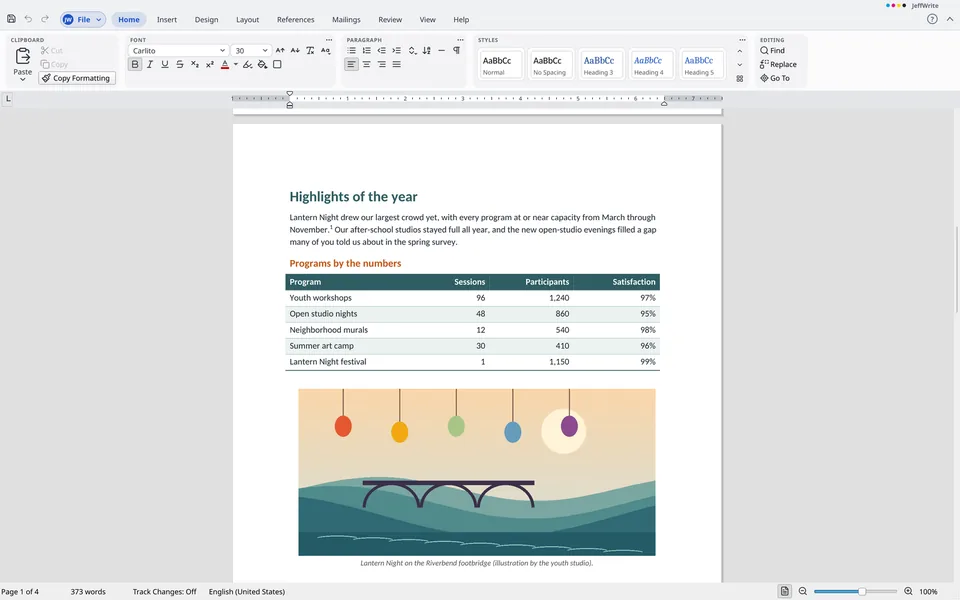
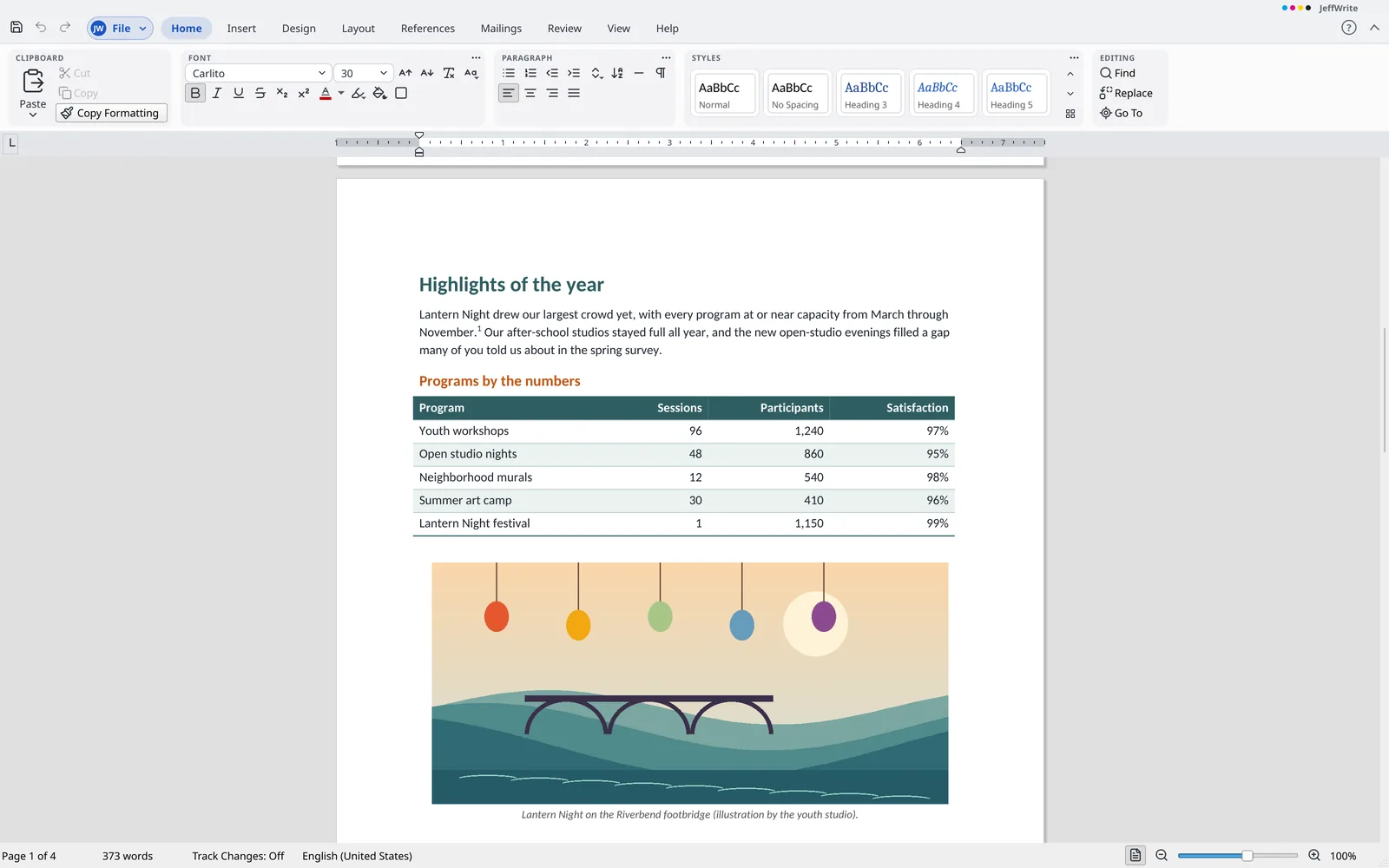
Reports with styled headings, tables, and pictures 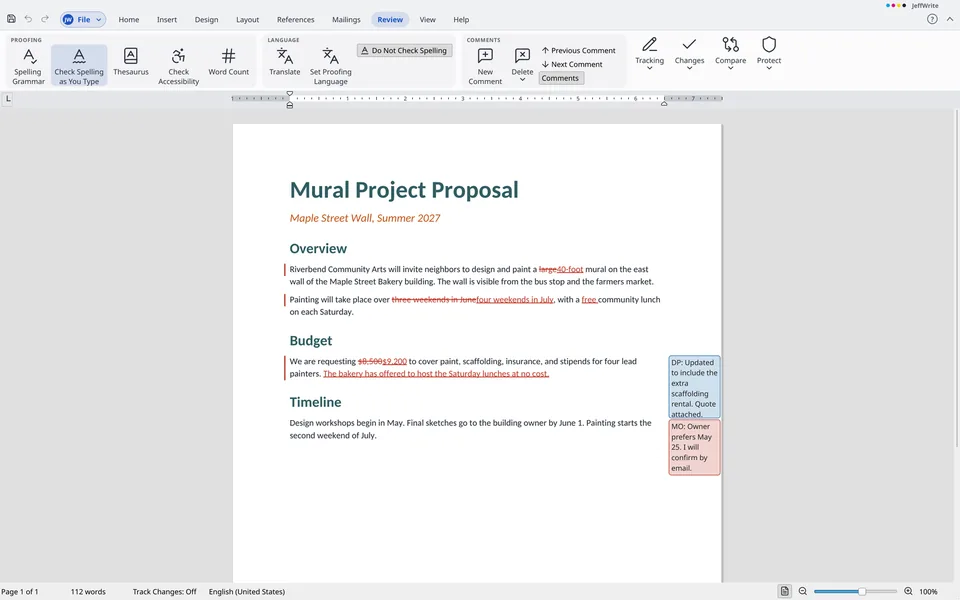
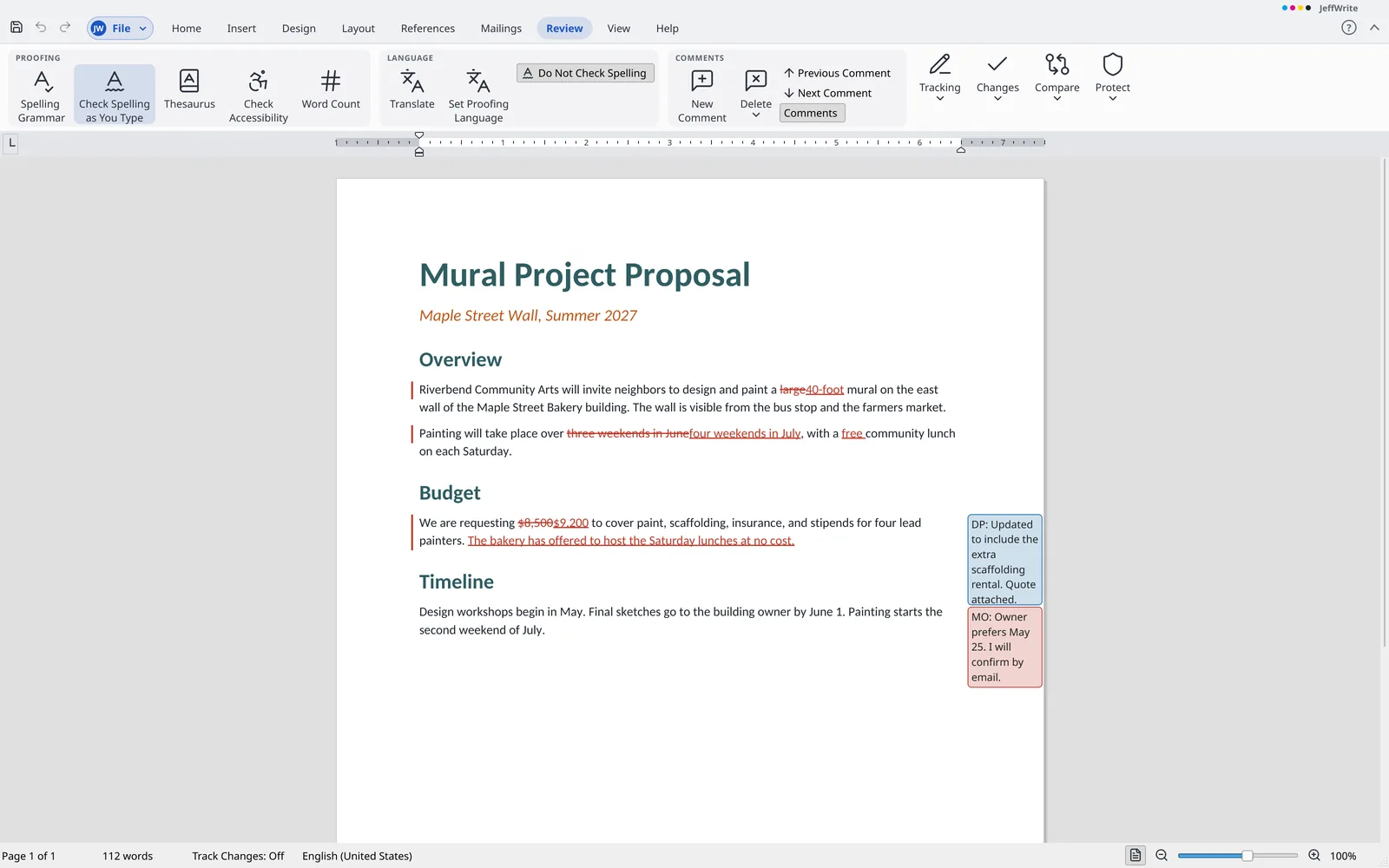
Track changes and discuss them in the margin 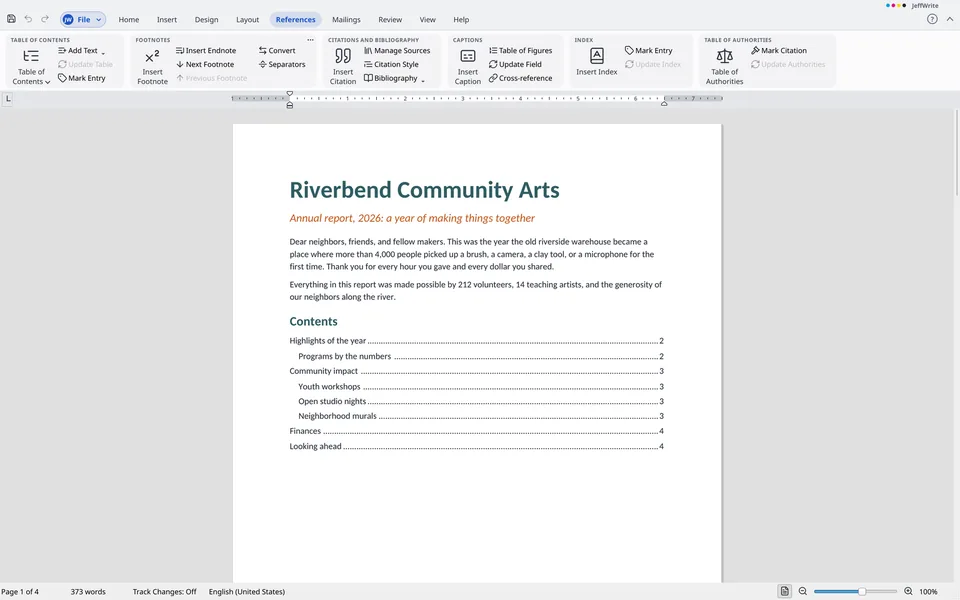
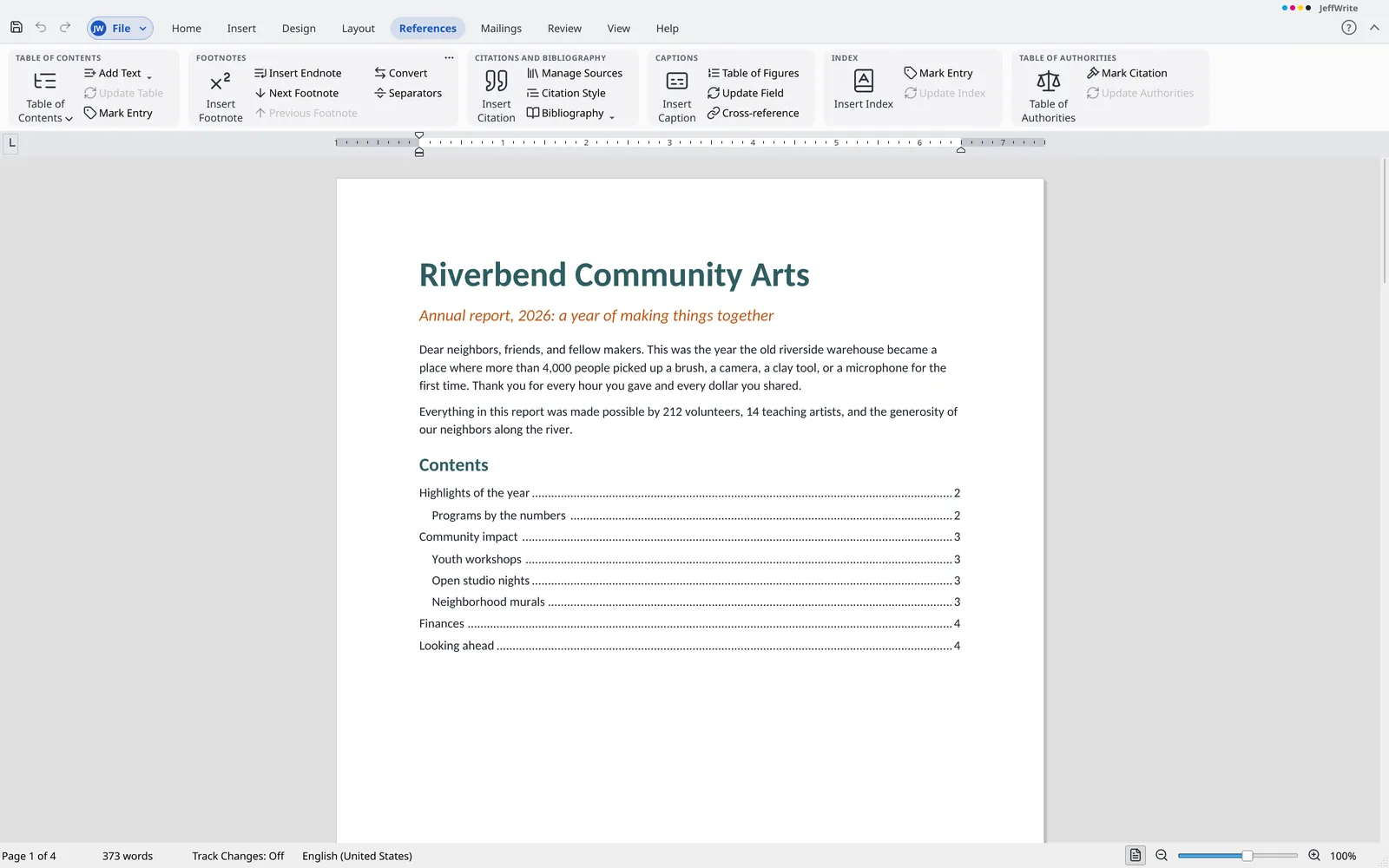
Build tables of contents, footnotes, and citations 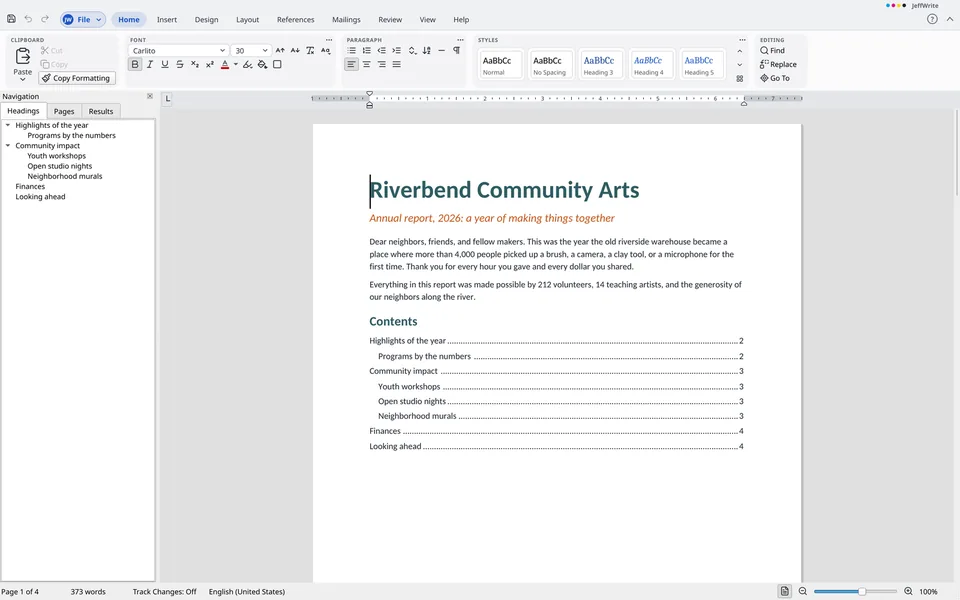
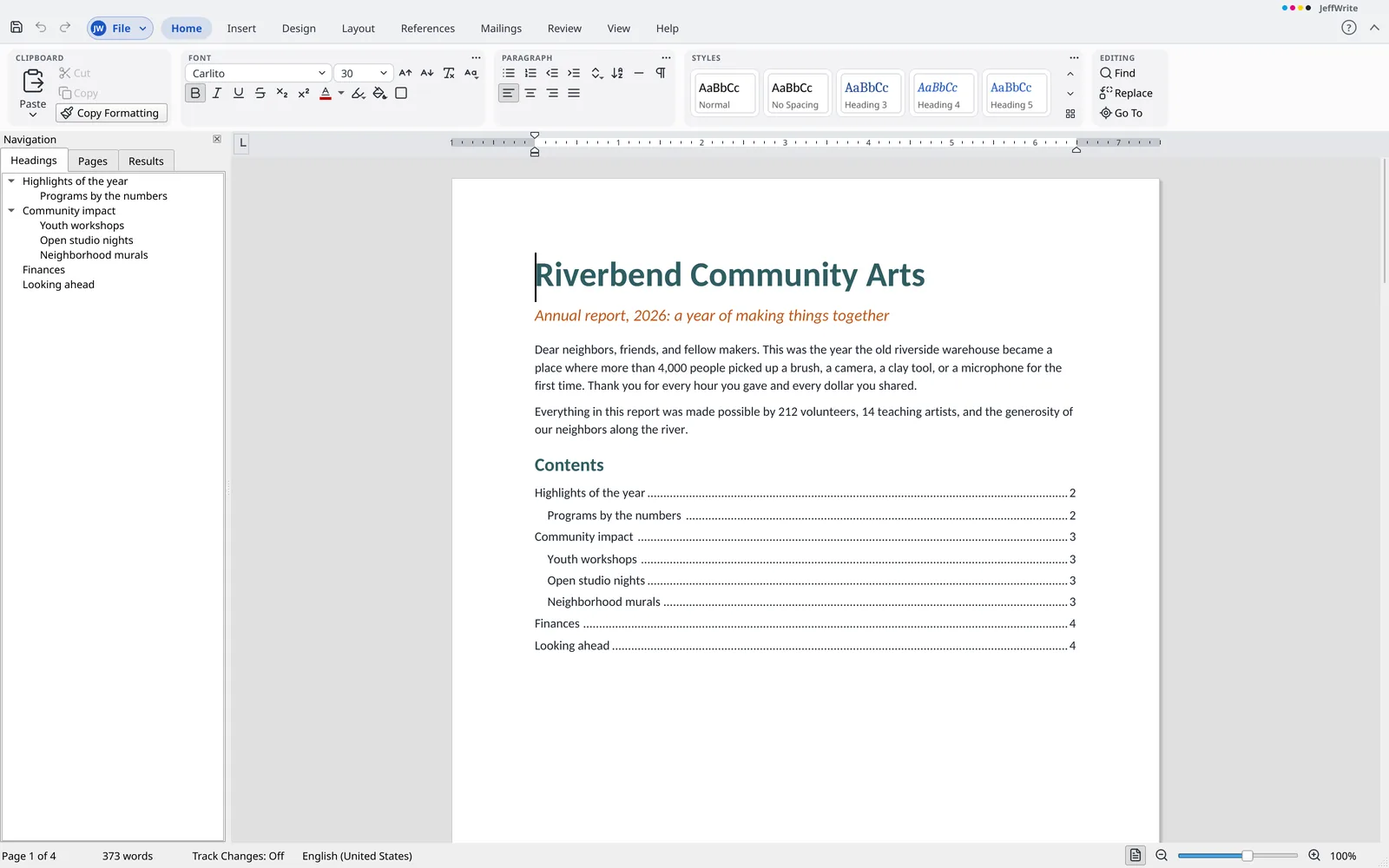
Jump between headings with the Navigation pane
What sets JeffWrite apart
- Spelling with no cloud Check spelling in 31 languages and regional forms entirely on your computer. Nothing you write is sent anywhere.
- Same layout on any computer Bundled fonts match the letter widths of common fonts, so pages break in the same places on a computer without those fonts.
- Help that does things Help works offline, and its search finds commands as well as answers, and runs them for you.
- Nothing lost Parts of a document JeffWrite can't edit yet, such as diagrams and custom XML, are kept and saved back as they were.
- Opens almost anything Older
.docfiles,.rtf, OpenDocument, web pages, and plain text in many encodings.
Files JeffWrite works with
- Opens
.docx,.dotx,.docm,.dotm, older.docand.dot,.rtf,.odt,.ott,.fodt,.html, and.txt- Saves
.docx,.dotx,.rtf,.odt,.ott,.html, and.txt- Exports
- PDF and PDF/A
Every feature
The complete list, grouped the way JeffWrite's menus and ribbon are. Open a group to see what is in it.
Beyond the usual word processor (11)
- Runs on Windows, macOS, and Linux. The Mac app isn't signed yet, so macOS asks before opening it the first time.
- Free and open source (GPL-3.0): no license fee, no subscription, no account or sign-in, and nothing that has to be online.
- Install without administrator rights, or run with no installation (Windows
.zip, Linux AppImage). - Open and save OpenDocument text (
.odt) with styles, lists, tables, sections, headers and footers, notes, fields, pictures, text boxes, comments, and tracked changes..otttemplates open as a new document. - Parts of a document that the app can't edit yet, such as diagrams, content-control bindings, custom XML, unknown elements, macros, and embedded objects, are kept with the document and written back as they were.
- Bundled open fonts, with stand-ins that keep the letter widths of common fonts, so a document lays out the same on a computer without those fonts.
- Spelling works offline, in 31 languages and regional forms, as you type and in the Spelling pane. Hyphenation follows a file's settings.
- Check grammar and style in English on your own computer, as you type. Grammar and style issues get a blue dotted line, and spelling keeps its red wave. Right-click an issue to see the message and suggestions, and a suggestion changes the text as one step that undoes. Use Ignore This Issue or Ignore All, and the Spelling pane goes on to grammar issues after spelling.
- Insert barcodes in a document as pictures that move, size, wrap, and undo like any picture: book ISBNs with a price add-on, EAN, UPC, Code 128, Code 39, and QR codes, drawn as vector bars. Double-click a barcode to edit its data. Insert a barcode from a merge field in a mail merge so each merged record gets a barcode of its own value, up to 2,000 barcodes per merge. Barcodes are saved in
.docxand.odtfiles. - Insert > Pictures > Online Pictures opens a pane that searches Openverse and Wikimedia Commons and puts the picture in at the caret, with its title as alt text and, if asked, a credit line under it. One step of Undo removes it.
- Help that works offline, with a search that also finds commands and runs them.
File (backstage) (40)
Info
- Edit document properties: title, author, subject, keywords, categories, comments, company, and manager. The dates and the counts of pages, words, characters, and paragraphs are shown.
- Add custom document properties (text, whole number, number, yes or no, and date) that a
DOCPROPERTYfield can show by name. - Mark a document as final: it opens read-only with a note in the status bar, and it can be made editable again.
- Encrypt a
.docxwith a password using AES-256; opening it asks for the password, as often as needed. - Inspect a document to find and remove comments, tracked changes, personal information, hidden text, custom XML, and headers and footers before sharing. Tracked changes are accepted.
- Check Compatibility lists what a
.odtfile can't hold of the document before saving to it. - Keep named local copies of a document, then open, compare, restore, or delete them from Info. Up to 50 versions are kept for each file.
- Recover unsaved documents from the copies that automatic recovery kept.
- Show a document's folder and copy its path from Info.
New
- Start a blank document with the defaults of the Normal template.
- File > New offers a blank document and five templates (letter, report, brief, manuscript, and newsletter). Each tile shows a preview of the first page it makes, and My Templates stays below.
- Save a document as a template (
.dotx,.ott) and reuse your own templates from My Templates, which are listed on the New page with a picture of the first page.
Open, Save, Save As, and Close
- Opens
.docx,.docm,.dotx,.dotm,.doc,.dot,.rtf,.odt,.fodt, and.ottfiles. - Saves
.docx,.dotx, and.odtfiles. - Unsaved work is offered again after a crash and cleaned up once saved.
- Keep a backup copy on every save, as an option in General.
- Saving as
.odtfirst lists what the format can't hold. Choose to save as.odtanyway, save a.docxbeside it instead, or cancel. - Open and Repair recovers what can be read from a damaged
.docxfile, opens the result as a copy, and says what was cut or left out. - Open a document read-only, as a copy, or in a new window. A read-only document refuses changes, and Save asks for a new name.
- Open a password-protected
.docxfile by entering its password; the file is saved protected again. - A reopened document opens where you stopped editing, and
Shift+F5jumps among the last three editing places.
- Print to a printer or a PDF file with copies, collate, and page ranges (all, current page, selection, or custom such as 1-3, 5, 8-, and -2, with section syntax such as
p2s3ands3). Print on one side or both sides, in grayscale, with the paper turned and each page scaled to fit the sheet. - Print preview shows each page as it prints, with page arrows, one, two, or four pages at once, gray for grayscale printing, the turned sheet when the paper is turned, and zoom to 150, 200, or 300 percent.
- Print only the odd or even pages, or print last page first. Put 1, 2, 4, 6, 9, or 16 pages on a sheet, or scale pages to Letter, Legal, A4, A5, or A3, to a printer or a PDF file.
- Print > Both sides by hand prints the odd pages, shows a message to turn the stack over, then prints the even pages last first. It is not available for PDF files.
Share and Export
- Export to PDF from the File screen, or print to a PDF file. The PDF carries the title, author, subject, and keywords, and a bookmark for each heading, nested by level. You can export all pages, the current page, or a range, including
p2s3ands3. - Export to PDF/A, which makes a PDF/A-1b file with its mark in the metadata.
- Export to PDF with a password to open it and, if wanted, a second password to limit printing, copying, and changing. The PDF uses AES-256 encryption, and the unprotected PDF is never written to disk. PDF/A is turned off with a password, as that standard forbids one.
- Save a document as plain text, with UTF-8, UTF-8 with mark, UTF-16, ISO 8859-1, or ASCII encoding and the line endings of either system, or as filtered HTML that keeps headings, bold, italic, underline, strike, superscript, subscript, lists, tables, links, and pictures. Hidden text is left out. A line break falls at each paragraph end.
- Save a document as a single
.htmlfile that contains the text, its formatting (font, size, color, highlight, alignment, and spacing), and the pictures. Hidden text and tracked deletions are left out. - Export > Make an Email creates a message file with the document, a PDF, or the first 30 pages as pictures inside the message. A password-protected document stays protected. Nothing is sent.
Options
- Options has General and Proofing pages. General covers user name and initials, light or dark interface, display language, usage statistics (opt in), and update checks.
- Display options: show formatting marks and table gridlines when a window opens. Hidden text shows with the formatting marks and never in print or PDF.
- Proofing options for spelling as you type and for skipping words in capitals or with numbers.
- Options > Save sets the format Save As offers first for a new document (
.docxor.odt), the recovery interval, and the folder the Open and Save As boxes start in. - Advanced editing options: Ctrl+click to follow a link, drag-and-drop text, typing that replaces the selection, and overtype mode with the
Insertkey. - Options > Advanced sets measurement units (inches, centimeters, millimeters, points, or picas), used by the ruler and the dialogs.
- Show or hide ribbon tabs and groups, add your own tabs and groups with any command, and rename and reorder them, with Reset One and Reset All. Add any command to the quick toolbar (up to 100, with separators, removal, and reordering), and use the right-click menu to add or remove commands, open the customize pages, or collapse the ribbon.
- Customize the keyboard: assign keys to commands, styles, and symbols, search commands, take over a key already in use, and reset one or all keys.
- Remove personal information from a file each time it is saved: the author, who saved last, the company, and the manager are taken out of the file properties, the names and initials out of the comments, and the names and times out of the tracked changes. The same option is in
Options>Saveand onInfo.
Home tab (32)
Clipboard
- Cut, Copy, Paste, and Select All keep the formatting of the text. The Paste menu offers Merge Formatting, Keep Text Only, and Picture when the clipboard has one. Paste Special (
Ctrl+Alt+V) lists what the clipboard can be pasted as. - Copy Formatting paints character looks once with a click, or stays on with a double-click until
Esc. With a paragraph mark selected, it also copies alignment, indents, spacing, and style.Ctrl+Shift+CandCtrl+Shift+Vcopy and paste a look by key. - Smart cut and paste fixes spaces around moved words, and can be turned off in Options > Advanced. After a paste, the Paste Options button offers Keep Source Formatting, Merge Formatting, and Keep Text Only.
Font
- Choose a font from a list showing theme fonts first, then recent fonts, then all fonts, each in its own face. Set the size from a list, by typing, with Grow and Shrink, or with
Ctrl+[andCtrl+]. - Apply bold, italic, underline, strikethrough, and double strikethrough. The Font box offers several underline styles, each with its own color.
- Apply subscript and superscript with buttons, with
Ctrl+=andCtrl+Shift+=, or in the Font box. - Apply small caps and all caps in the Font box.
- Choose font color and highlight color from the Home tab.
- Mark text as hidden in the Font box. Hidden text is kept, but not printed or found by Find. It shows with a dotted underline while Show/Hide ¶ is on.
- Clear all formatting from the selected text.
- The Font dialog (
Ctrl+D) sets font, style, size, color, underline and its color, and effects, with a live preview and character spacing. Set as Default makes the Normal style of the document use the chosen font, size, style, and color. - Change Case switches selected text to sentence case, lowercase, UPPERCASE, capitalize each word, or toggle.
Shift+F3cycles through the cases, and with no selection it changes the word at the caret. - Apply character shading from a color list, or remove it, and turn a thin character border on or off. Each is one step of Undo.
- When you select words with the mouse, a small bar floats above them with the font box, font color, Bold, Italic, Underline, Shrink Font, Grow Font, the three alignments, Bullets, and Numbering. It has the same commands as the ribbon, follows the selection, and goes away when the selection does.
Paragraph
- Align paragraphs left, center, right, or justified, and set indents in the Paragraph dialog and with the ruler's markers.
- Tab stops with their leaders and the default stops are laid out. You can set, move, and remove tab stops on the ruler, or use the Tabs dialog to set position, alignment (left, center, right, decimal), and leader, with Set, Clear, and Clear All.
- Start a bulleted list from the Home tab.
- Start a numbered list from the Home tab. Lists in files keep their number formats.
- Paragraph shading and borders from a file are drawn.
- The Paragraph box sets widow and orphan control, keep with next, keep lines together, page break before, suppress line numbers, don't hyphenate, and outline level. It also has "don't add space between paragraphs of the same style".
- Right-to-left and mixed-direction text is laid out.
- Sort paragraphs, list items, or table rows on up to three keys, each with a field, a type (text, number, or date), and an order. The first paragraph can be a header, and in a table the keys are columns. Sorting is one step of Undo.
- Horizontal Line adds a paragraph with a thin line under it and moves the caret below.
Styles
- The Styles pane, opened with
Ctrl+Alt+Shift+S, lists styles in their own fonts, marks the style at the caret, and filters by In Use, All Styles, or Recommended. Sort by Default, Alphabetical, As Recommended, By Type, or Based On. - Create paragraph and character styles and modify them in one dialog: name, based on, next style, font, paragraph look, gallery, and update automatically. Paragraphs and runs with the style follow it in one step.
- Manage Styles in the Styles pane lists every style with Recommended, Hidden, and Order settings, applied as one step. Delete a style you made, import styles from a file, export styles to a
.dotxtemplate, and lock styles or limit formatting to unlocked styles. Shift+F1opens Reveal Formatting, which shows the styles, font, size, look, color, alignment, indents, spacing, and language at the caret.
Editing
- Press
Ctrl+Fto find text in the document and its tables, with match case and whole words options. The pane shows the match count, every match is highlighted on the pages, and the Navigation pane can list results as text, by heading, or by page. - Replace and Replace All with
Ctrl+H, in the body, tables, headers, footers, and footnotes. Replace All is one step that says how many were replaced. - Go To with
Ctrl+G: page, section, line, bookmark, comment, footnote, endnote, field, table, graphic, equation, and heading, by number or name, with + and - from the caret, and a list to pick from. - Advanced Find and Replace with wildcards and groups, sounds like, all word forms, ignoring punctuation and spaces, a Special menu for codes such as paragraph marks and section breaks, and find by format. Each Replace All is one step.
- Select All works. The Selection Pane (View > Selection Pane, also in Arrange) lists the floating objects of the document, the front one first. Pick an object from a row, type a name in a row to name it, and hide or show it with its box; names and hidden marks are kept for other programs. Show All and Hide All set every box. Move objects through the layers with the buttons or a drag, each as one Undo step.
Insert tab (22)
Pages
- Insert a page break with Ctrl+Enter.
- Insert a cover page from three designs (Classic, Band, and Plain), each with a title, subtitle, author, and date, one cover to a document, in one step that undoes. Remove Current Cover Page removes it.
Tables
- Insert a table from a grid or the Insert Table dialog. The table uses the Table Grid style and one step undoes it.
- Convert text to a table and a table to text, splitting by paragraphs, commas, tabs, or another character. The words keep their formatting, and one step undoes it.
- Insert a ready-made table: a calendar of this month, a matrix, a four-column list, or a weekly schedule, with its words in place, as one step.
Illustrations
- Read and draw pictures in PNG, JPEG, GIF, BMP, TIFF, WebP, SVG, EMF, and WMF formats. Vector pictures stay vector in print and PDF.
- Insert a picture from a file (PNG, JPEG, GIF, BMP, TIFF, WebP, or SVG), from the clipboard, or by dropping a file on a page. The picture is embedded, kept in the
.docxfile, and one step undoes it. Pictures are limited to 48 MB and 40 million pixels. - Insert one of 75 shapes in eight groups (lines, arrows, rectangles, basic shapes, block arrows, equation shapes, flowchart, stars and banners, and callouts) at the cursor, with text wrapping around it. Set fill, outline color, weight, dashes, shape style, rotation, wrap, alt text, and size, and resize with handles.
- Insert a drawing canvas, a frame that sits above and below the text. Select it together with shapes, group them, and they move and resize as one.
- Insert an icon from a searchable picker. Each icon goes in at the cursor as a dark gray SVG picture, in one step.
- Insert a chart of 12 kinds (column, stacked and 100% stacked column, bar, stacked bar, line, line with markers, pie, doughnut, area, stacked area, and scatter) with sample numbers. Edit categories, series, and numbers in a grid, and change the kind, title, legend, and data labels. Charts in files are drawn.
- View diagrams as they are drawn in the file. Pick, move, and resize a diagram as a whole, print it or save it to PDF as vectors, and save it back unchanged.
Links
- Links in a file are kept.
- Add, delete, and go to bookmarks with
Ctrl+Shift+F5, sort them by name or location, and show hidden bookmarks.
Text
- Insert a text box at the cursor with fill, outline, insets, and wrap, in one step. Change the words of a box that holds only text, and set fill, outline, wrap, and size. Text boxes in files are drawn with their fill, outline, and insets.
- Insert > Text Box offers six designs: Simple, Plain, Sidebar, Pull Quote, Banner, and Note.
- Insert text styles from a gallery of styles, with the words bent into the style's warp. Change the style, the warp (40 shapes), and the words afterward. Text boxes in files that name a warp are drawn with it.
- Add a drop cap, dropped, with the number of lines, the number of letters, and its own font, in one step that undoes.
- Insert the date and time in ten formats, as a field that updates or as fixed text.
- Insert the text of another document, with its looks, pictures, and links, or a plain text file as paragraphs.
Symbols
- Insert a symbol from the recently used ones or from the More Symbols dialog, in its own font or the text's font.
- Insert special characters: nonbreaking space and hyphen, optional hyphen, en and em dashes and spaces, quotation marks, line break, and no-width optional break.
Ctrl+Shift+Space,Ctrl+Shift+Minus, andCtrl+Minusinsert the first three, and the hyphens are kept in.docxfiles.
Draw tab (1)
- Ink drawings in a file are kept through edits and saves and written back as they were.
Design tab (4)
- Choose one of seven paragraph spacing presets (Default, No Paragraph Space, Compact, Tight, Open, Relaxed, and Double), applied in one step.
- Add a watermark from six built-in words or custom text with font, size, color, semitransparency, and diagonal or horizontal layout, and remove it. It sits behind the text in each header and is kept in the file.
- Set the page color to a theme color, any color, or none, in one step that undoes. The file keeps it.
- Set page borders on a box or any sides, with a single, thick, double, dotted, or dashed line, and choose its width, color, and distance, measured from the text or the page edge. Apply them to all pages, the first page, or the rest, for the section or the whole document.
Layout tab (10)
Page Setup
- Margins can be set in the Page Setup dialog, including a left gutter.
- Page size and orientation can be set for each section in Page Setup.
- Set columns with the Left and Right presets or More Columns: up to 32 columns, equal or each with its own width and spacing, and a line between them, for the section or the whole document. Insert a column break with
Ctrl+Shift+Enter. - Insert page, column, next page, continuous, even page, and odd page breaks, each in one step that can be undone and saved in
.docxfiles. The line break,Shift+Enter, serves as the text wrapping break. - Set hyphenation to none or automatic, turn hyphenating words in capitals on or off, and set the hyphenation zone and a limit on hyphens in a row, in 31 languages and regional forms. A file's per-paragraph "don't hyphenate" setting is respected.
- The Page Setup dialog sets margins, a left gutter, orientation, paper size, section start, a different first page, different odd and even pages, and the header and footer distances, for a section or the whole document.
- Set line numbers to None, Continuous, Restart Each Page, or Restart Each Section, with options for count by, start at, and distance from text, for the section or the whole document.
Arrange
- Set a picture’s wrap to in line, square, tight, top and bottom, behind text, or in front of text, in one step. Square, tight, and top-and-bottom wraps in files are laid out with their distances.
- Drag a picture to a place on the page. Positions in files relative to the page, margin, column, paragraph, and line are laid out.
- Floating pictures can be moved forward or backward among other floating pictures, to the front or back, and in front of or behind text.
References tab (15)
Table of Contents
- Insert a table of contents from the gallery (Contents, Contents with Full Title, and Contents to Fill In) or the custom dialog. Build it from heading styles, outline levels, or table entry fields, with levels 1 to 9, page numbers, right-aligned tab leaders, and links.
- Update the table of contents (page numbers only, or the entire table) with
F9or References > Update Table, remove it, and use Add Text to give a paragraph Heading 1, 2, or 3, or body text. - Mark entries for the table of contents by hand with
Alt+Shift+O, giving text, level, identifier, and no page number if wanted.
Footnotes
- Insert Footnote and Insert Endnote (
Ctrl+Alt+FandCtrl+Alt+D) add numbered notes. The References tab sets the number format (1, a, A, i, I, or symbols), the starting number, restarting each section or page, and where endnotes go (end of section or end of document). - Next and Previous Footnote and Endnote on the References tab move between notes. Double-clicking a footnote mark, or choosing Go to Footnote from the right-click menu, edits the note where it stands.
- Convert footnotes to endnotes and back, all or one, or swap them. The words go with each note, and one step undoes it.
- Edit the separator and continuation separator for footnotes, and the separator for endnotes, as a line, words, or nothing.
Citations and Bibliography
- Insert citations (with pages, without author, year, or with title) and manage sources with copy, new, edit, delete, and preview. Choose from 17 source types and the APA, MLA, Chicago, Harvard, and IEEE styles, changed for the whole document at once. A master list is shared among documents.
- Insert a bibliography with a heading, made from the sources cited, in the chosen style. Press
F9or change the style to update it.
Captions
- Insert a caption with a numbered label next to the selection or a whole table. Numbering can count from the chapter heading, and other captions are renumbered.
- Insert a table of figures from a caption label or from a paragraph style, with or without the label and number, and update it with
F9. - Insert a cross-reference as a link to a heading, bookmark, footnote, endnote, numbered item, or caption, as its text, number, page, or above and below.
Ctrl+click follows it.
Index
- Mark index entries with
Alt+Shift+X, and use Mark All to mark each place of the same words. - Insert an index, indented or run-in, with letter headings, right-aligned page numbers with a leader, sorted by the computer’s language, and update it with
F9.
Table of Authorities
- Mark citations with
Alt+Shift+Iand insert a table of authorities with 16 categories, headings, "passim," a leader, and update.
Mailings tab (9)
- Documents that hold merge fields keep them when saved and reopened (MERGEFIELD, NEXT, IF, ASK, and others), along with the data-source link.
- Start a mail merge for letters, email messages, directories, envelopes, or labels, use the step-by-step pane, and clear the merge type.
- Select recipients by typing a new list, using an existing one (CSV, tab-delimited,
.xlsx,.ods, or vCard contacts), or choosing contacts from an address book saved as.vcf. - Insert an address block and a greeting line with a choice of formats and a preview, insert merge fields from the list's columns, match fields, highlight fields, and update labels. Address block formats in files are read.
- Add merge rules: If...Then...Else, Ask, Fill-in, Merge Record #, Merge Sequence #, Next Record, Next Record If, Set Bookmark, and Skip Record If. Ask and Fill-in ask each question once during the merge.
- Preview merge results with first, previous, next, and last recipient buttons and a number box. The document itself is not changed.
- Finish a merge by editing individual documents in a new document, printing, saving as PDF, or making one
.emlfile for each recipient who has an address. No message is sent. - Make envelopes with delivery and return addresses, ten common sizes named by width and height, and print or add to the document as its own first-page section.
- Make labels: a full page of one label or a single label, on one of twelve sheet sizes (letter and A4) or your own. A merge fills each label with the next recipient.
Review tab (13)
Proofing
- Red wavy underlines mark misspelled words, with suggestions on right-click,
Ignore All, andAdd to Dictionary. The Spelling pane (F7or Review > Spelling) offersChange,Change All,Ignore,Ignore All, andAdd, and the check skips words in capitals and words with numbers. - Set the proofing language of selected text, or mark it "do not check spelling." Spelling follows both settings, and the status bar shows the language at the caret.
- Count Words on the Review tab shows pages, words, characters with and without spaces, paragraphs, and lines, for the selection or the whole document, with or without footnotes and endnotes. The status bar shows the count of a selection, such as "12 of 340 words". Hidden text and deleted changes are not counted.
- Thesaurus (
Shift+F7) looks up the word at the caret in the English thesaurus on your computer, offline. You can look up another word, and Replace keeps a capital letter. - Check accessibility in a pane, also reached from Info. It lists pictures without alt text, tables without a header row, blank cells, merged cells, skipped heading levels, low-contrast text, floating pictures, and unhelpful link text, with a click to go to each.
Language
- Translate opens the selected text, or the whole document up to 5,000 letters, in a LibreTranslate service for translation into one of 18 languages. The server address can be changed, and nothing is sent before you confirm with OK.
Comments
- Add comments with
Ctrl+Alt+M, reply in threads, resolve and reopen, edit, and delete (one with its replies, or all), with Previous and Next. Comments show in margin balloons and in the Reviewing pane, and are written back with their replies.
Tracking and changes
- Track Changes can be turned on and off (
Ctrl+Shift+E) and the setting is saved with the document. Typing is recorded as an insertion, deleting marks text as deleted and keeps it, Enter and Backspace over a paragraph mark are recorded as inserted and deleted marks, and changes to the look of text or a paragraph keep the old look. Each change has the user name and time, and each edit is one step of Undo. - Accept or reject the current change and move on, accept or reject all changes shown or all in the document, and accept all and stop tracking. Each is one step of Undo.
- Switch between four review views, show markup for insertions and deletions, formatting, and comments inline or in balloons, with change bars and a Reviewing pane for comments and changes with a choice of reviewer.
- Choose how tracked insertions, deletions, moved text, and formatting changes look, with colors by author or a single color, and pick where change bars appear. Change the user name and initials that changes and comments are signed with, and lock tracking on with an optional password.
Compare
- Compare checks the open document against a file you choose, word by word or letter by letter, optionally ignoring capitals or white space. The result opens in a new window as tracked changes signed with a name you give. Accepting all gives the revised text, and rejecting all gives the first version. It compares body text.
Protect
- Restrict editing to no changes (read only), tracked changes, comments, or filling in forms, with an optional password. Manage Styles limits formatting to styles that are not locked. A protected file opens protected, and Stop Protection asks for the password.
View tab (11)
Views
- Print Layout shows pages as they print. Draft runs the pages on without edges, shadows, headers, or footers, with a dotted line where each page ends. Outline is a view of its own, with the Outlining tab.
- Read Mode hides the ribbon, ruler, and panes, shows the pages in a row each fitted to the window, and keeps the text from being changed;
Esc,F11, or the command again ends it. Web Layout sets the text as one column as wide as the window, wrapping again as the window changes, with no page edges, breaks, headers, or footers. - Focus mode,
F11, hides the ribbon, ruler, status bar, and panes and fills the screen.EscorF11brings them back.
Show and Zoom
- A horizontal ruler shows the four indent markers, tab stops (left, center, right, and decimal), and both margins, each of which you can drag as one step that undoes. A vertical ruler beside the pages marks each page’s top and bottom margins and text area in the chosen unit. Gridlines show the faint edges of table cells.
- The Navigation pane has Headings (click to go to a heading, collapse, promote, and demote, each as one step), Pages (small pictures of the first 60 pages), and Results (a word’s places with the words around them, listed as text, under each heading, or under each page).
- Collapse and expand headings in the document with a small triangle in the margin. Collapsing hides the paragraphs under a heading on the screen only; printing, PDF, and saving still include every paragraph.
- Zoom with a dialog (percent, page width, text width, whole page, many pages), 100%, One Page, Multiple Pages, Page Width, a slider in the status bar, or
Ctrl+wheel. - Page Movement on the View tab switches between vertical and side-to-side. Side to side puts all the pages in one row, the mouse wheel turns them past, and Go To Page scrolls across to a page.
- The status bar shows the page, the word count, and the zoom slider, and the section the caret is in when the document has more than one.
Window
- New Window opens the same file in its own window. Arrange All sets open windows side by side, Switch Windows lists them, View Side by Side shows two windows with synchronized scrolling, and Reset Window Position restores the pair. Split shows a second pane of the same document with its own scrolling and zoom.
- Collapse the ribbon with
Ctrl+F1, a double-click on a tab, or its chevron.
Help tab (1)
- The Help tab has Help, Keyboard Shortcuts, What's New, and Feedback. About with Check for Updates is on the File screen.
Outline view and master documents (1)
- Outline view, with the Outlining tab, shows paragraphs as a tree. Promote and Demote (
Alt+Shift+LeftandAlt+Shift+Right), Promote to Heading 1, Demote to Body Text, Move Up and Move Down (Alt+Shift+UpandAlt+Shift+Down), Expand and Collapse, Show Level 1 to 9 or all, Show Text Formatting, and Show First Line Only are available, each as one step that undoes.F2edits a row's text in place,Entermakes a new paragraph at the same level, andTabandShift+Tabdemote and promote.
Contextual tabs (31)
Table Design and Layout tabs
- Pick a table style from a gallery of built-in styles and the file’s own, turn on style options (header row, total row, banded rows, first and last column, banded columns), clear a style, and create or modify table styles. A modified style changes every table that uses it.
- Apply shading and borders to cells or a table with the borders menu and the Borders and Shading dialog (style, width, color, sides, and fill), and show gridlines on the screen.
- Select a cell, row, column, or table; insert rows and columns; delete rows, columns, cells, or the table, from the Table Layout tab or the right-click menu. Each is one step to undo. Delete Cells, Shift Left moves cells out of their rows.
- Merge a block of cells, keeping the words of each, split cells into columns and rows, and split a table so a paragraph sits between the rows.
- Nested tables in a file are laid out down to a limit; past it, the text of the tables stays as plain paragraphs.
- Set row height (at least or exactly) and column width, fit a table to its contents, to the window, or fixed, distribute rows and columns evenly, set column width as a percent in Table Properties, and drag a column or row line with the mouse.
- The Table Properties dialog sets alignment, indent, text wrapping around the table, preferred width, default cell margins, space between cells, row breaking across pages, repeating header rows, vertical alignment, no wrap, and alt text.
- Align cell text in nine positions and turn it from the top down or from the bottom up, from Table Layout or the Cell tab of Table Properties. A turned row is never cut at a page break, and the caret, clicks, and typing work through the turn.
- Draw Table and Eraser: drag a rectangle outside a table to make a one-cell table, drag a line across a cell to divide it into two rows or two columns, and drag the eraser from one cell into the next to join them, keeping the words.
Escor a second click ends it. - Put a formula in a table cell using SUM, AVERAGE, COUNT, MIN, MAX, and similar functions over ABOVE, LEFT, BELOW, RIGHT, or cell ranges such as A1:B3, with a number format. Update Field recalculates it.
- Drag the lines between columns and rows, and use a resize handle at the lower right corner to set the table’s width.
- Floating tables in a file are laid out where they ask, with text around them, if they fit a page of their section, and move to the next page when they would go over the foot.
Picture Format tab
- Set the size of a picture with the handles or with Height and Width, with the aspect ratio locked or not. Crop cuts each edge by a percent of the whole picture, Crop to Shape cuts it to any shape of the gallery, and Rotate turns it a quarter turn either way. Reset Picture removes the crop, colors, and border. Compress Pictures reduces each picture to 300, 220, or 96 pixels per inch for the size it is shown at, for all pictures or the selected one, and can remove cropped areas. Each is one step of Undo.
- Alt Text and Mark as Decorative are available for pictures, shapes, text boxes, and charts, on the Picture Format, Shape Format, and Chart Format tabs and in the right-click menu, and are kept in the file.
- Picture Format > Corrections sets brightness and contrast in steps of 20 percent up to 40 either way, and Color turns a picture gray, black and white, or washed out. Corrections and colors in a file are read and drawn.
- Picture Format > Picture Border sets the color, weight, and dashes, and a gallery of eight frames sets them together, including No Border. Borders in a file are drawn.
- Picture Format > Change Picture replaces a picture with one from a file, keeping the same place, frame width, wrap, and alt text.
Shape Format, Text Box, and text effects tabs
- Apply one of 12 shape styles, set a shape's fill and outline color or none, and change outline weight and dashes. Fill a shape with a two-color gradient or with a picture from a file. Fills and outlines in files are drawn.
- Edit the words of a text box that holds only words, in Shape Format > Edit Text or in the right-click menu. Text in shapes and text boxes from a file is laid out in the box, with its tables, and the file's insets are used. Create Link and Break Link on the Shape Format tab chain text boxes, each as one step of Undo. The words of the first box continue in the boxes after it, over pages, and are saved and read back as they were. A chain can have up to 64 boxes.
- Insert shapes and change a shape while keeping its size and look. Align floating objects to the margins or page, rotate them, and join two shapes with a straight, elbow, or curved connector. Select several objects to move them together, and group or ungroup them.
- Change the style and warp of a text style box from the Shape Format tab.
Header & Footer tab
- Edit headers and footers by double-clicking a page’s top or bottom margin, or from Insert > Header and Footer. Insert page numbers, remove a section’s own header or footer, and choose from a gallery of seven designs: blank, a page number at the right, middle, or left, title or date with the page number, and three columns.
- Format page numbers as 1 2 3, a b c, A B C, i ii iii, I II III, or dashed, with the chapter number, and continue from the previous section or start at a chosen number. Page Number Format on the Header & Footer tab applies to a section or the whole document, in one undoable step.
- On the Header & Footer tab, you can set Different First Page and Different Odd & Even Pages. Each kind has its own header and footer, blank when created.
- Link a header or footer to the previous section for each kind of each section. Previous Section, Next Section, Go to Header, and Go to Footer are on the Header & Footer tab.
- Page numbers and fields can be inserted in headers and footers.
- The header and footer distances are set in Page Setup.
Equation tab
- Insert an equation typed in a line (
Alt+=) with a preview, in one undoable step; names such as\alphaturn into symbols. Insert one of twelve built-in equations, or open an equation next to the caret to change it. - Type fractions, superscripts and subscripts, roots with a degree, sums, integrals, and products with limits, common function names, accents, bars over and under, brackets that grow, and matrices with round, square, or straight brackets.
- An equation in a
.docxfile is read, drawn as a line of text in its order, and written back as it was. An equation inserted with Insert > Equation is saved the same way and reads back.
Chart, Diagram, and graphics tabs
- Edit chart data, change the chart type, show or set the chart title, set the legend position, add data labels, show or hide axes and axis titles, turn gridlines on or off, pick one of eight chart styles, and set wrap text, alt text, and size.
Behind the scenes: the text and page engine (34)
Editing basics
- Move by character, word, sentence, line, paragraph, and page. Extend a selection with
Shift,F8, or the mouse, select a column withAlt+drag, select several places withCtrl, and use double- and triple-click and Click and Type. - Undo and Redo work, with typing and each command as one step.
- Drag selected text to move it, or hold
Ctrl(Optionon a Mac) to copy it, in one step. Text from another program is placed where it is dropped, and the window scrolls near its top and bottom edge. - Type and the app fixes text as you go: smart quotes, lists started by typing
1.or*, borders from a row of dashes, ordinals, fractions, dashes, web addresses turned into links, and*bold*and_underline_marks turned into formatting. Three check boxes in Options > Proofing turn AutoCorrect, smart quotes, and AutoFormat on and off, and one Undo takes back just the last fix.
Pagination and sections
- Pages flow from the text: paragraphs and tables are laid out into pages by size, margins, columns, floating objects, footnotes, and keep rules. Pages are laid out as needed and in the background, so a long document opens at once and typing never waits for the last page.
- A document can have several sections, each with its own page size and orientation, margins, columns, headers and footers, page-number format and start, vertical alignment, line numbering, and footnote numbering. Sections can start on the next page, continuously, or on an even or odd page.
- With facing pages and mirrored margins, even-numbered pages swap the inside and outside sides in the text, headers and footers, and page borders. A section that starts on an odd or even page gets the blank page it needs.
- Columns can have equal or unequal widths and a line between them. A continuous section break balances them, a column break moves text to the next column, and columns work inside text boxes and table cells.
- Floating pictures, shapes, and text boxes: text wraps around their shape, and they are anchored to a paragraph and move with it.
- Frames (paragraphs positioned on the page, which older files use for drop caps, side notes, and captions) are laid out where the file puts them and kept. The caret, a click,
Home,End, and the up and down arrows work in their text. - Tables across pages: rows split across pages or stay whole as the file says, and header rows repeat. Nested tables and tables in a column, a text box, or a header are laid out, and a table set at a place is laid out there.
- Widow and orphan control, keep with next, keep lines together, and page break before are applied when pages are laid out.
Notes
- Footnotes appear at the bottom of the page their mark lands on, under a separator; a note too long for the page continues on the next under a continuation separator and notice. Numbering follows the file, with custom marks. Insert footnotes and endnotes and edit a note where it stands. Set numbering by page, number formats, start number, and endnote location in References > Footnote and Endnote.
- A note cited in a continuous two-column section or in a table cell is set at the foot of the page, and a note longer than the page continues.
Fields
- Every field is kept with its code and its result and written back as it was.
F9updates the fields in the selection, andCtrl+AthenF9updates the whole text, as one step and never tracked.Ctrl+Shift+F9unlinks a field,Ctrl+F11locks it, andCtrl+Shift+F11unlocks it.Shift+F9andAlt+F9show the codes of one field or of all. Format switches, number pictures, and date pictures work for every field that is worked out. - Fields PAGE, NUMPAGES, SECTIONPAGES, SECTION, STYLEREF, REF, PAGEREF, NOTEREF, TOC, and SEQ are worked out and updated, and CITATION and BIBLIOGRAPHY are worked out from the file’s sources. HYPERLINK keeps its result.
- Fields DATE, TIME, CREATEDATE, SAVEDATE, PRINTDATE, FILENAME, FILESIZE, AUTHOR, TITLE, SUBJECT, DOCPROPERTY, NUMWORDS, NUMCHARS, IF, QUOTE, INDEX, TOA, and = (formula without table cells) are worked out. TC, XE, and TA are read, written, and made with Mark Entry and Mark Citation.
- Rarely used fields (DATABASE, INCLUDETEXT, INCLUDEPICTURE, LINK, EQ, ADVANCE, GOTOBUTTON, MACROBUTTON, AUTOTEXTLIST, and ADDIN) are kept and shown as saved.
- Insert > Field lists the fields, with an editable code.
Styles
- Direct formatting is kept as the file stores it, not folded into styles, so a file saved without edits changes nothing.
- A file’s theme fonts and colors are read and used.
Numbering
- Numbered lists with nine levels, level overrides, restart and continue rules, "start at," legal numbering (1.1.1), symbol bullets, the text and tab after a number, and numbering linked to heading styles are read, laid out, and kept.
Review model
- Tracked changes in a file are shown and kept: insertions, deletions, moves, and formatting changes. Changes in
.rtfand.odtfiles are read and kept when you save as.docxor.odt. - Comments keep their ranges, replies, resolved state, authors, and initials, and are written back whole even when they are not shown.
Compatibility with older layouts
- The settings in a file that change layout (the space at the top of a page after a break, line spacing, hanging punctuation, East Asian layout, hyphenation, and mirrored margins) are read and honored one by one.
- Documents opened from
.doc,.rtf, and older.docxfiles are laid out by the options their files hold. - A file’s compatibility settings are kept and written back, and the ones that change layout are used.
- A missing font is replaced by a stand-in with the same letter widths, so lines break where they did.
Text and languages
- Each run of text carries its language. Spelling follows the run’s language, else its style’s, else the document’s default, and "no proofing" is kept. Hyphenation follows the run’s own language, and text that states none is hyphenated as US English.
Platform and accessibility
- Use a light or dark interface that follows the system’s setting, and Windows high contrast.
- Use the ribbon by keyboard with KeyTips (
Alt, then letters;Taband arrows;Escto return to the page), with a visible focus ring. - The menus and Help are available in English, German, Spanish, French, Italian, Dutch, and Portuguese, with English also for the United Kingdom, Canada, and Australia and Spanish also for Spain. The language follows the system or the choice in Options.
- The app checks for updates at start, and offers opt-in statistics and crash reports, with one choice shared across the suite.
- Registered to open
.docx,.docm,.dotx,.dotm,.doc,.dot,.rtf,.odt, and.ottfiles on Windows, macOS, and Linux.
Safety and limits (3)
- A file over 1 GB is refused before it is read. Damaged or malformed files do not close the app or run it out of memory.
- Opening a file never changes it. Saving writes a new file beside the old one and replaces it only when complete.
- A file that is not a document says so and opens nothing. A file that could not be read whole is not saved over the old file. What an old
.docfile holds that cannot be shown is listed.
File formats (14)
.docx and .dotx (Open XML)
- Open
.docxfiles with body text and formatting, styles, numbering, sections and page setup, headers and footers, notes, fields, bookmarks, links, tables, pictures, shapes and text boxes, equations, charts, content controls, comments, tracked changes, properties, themes, settings, and embedded fonts. - Saves
.docxfiles that keep the document's content and look. - Saving a
.docxkeeps what the app can't edit: diagrams, 3-D models, custom XML, document variables, the building blocks glossary, people and comment extensions, alternate content choices, and extension elements from newer versions. They are written back as they were, and untouched parts are kept byte for byte. - Open and save
.dotxtemplates with their styles and building blocks. - Opens
.docmand.dotmfiles and never runs their macros. Saving as.docxleaves them out and says so.
Older binary .doc and .dot
- Open
.docand.dotfiles with text, character, paragraph, section, and table properties, styles, lists, fields, footnotes and endnotes, headers and footers, bookmarks, pictures and drawings, embedded objects, comments, tracked changes, and form fields.
Rich Text .rtf
- Open
.rtffiles with text in any language, formatting, styles, lists, tables, page setup, columns, sections, headers and footers, footnotes and endnotes, fields, bookmarks, tracked changes, borders, text boxes, simple shapes, and PNG, JPEG, EMF, and WMF pictures. - Save as
.rtfwith text in any language, character and paragraph formatting, styles, bulleted and numbered lists, tables, sections with page setup and page numbers, headers and footers, links and fields, and PNG, JPEG, and EMF pictures. Footnotes, endnotes, comments, tracked changes, equations, shapes, and text boxes are left out, and you are told.
OpenDocument .odt, .ott
- Open
.odtand flat.fodtfiles with styles, lists, tables, sections, headers and footers, notes, fields, pictures, text boxes, comments, and tracked changes. - Save as
.odtwith comments and tracked changes. After saving, the app says what the format has no place for. - Open flat OpenDocument (
.fodt) files. Save asks for a new name and writes a packed.odtafter a notice.
Other formats
- Export to PDF.
- Open and save plain text with the encoding and line ends chosen, including UTF-8, UTF-16, Windows code pages, ISO 8859, and East Asian encodings.
- Open an HTML page (
.htmlor.htm) as a document, with headings, bold, italic, underline, strike-through, superscript, subscript, color, alignment, bulleted and numbered lists, links, tables, and pictures held in the page or in its folder. Save a document as a single-file web page or a filtered web page.
Coming soon
Features that are not there yet, or only partly there, by group. No dates are promised.
Beyond the usual word processor (8)
- Drawn shapes without text, formulas, and charts in
.odt; saving.otttemplates - Hyphenation: set from a menu or dialog
- More grammar and style rules: agreement, tense, wordiness, and style
- EPUB export with chapters at each Heading 1, contents from the headings, pop-up footnotes, and pictures and tables in place
- PDF export with heading bookmarks, screen-reader tags, PDF/A, and PDF/X-1a and PDF/X-4 with a print check
- Barcodes drawn as bars in the editor for merge fields, and editing a merge field barcode’s type and look after insertion
- Stock images search; credit as a numbered caption
- Icons: 1,539 open vector icons, searched by name
File (backstage) (27)
- Password protection for
.odtfiles - Check Compatibility for
.docand.rtf - More built-in templates: resumes, cover letters, invoices, flyers, brochures, meeting notes, legal pleadings, and book interiors
- Normal template: default styles, margins, and page size, changed with Set as Default in the Font, Paragraph, and Page Setup dialogs
- Attach a different template to a document and copy styles and building blocks between a document and its template with the Organizer
- Comments and form-field state when opening
.docfiles - Open and Repair for
.docfiles - Print margins and printer properties
- A check that shrinks a document to fit on one page
- Print options for markup, hidden text, backgrounds, document properties, field codes, and drawings
- Book fold printing: a booklet in folding order
- Standard and minimum PDF sizes, and page ranges when printing to PDF
- Tagged PDF and PDF/X-1a and PDF/X-4 export
- Plain text: line breaks at each laid-out line
- Share without a cloud account: a package with the document, fonts, and pictures
- Security settings for linked files, linked media, and macros (kept, never run)
- White space between pages, object anchors, optional hyphens, and print options
- AutoCorrect and AutoFormat as you type options
- Proofing exceptions, grammar settings, and the main dictionary for each language
- Embed fonts in the file
- Language options: editing languages, display language, and default language for new text
- Smart paragraph selection, select the whole word, and smart cut and paste
- Default paste behavior for each way of pasting
- Pixels for web features and a list of layout quirks
- Font substitution: choose the replacement for a missing font, with a note when a document needs one
- Quick toolbar placement below the ribbon
- Keyboard shortcuts for building blocks
Home tab (15)
- Paste choices for lists and tables, the Paste Options button, and RTF from other programs
- Paste choices for lists and tables: continue, restart, or merge a list; paste spreadsheet cells as a table, nested table, new rows, or picture; Set Default Paste
- Character spacing: expanded, condensed, raised, and lowered
- OpenType choices: ligatures, number spacing and forms, stylistic sets, and contextual alternates
- Editing text effects on letters
- Default tab stop distance and bar tab stops in the Tabs dialog
- Choosing each level's options in the program, and drawing picture bullets
- Setting paragraph shading and borders
- Left-to-Right and Right-to-Left buttons
- Linked, table, and list styles, and styles for new documents
- Defaults for new documents
- Style Inspector pane: change formatting
- Replace in text boxes, and search direction
- Replace with the clipboard; find by paragraph, tabs, language, or frame
- Select Objects and selection of objects in line with the text
Insert tab (16)
- Save your own cover page
- Ready-made tables: save your own
- Insert Picture: link to the file
- Shapes: text inside, connectors that stay joined, and edit points
- Drawing canvas: drop shapes into it by dragging
- Icons: change color and line weight
- Charts: axes, gridlines, trendlines, error bars, quick layouts, colors, and styles
- Insert, edit, and remove hyperlinks
- Text boxes: draw with the mouse, vertical direction, and linked boxes
- Saving your own text box designs
- Building blocks: AutoText, document properties, fields, and saving a selection to a gallery
- Text styles: gradient letters, effects, and warp adjust handles
- Drop caps: in the margin, distance from text, and change or remove one from a file
- Date and time: formats in several languages
- Text from File: insert a bookmarked part of a document
- Symbols: shortcut key and AutoCorrect entry
Design tab (6)
- Themes gallery: apply, save, browse, and reset; a theme is colors, fonts, and effects
- Theme Colors and Theme Fonts galleries: heading and body pairs, Create New, and restyling the whole document
- Style sets gallery, Set as Default, and Reset
- Watermark: picture
- Page color fill effects: gradient, texture, pattern, and picture
- Page borders: art borders, shadow, and 3-D
Layout tab (8)
- Mirror margins and a top gutter
- Manual hyphenation
- Paper source, vertical page alignment, and a top gutter in Page Setup
- Line numbers: suppress for a paragraph
- Wrap Text: through, wrap points, and wrap for shapes and text boxes
- Edit Wrap Points, distance from text, wrap on one or both sides, and Set as Default Layout
- Align, Group, and Rotate or Flip, and arranging shapes and text boxes
- Gridlines, snap to the grid, alignment guides, and grid settings
References tab (7)
- Footnotes below text, typed note marks, and notes in columns
- Show Notes and the notes pane
- Endnotes: continuation separator and notice drawn
- Citations: placeholders and other styles
- Captions: automatic captions
- Index: columns and AutoMark from a list of words
- Table of authorities: keep the formatting of citations
Mailings tab (2)
- Edit Recipient List: sort, filter, find duplicates, validate addresses, and include or exclude records
- Envelope feed direction: choose
Review tab (9)
- AutoCorrect, exclusion dictionaries, custom dictionary editing, and the Spelling pane in tables, headers, footers, and notes
- Language detection as you type
- Word count of text boxes
- Read aloud with the system’s voices: from the cursor, with the current word highlighted, and a choice of speed and voice
- Comments: delete all comments shown
- Tracking of moves and of changes to tables, numbering, sections, and text in headers, footers, and notes
- Show Markup by person in the ribbon, Highlight Updates, a horizontal Reviewing pane, and balloons for formatting changes
- Compare for tables, headers and footers, notes, text boxes, fields, moves, and text formatting; Combine; Show Source Documents
- Restrict Editing: exceptions for people or parts
View tab (6)
- Web Layout view
- Read Mode: column width, page color, and layout choices
- Vertical ruler: drag the vertical margins
- Headings: drag to reorder
- Status bar line, column, and proofing errors
- Typing in the second pane and shared unsaved edits between windows
Developer tab (hidden until turned on) (3)
- Content controls: insert and edit, with title, tag, locking, and Design Mode; Group and Ungroup
- Form fields: insert and fill in
- Macros: record and write
Help tab (3)
- Help (F1): offline pane of topics with contents, links, and search
- Keyboard Shortcuts table made from the commands themselves
- Command search: a ribbon box that finds and runs a command
Outline view and master documents (1)
- Dragging a heading's symbol to move its section
Contextual tabs (24)
- Border painter
- Delete Cells, Shift Up
- Nested tables without a depth limit
- Fit text in table cells
- Draw Table pen: style, weight, and color
- Table move handle at the corner
- Floating tables: edit; diagonal borders in a cell
- Crop to an aspect ratio, fill, and fit
- Alt text pane and alt text for tables
- Sharpen and soften, saturation and tone, transparent color, and artistic effects
- Picture effects: shadow, reflection, glow, soft edges, bevel, and 3-D rotation
- Change Picture from the clipboard or online, and the Format Picture pane
- Texture and pattern fills, arrow ends, shape effects, and the Format Shape pane
- Text direction, alignment, margins, wrap, automatic sizing, and columns in text boxes, and text editing in other shapes
- Edit Points and rerouting connectors
- Text styles on ordinary text
- A larger gallery of built-in header and footer designs
- Insert Date and Time, Document Info, building blocks, and pictures in headers and footers
- Save your own equations to the gallery
- Symbol galleries
- Professional and Linear equation forms with Unicode or LaTeX input, Normal Text, and equation options
- Equations laid out as printed, in
.docand.odtfiles, on screen, in print, and in PDF - Data tables, error bars, trendlines, quick layouts, colors, and formatting of each chart part
- Graphics tab for SVG pictures: change the graphic, Convert to Shape, styles, fill, outline, and effects
Shortcut menus (right-click) (3)
- AutoCorrect options on the spelling menu
- Shortcut menu for pictures, shapes, and text boxes: cut, copy, paste, bring to front, send to back, size and position, and format
- Going from a note back to its mark, and editing a field with other fields in its code
Behind the scenes: the text and page engine (24)
- Undo history list and Repeat
- Spike, Overtype, and the
Insertkey - Keyboard shortcuts for commands, all reassignable in Options
- Text input for every script: input methods, dead keys, and emoji and symbol pickers
- Objects set in the inside or outside margin strip: mirrored on even pages
- Frame dialog: edit frames
- Document grid and East Asian layout: characters per line, lines per page, and vertical pages
- Endnotes at the end of the section or document, with their own numbering
- Notes for text in a text box
- Field shading and update before printing
- HYPERLINK field: update
- Fields COMPARE, SET, ASK, FILLIN, LISTNUM, and SYMBOL
- Field dialog: categories and option pages
- Theme commands: change a document’s theme
- Picture bullets: drawn in lists
- Number formats of other scripts and systems: Arabic-Indic, Hebrew, Thai, Chinese and Japanese counting, ordinal text, and chapter-style numbers
- Document comparison that finds moves and formatting differences
- Compatibility Mode title and Convert command
- Embedded fonts: read and used for the document
- Embed fonts when saving, where each font’s license allows it
- Complex scripts and bidirectional text, symbol fonts mapped to their letters, and font fallback for missing letters
- Large and numerous pictures decoded as needed, with scaled copies cached
- Screen readers: every control named and described, and the document read by paragraph and line
- Touch and pen input, and high-DPI scaling on every system
Safety and limits (1)
- Faster opening of files built to be enormous
File formats (8)
- Encrypted files: open and save with a password
- Save as
.doc - Encrypted
.docfiles: open (RC4 and the older XOR scheme) - Drawings and equations in
.rtffiles - Paste and drop of RTF from other programs
- Drawn shapes without text, formulas, and charts in
.odtfiles - Save
.otttemplates - EPUB export
Try JeffWrite
JeffOffice is free and open source, with no subscription and no account. Free for Windows, Mac, and Linux. JeffWrite comes in the JeffOffice download.
Download JeffWriteVersion 0.27.0, released
The other apps: JeffPubJeffDeckJeffCrunch